


|
|
|
|
|
To be able to manage Bluetooth LE devices via the Web Console, first you need to execute the necessary install scripts as outlined in the Setup Guide. Make sure you have executed:
Displaying Devices
1. To display the currently available Bluetooth LE devices, go to the IoT -> FIM tab of the Web Console.
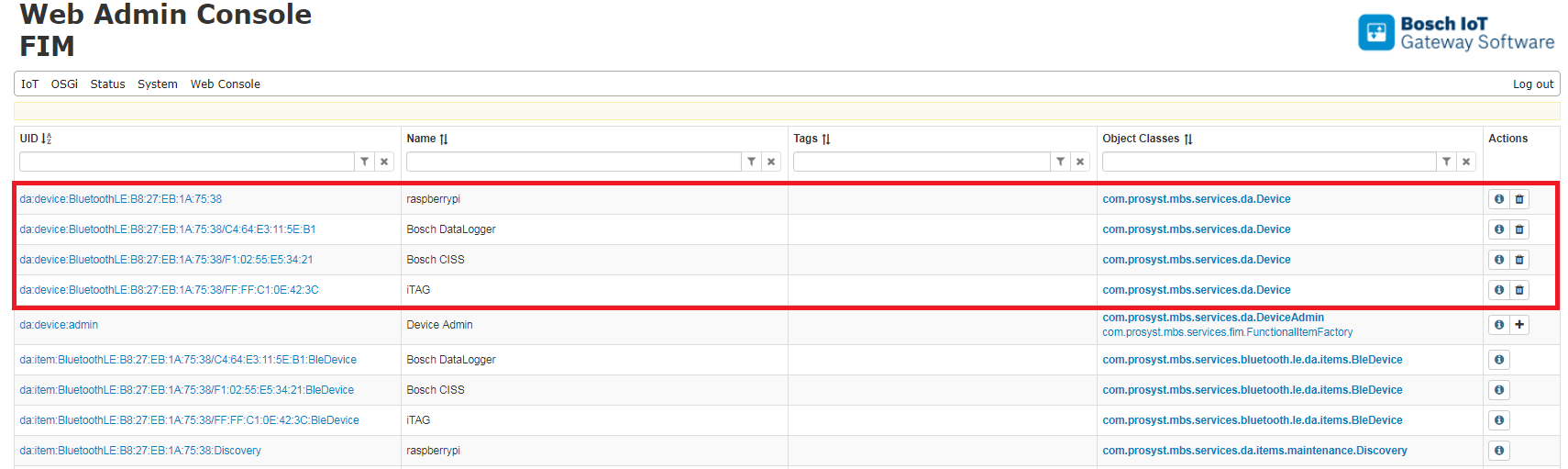
2. The Functional Items Management (FIM) page will display the physical devices currently included in the Bluetooth LE network.
The screenshot below shows four Bluetooth LE devices (registered with the com.prosyst.mbs.services.da.Device Object Class):
Displaying Device Info
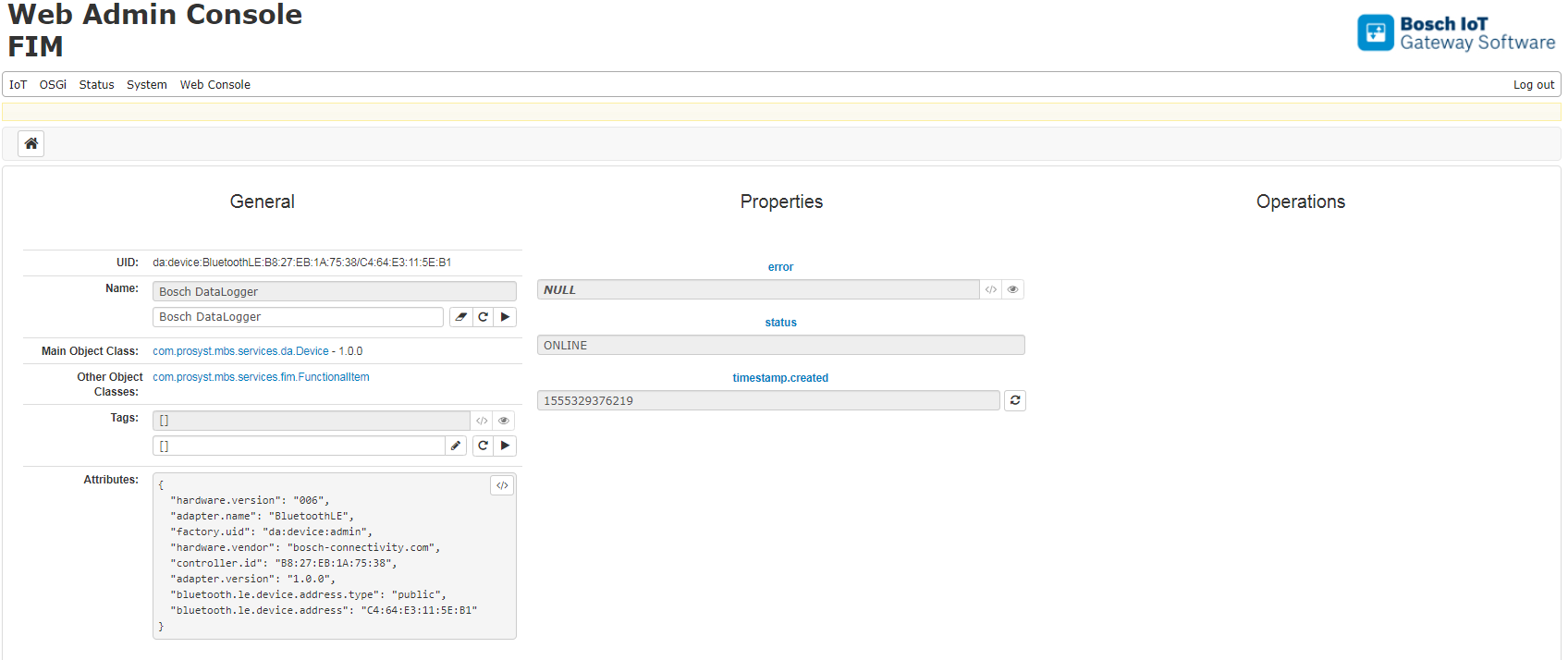
To see detailed info for a device, click the  button:

In the Details page you can see if the device is currently visible in the network (the status property has the value ONLINE), or is not currently available (the status property has a value different from ONLINE, with the error property containing the reason):
Starting/Stopping the Device Discovery
For each connected Bluetooth LE controller, there will be a com.prosyst.mbs.services.da.items.maintenance.Discovery item:
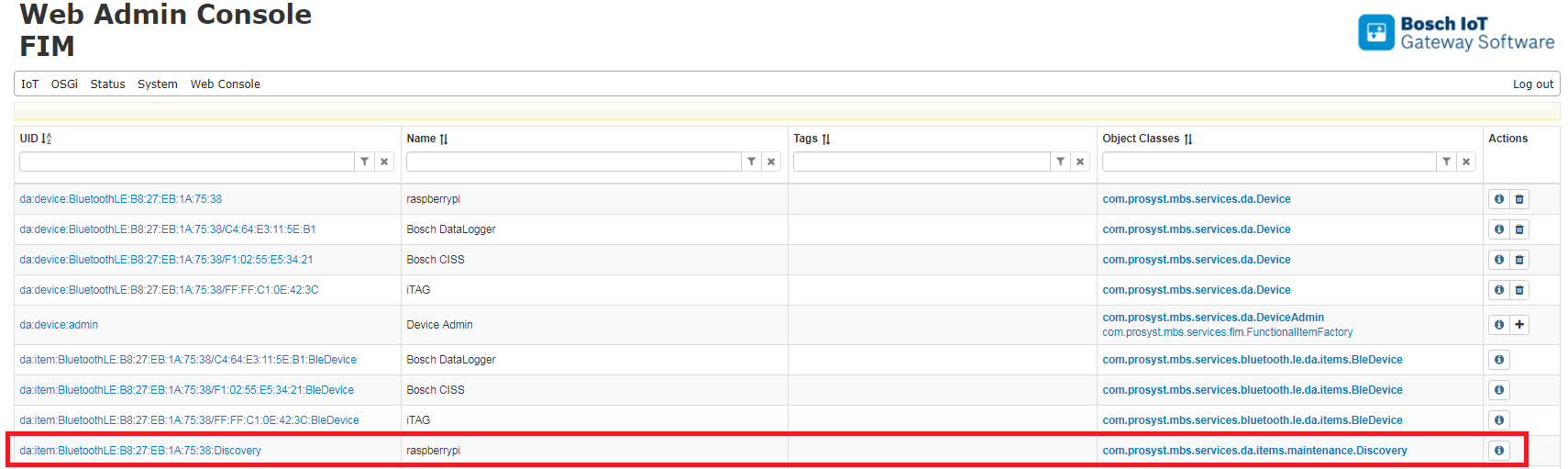
Click the button to open the Discovery Item page:
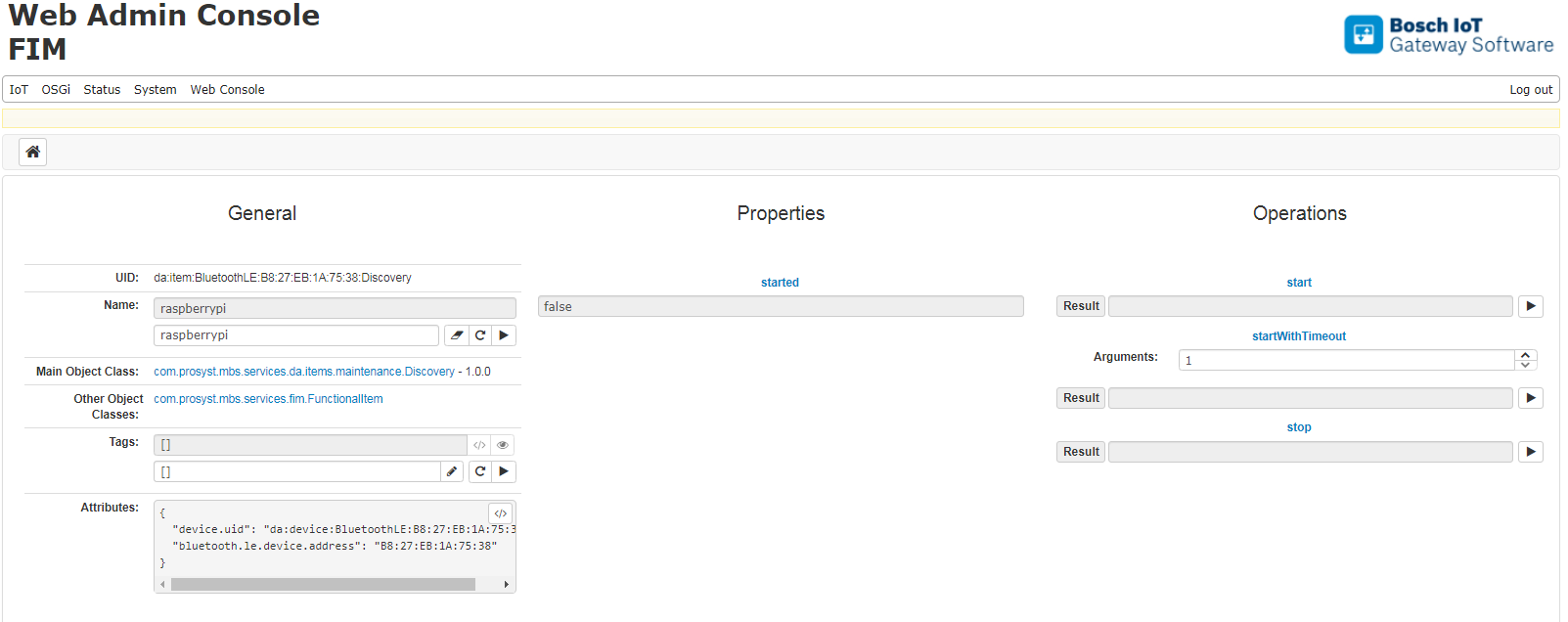
You can start the device discovery with the start or startWithTimeout operation and stop it with the stop operation. (The parameter of startWithimeout is the time for which the discovery will run, in milliseconds).
Connecting / Disconnecting Peripheral Devices
For each ONLINE peripheral device, there will be a com.prosyst.mbs.services.bluetooth.le.da.items.BleDevice Item:
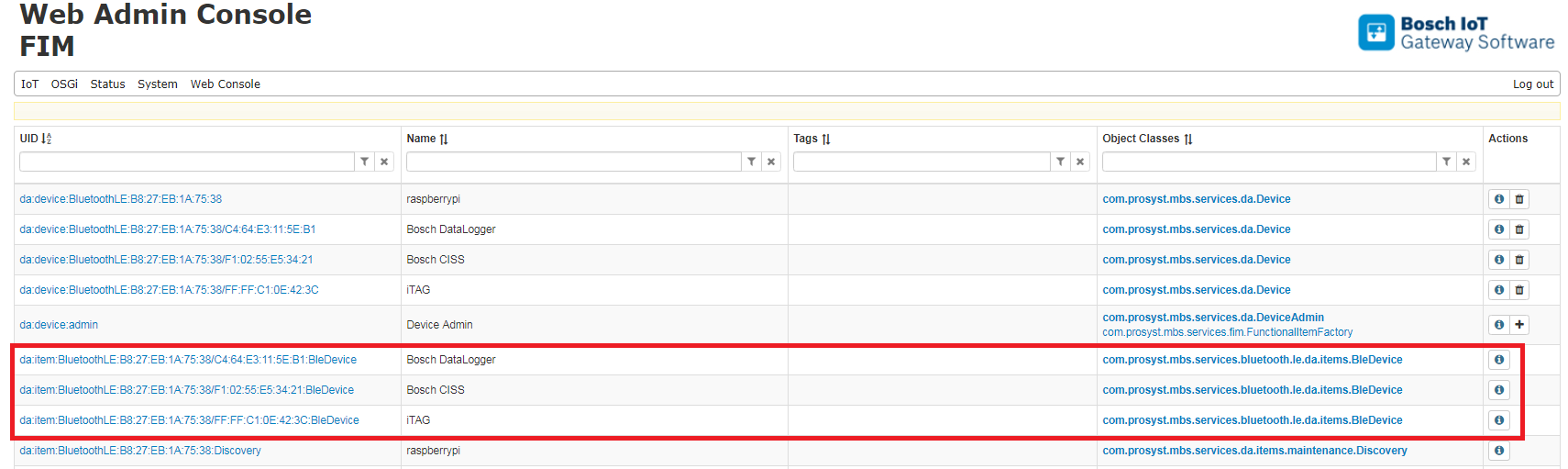
Click the button to open the BleDevice page of the device:
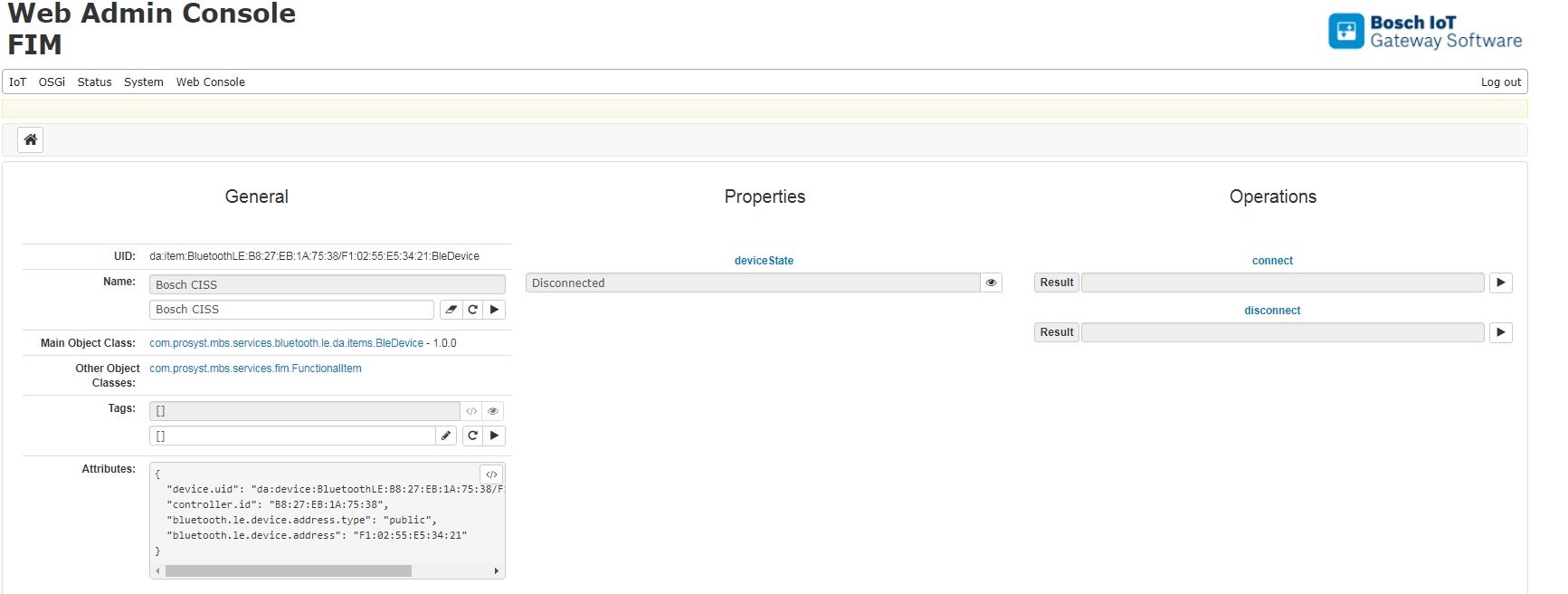
If the device is connectable, and supports the "just works" key generation method, it can be connected with the connect operation, and disconnected with the disconnect operation.
The deviceState property indicates the current connection state - the possible values are:
Removing Devices
To remove a peripheral device, click the  button. The device will be disconnected and removed from the network.
