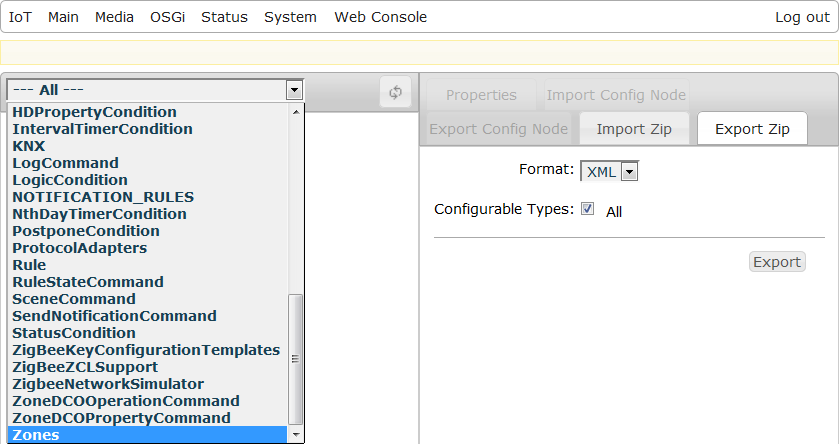
From the drop down menu that contains all configurations, choose the one you are interested in.
The Config Tree administration features are divided in two sections:
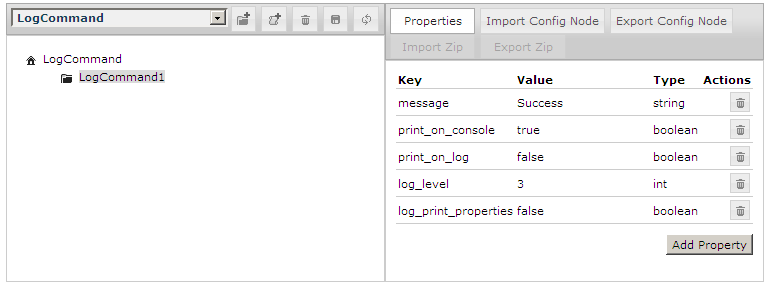
The left-hand side of the window hosts the configuration tree.
The right-hand side of the window shows the properties related to the configuration node selected on the left.
Editing Configurations
Examining Configuration Nodes
To examine the configuration properties of a node:
Find the node by browsing the configuration tree on the left side of the ConfigTree tab.
Select it by clicking on it.
You will see its configuration properties on the right side.
Adding/Editing Node Properties
Once you have selected a node, you can edit its configuration properties and add new ones.
To edit the key or the value of a property, double-click on it. You will see an editable field.
To add a new property click the Add Property button and then double click on each of the columns of the properties table to edit it.
Click to save your progress.
If your property should not be interpreted as string be sure to change its data type from the Type column.
Adding/Editing Map Property
Properties of type Map are added in a different way than other properties.
To add a new property of type Map to a node:
Select the node.
Click the icon. The map property is visualized as a separate node.
Select the property-node you have just created and click Add Property to add a new key-value pair to the map.
Click to save your progress.
Adding a New Node
To add a new node to a configuration:
Select an existing node to which the new one should be appended.
Click the icon. The new node will be created. You can change its name by double clicking on it.
Click to save your progress.
Deleting a Node
To delete a node select it and click the icon.
Importing and Exporting
You can export (save) ConfigTree configurations and individual configuration nodes as binary or XML files. You can also import (load) previously exported configurations from files.
Importing/Exporting Single Configuration Nodes
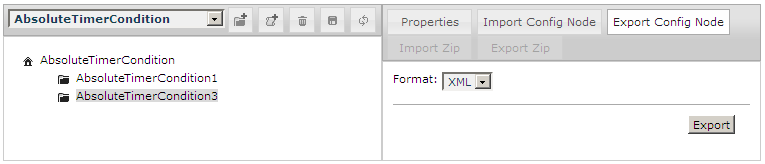
You can import and export individual configuration nodes.
Open the drop down menu located on the left-hand side of the ConfigTree tab and select the configuration you want to export nodes from, or import them to.
If you are performing an export, select the node you want to save. If you are performing an import, select the node to which the loaded node should be appended as its child.
Click Import Config Node or Export Config Node. If you chose the former, specify the file from which configurations should be loaded.
Importing/Exporting Several Configurations from/to ZIP File
You can export all or several configurations at once:
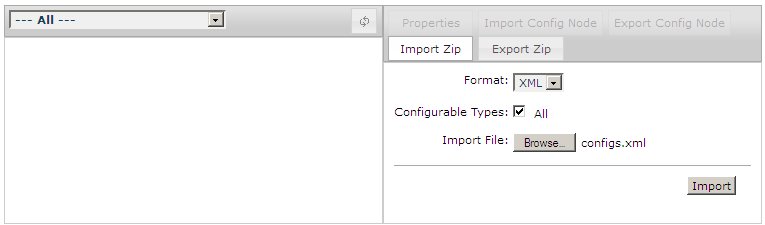
Open the drop down menu located on the left-hand side of the ConfigTree tab and select --- All ---.
Click Import Zip or Export Zip .
From the Format drop down menu, choose the file format that the configurations will be exported to/imported from.
By default all configurations from the system will be imported/exported. If you don't want that, uncheck the All checkbox and select the ones you do like to import/export.
If you chose the Import Zip option, specify the file from which configurations to be loaded.
Click the Import or Export button at the bottom of the window.


 to save your progress.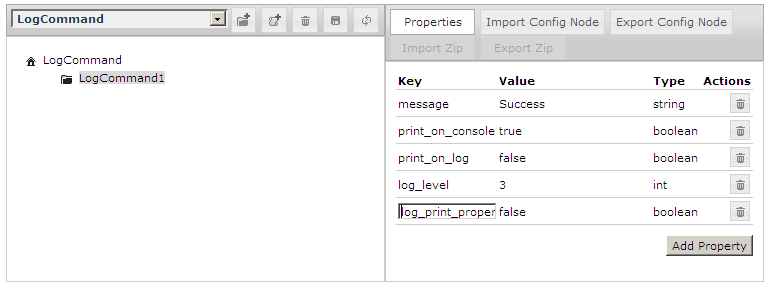
 icon. The map property is visualized as a separate node.
 icon. The new node will be created. You can change its name by double clicking on it.
 icon.
icon.