


|
|
|
|
|
A guide for managing Functional Items via the Web Admin Console.
Prerequisites
The Web Admin Console is a web-based application for administering the various components of the Bosch IoT Gateway Software.
kitman.i "Functional Item Management Web Admin"
For more details refer to the Setup guide.
Overview
In order to access the Functional Items Management view in the Web Console you need to go to IoT > FIM.
This will bring up the list of Functional Items.
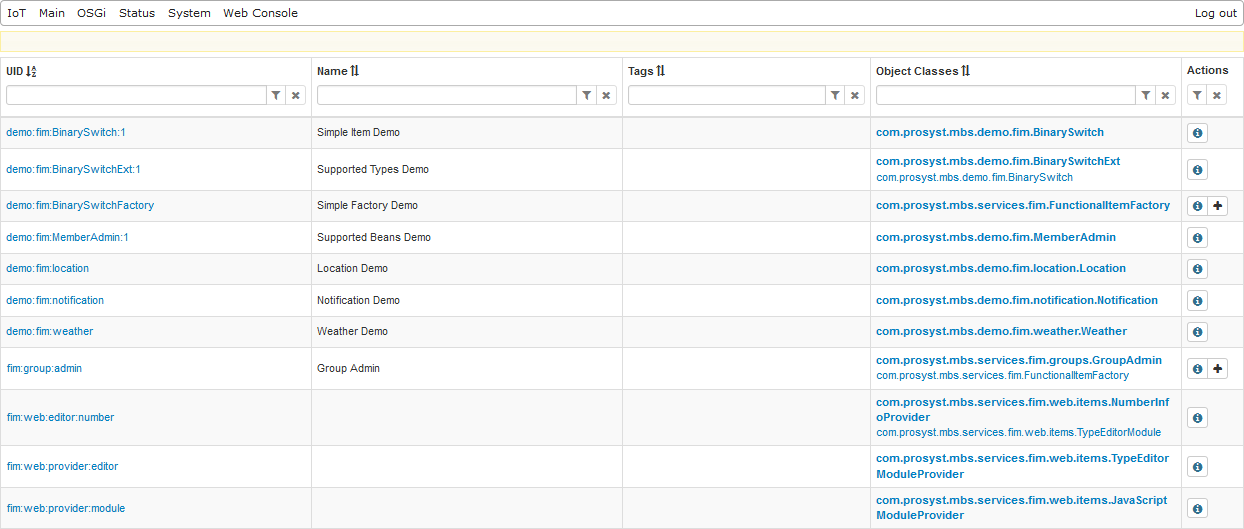
If you want to see more information, edit the properties or execute operations over a functional item press the  icon.
icon.
Alternatively you can click on the UID of the item. For example.

If you want to remove an item press the  icon. Remove can be executed ONLY on items that were Factory created.
Editing a Functional Item
Once a Functional Item is selected, another page containing specific Functional Item information will open up.
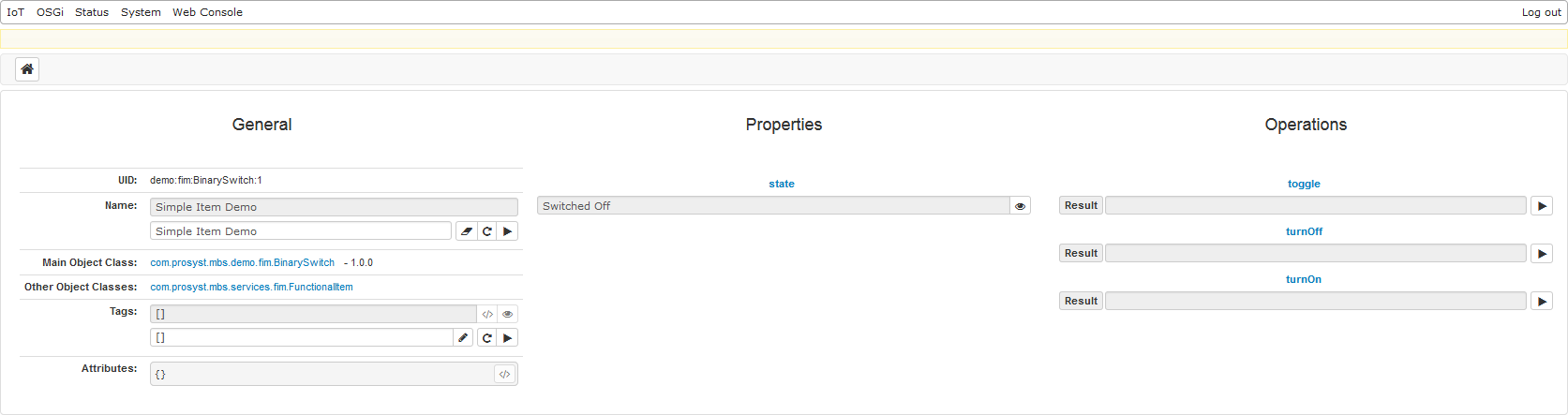
This page includes three columns with information: General Functional Item information, its Configuration Properties and the Operations that can be performed (as seen in the screenshot above from left to right). Depending on their function the displayed editors can be readable, writable or eventable, and are managed via different input/output fields and buttons.
Editor Specifics
The wide gamma of available Functional Items offers various editors with particular properties.
Viewing Editor Information
 button. Values used in the editors have different representation. In some cases, like the getCreationMetadata editor, for example, the same icon acts as a button that changes how the value is represented.
 button on its right.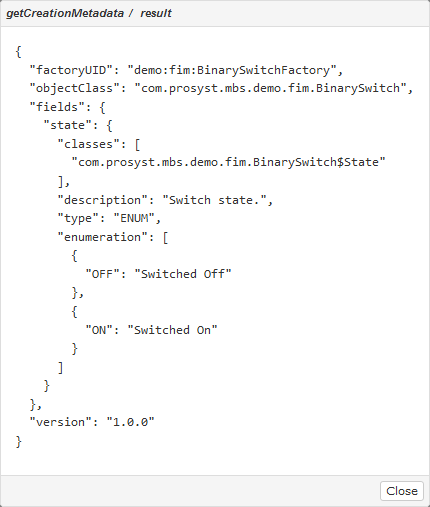

Altering Editor Components
 button. For example, new filter tags can be added by clicking on the button and typing them into the corresponding field.
 button. The same button is used when an operation has to run.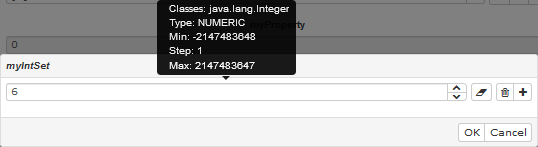
The same applies to editors that require a double or long type of input like for example the temperature one

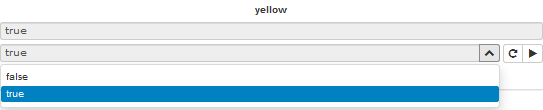
 button. In the case with myIntSet NULL will not be accepted though.
 button. This option is presented for writable fields.
Groups
The FIM Group Admin has inherited two interfaces com.prosyst.mbs.services.fim.groups.GroupAdmin and com.prosyst.mbs.services.fim.FunctionalItemFactory which allows the creation of Functional items by clicking the  button.
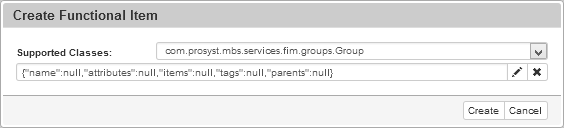
If you click the button it will let you edit the properties in a more convenient view.
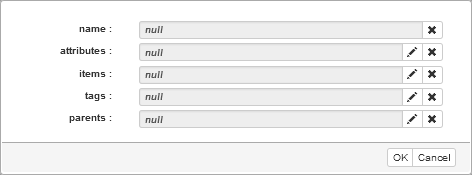
Bulk Operation Support
It is possible to execute operations over multiple items within a group as a bulk. To see how to use the Bulk Operation support with the web console, install and start the Functional Item Management Simple Groups Demo. It will create two groups, represented in the Groups tab. To create a new group use the plus icon:
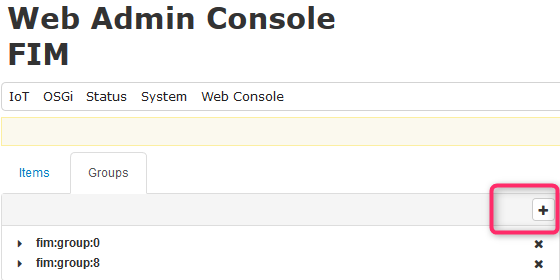
A click over a selected group opens Items, Bulk, and Details tabs:
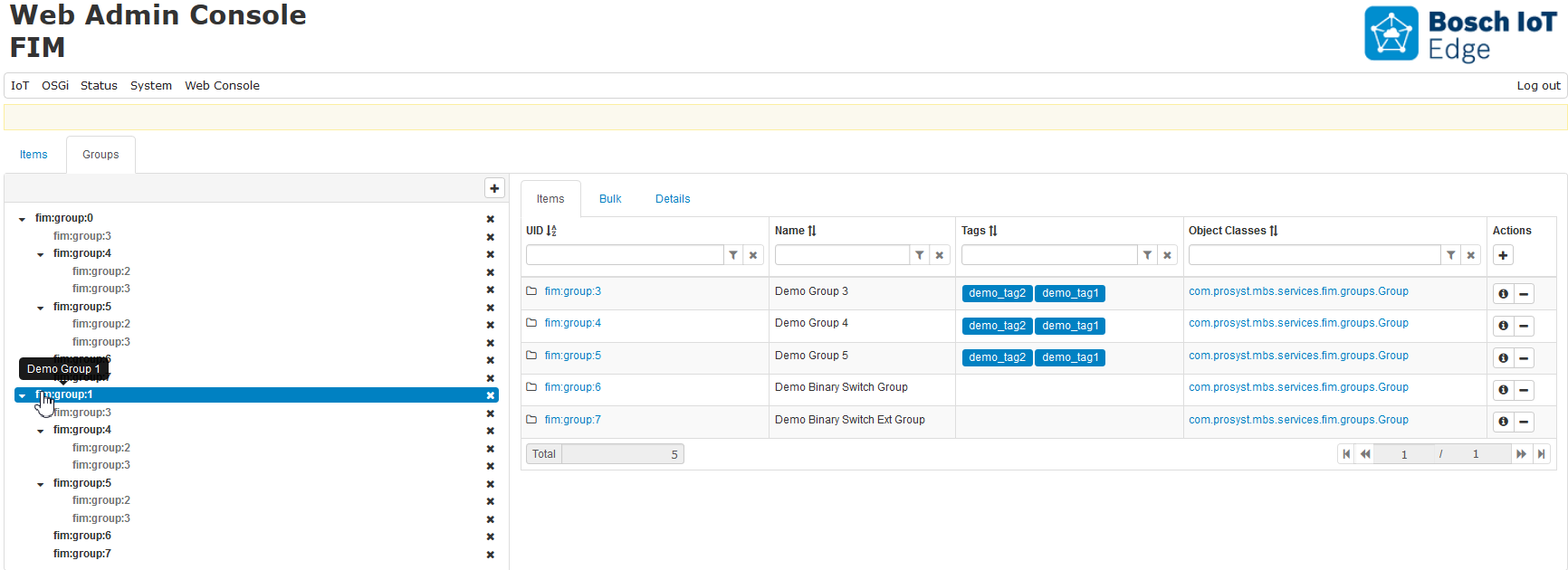
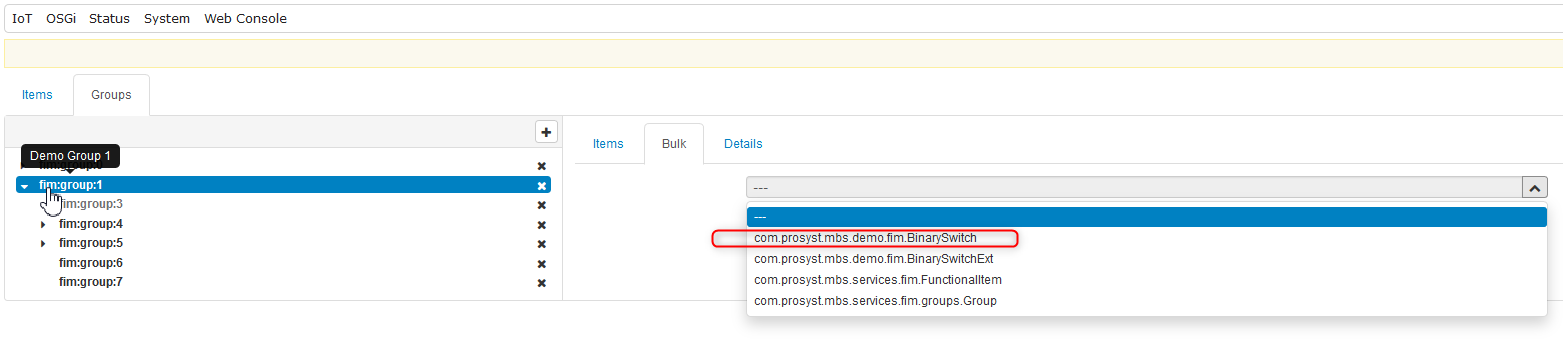
Choose one of the demo groups to execute, e.g. the toggle operation, over all of its items. From the drop-down menu of the Bulk view choose the item object class to set its property and invoke bulk operations over all the items in the group with the same object class:
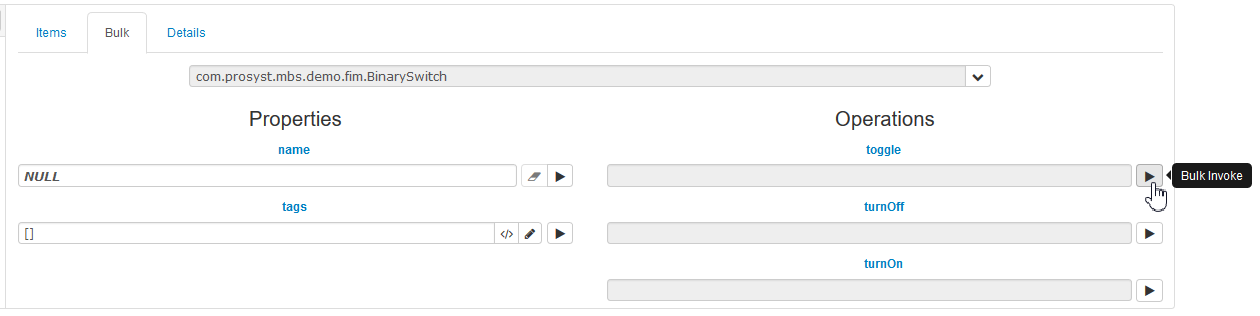
Triggering the toggle bulk operation invokes toggle over each item of the group with com.prosyst.mbs.demo.fim.BinarySwitch object class. These would be BinarySwitch and BinarySwitchExt items.

Factories
The Factories allow easy creation of new functional items by using a predefined template with properties and operations. You can use an existing factory by clicking the button.
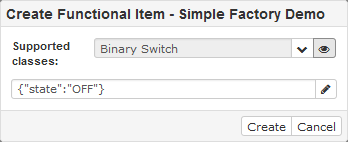
The newly created functional items are then added to the list.

Additional information of the Factories may be found in the developer guide.
Number Beans
This web editor simplifies Number bean creation and allows the user to define a number format. It represents a custom UI support for java.lang.Number. It carries a regular expression that can generally be of any type. The number editor can be used in Functional Items that have units or quantities like the BinarySwitchExt, for example. The number editor has a gray field that represents the input, a Value and a Class field that are editable.

Using the button on the Class editor will set its value to NULL, while using it on the Value editor will remove the Class field as well. A new Class field should be added using the  button.

Choosing the number class is handled through the second field entitled Class. Clicking on the upper arrow opens up a drop down menu containing the classes. Every class is expecting a specific value format. For example, see the CompoundNumber screenshot bellow. The CompoundNumber class is provided by the Units of Measurement module.
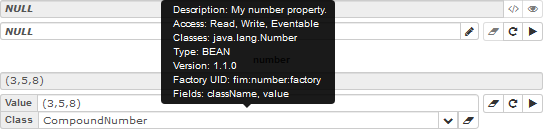
Once the input is entered in the Value field it is set by using the button. If the entered input is not of the acceptable formats a corresponding error message will appear in the form of a tooltip.

Metadata Explorer
The FIM Web Console provides a convenient way of viewing metadata. Every Object Class, Property and Operation name is actually a link to the Metadata Explorer.
Clicking on the Object Class' name opens the Metadata Explorer window. The Metadata Explorer displays the Name, Version and Description of every Object Class with its related Properties, Operations, and Operation Events, if any.
• View Metadata icon  opens up the object's read fields.
• Create Metadata icon opens its create fields.
Switching between view and create is possible via their corresponding buttons.
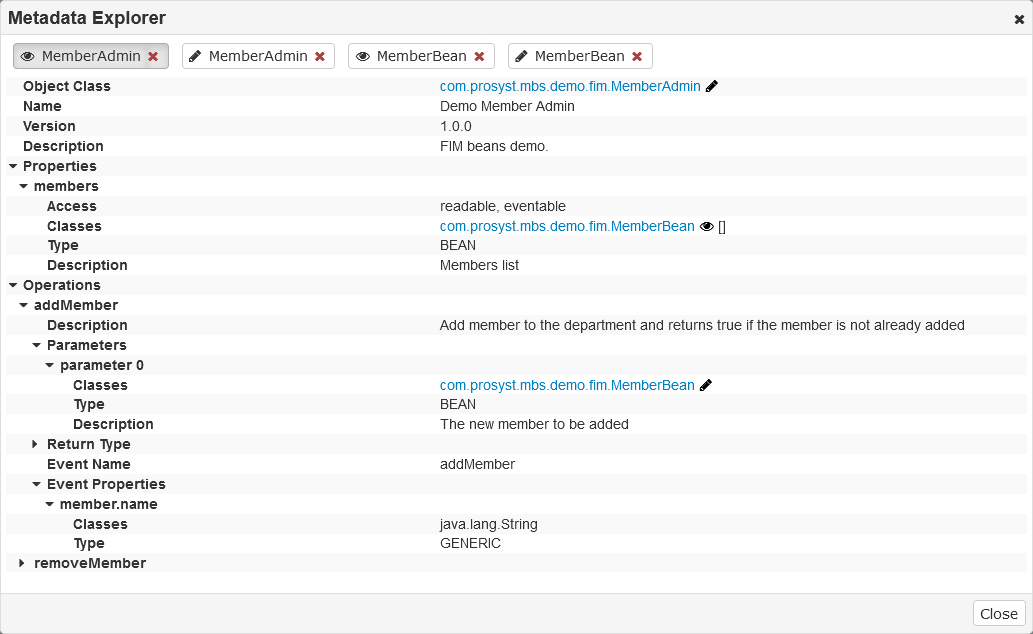
The property of type BEAN is described only by its bean class name and the bean metadata is accessible through the name of the BEAN class. The bean classes have their view and creation metadata accessible through the exact same icons as the object classes metadata.