


|
|
|
|
|
Setting Up the Environment
Set up the environment for the Peripheral Module by executing one of the Peripheral Kit Manager installation scripts or by manually installing (and starting) the necessary bundles so as to have also the Web Admin Console available.
If you hold the mouse cursor on one of the buttons in the action column on the right hand side, a tool tip appears with information about the action that is performed through a click on the respective button.
Manage Peripheral Devices
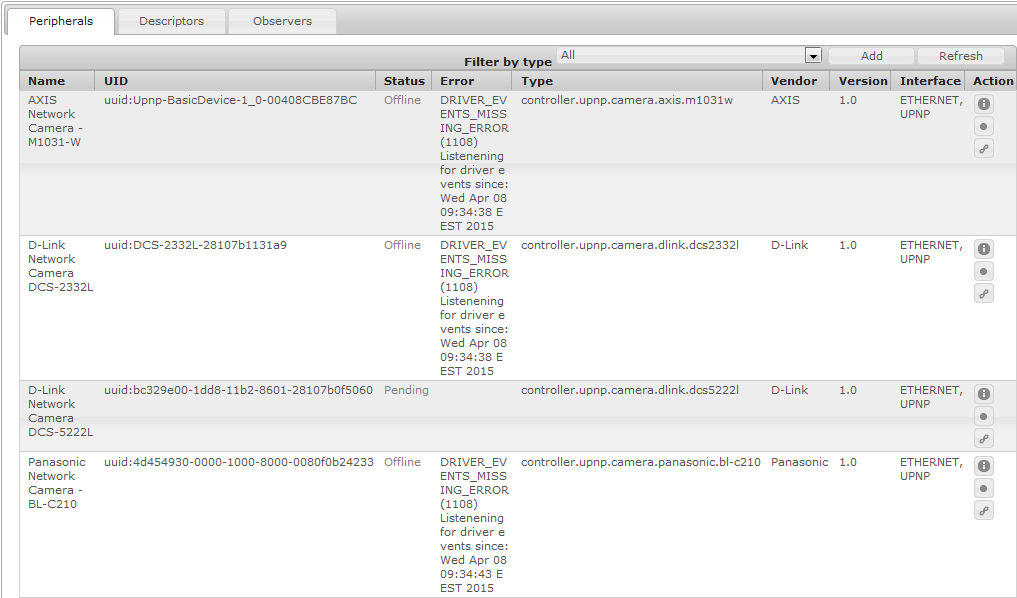
To manage peripheral devices with the Web Admin Console click on the Peripherals tab. From there you can do the following:
See a List of the Peripheral Devices and Their Properties
On the peripheral tab you see a table of the plugged peripheral devices with the following properties:
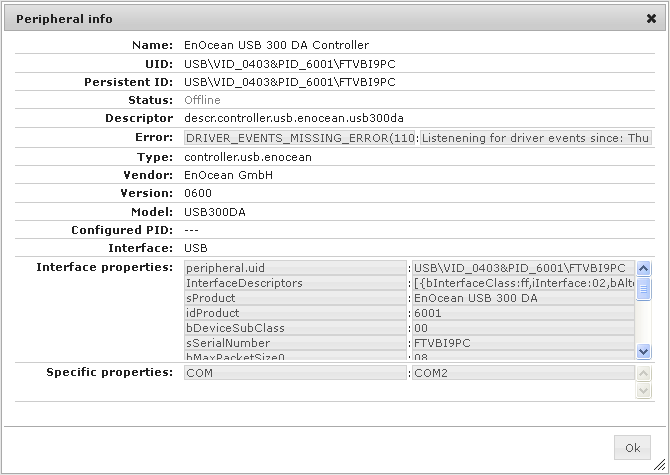
This information, as well as the Protocol properties for a device are displayed in the window that appears after a click on the Peripheral Info button on the row with the respective device.
Add a Peripheral Device
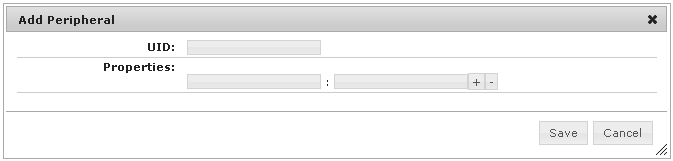
To add a peripheral device click on the Add button. Enter the device UID, all its property names and their values and click on Save.
Remove a Manually Added Peripheral Device
Only manually added peripheral devices can be removed using the Web Admin Console. In this case a button with a recycle bin is displayed on the right hand side on the row of the respective device.
Enable/Disable a Peripheral Device
If a descriptor is disabled the enable/disable button on this row displays a circle, which means that the enable operation is available and the device can be enabled.
If a descriptor is enabled the enable/disable button on this row displays a disk, which means that the disable operation is available and the device can be disabled.
If a device will not be used any more and cannot be technically unplugged (e.g. it is an embedded device), in order to deallocate the resources used for this device it is disabled.
Manage Peripheral Descriptors and Device Drivers
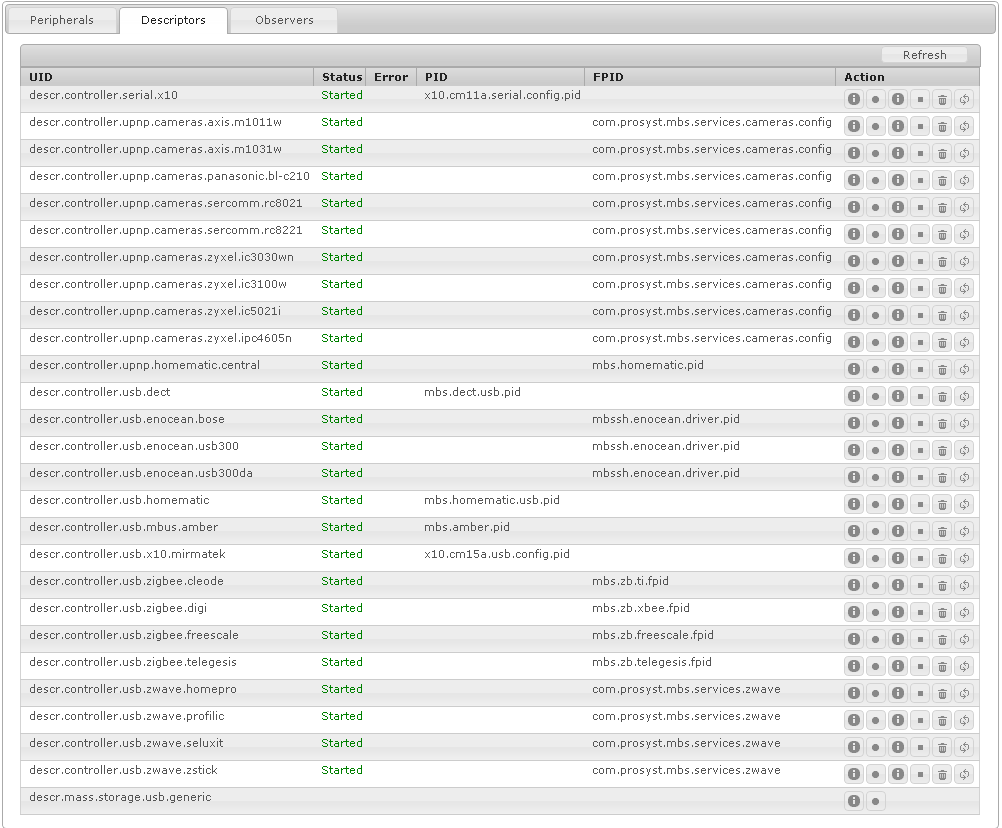
To manage peripheral descriptors and device drivers with the Web Admin Console click on the Descriptors tab:
From there you can do the following:
See a List of the Peripheral Descriptors and Their Properties
On the Descriptors tab you see a table of the Descriptors with the following properties:
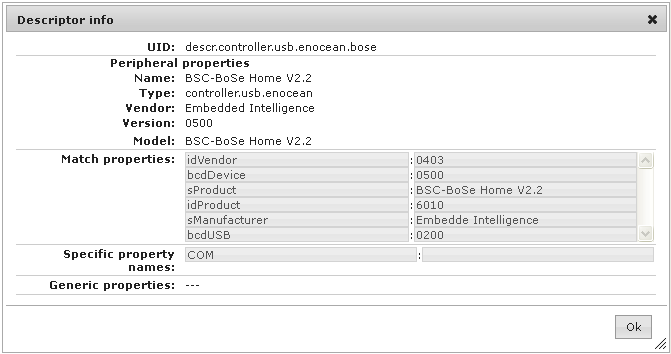
This information, as well as the Match properties for a device, the Specific property names and the properties such as type, vendor, version, etc. are displayed in the window that appears after a click on the Descriptor Info button on the row with the respective device.
Enable/Disable a Peripheral Descriptor
If a descriptor is disabled the enable/disable button on this row displays a circle, which means that the enable operation is available and the descriptor can be enabled.
If a descriptor is enabled the enable/disable button on this row displays a disk, which means that the disable operation is available and the descriptor can be disabled.
If a descriptor is disabled all devices associated with this descriptor are disabled. Enabling a descriptor enables automatically all devices associated with it.
See the Details about the Driver Specified by a Descriptor
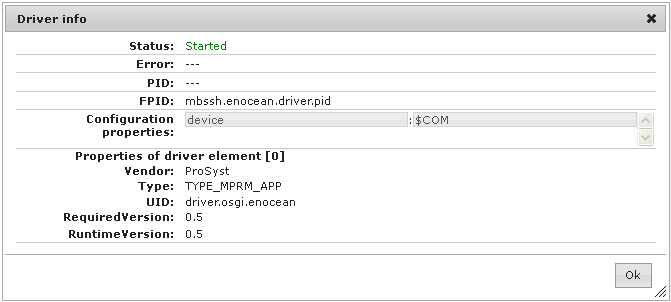
If you click on the driver info button a window is displayed which presents the driver status and the PID/FPID, whichever is relevant.
Start/Stop the Driver Specified by a Descriptor
If a driver is stopped (driver status is installed) the start/stop button on this row displays an arrow, which means that the start operation is available and the driver can be started.
If a driver is started the start/stop button on this row displays a square, which means that the stop operation is available and the driver can be stopped.
Install/Uninstall the Driver Specified by a Descriptor
If a driver is uninstalled the install/uninstall button on this row displays a star, which means that the install operation is available and the driver can be installed.
If a driver is installed the install/uninstall button on this row displays a trash bin, which means that the uninstall operation is available and the driver can be uninstalled.
Update the Driver Specified by a Descriptor
The update button allows you to update the driver specified by this descriptor.
Manage Device Observers
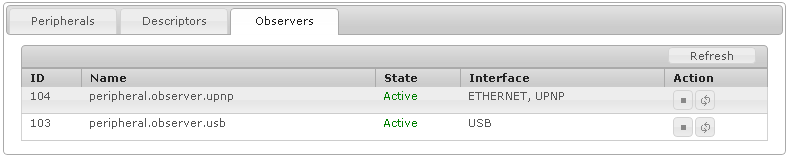
To manage device observers with the Web Admin Console click on the Observers tab.
Start/Stop an Observer
If an observer is stopped the start/stop button on this row displays an arrow, which means that the start operation is available and the observer can be started.
If an observer is started the start/stop button on this row displays a square, which means that the stop operation is available and the observer can be stopped.
Restart an Observer
To restart an observer click on the restart button.