|
|
|
|
|
You can manage KNX devices via the FIM user interfaces.
To do that, you must install the following Kitman scripts:
Manually Adding Devices
You can add devices manually, without using ETS project file. To do so follow the steps bellow:
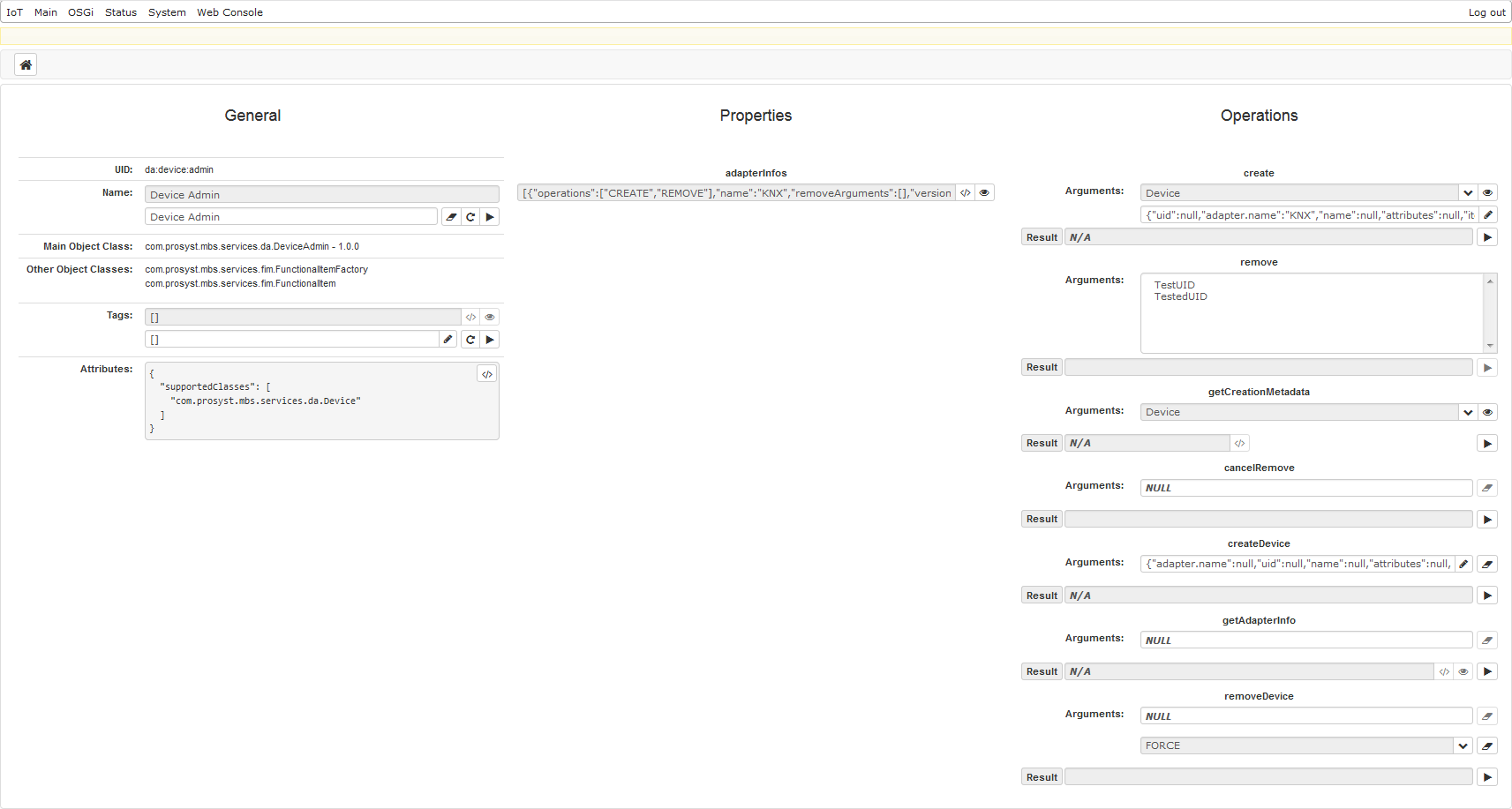
Creating Devices
Enter the following JSON script in the second field:
{"uid":"MyTestDeviceUID","adapter.name":"KNX","name":"MySwitch","attributes":{"address":"1.1.1"},"items":[{"uid":"MyTestDeviceUID_Switch","name":"Switch","objectClass":"com.prosyst.mbs.services.da.items.Switch","attributes":{"Switch.dp_switch.address":"1/1/11","Switch.dp_status.address":"1/1/12"},"tags":null}],"tags":null}
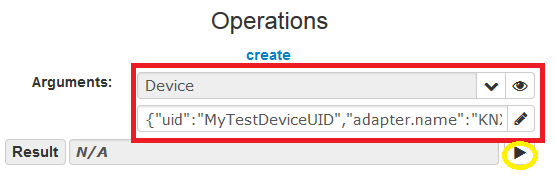
Alternatively, you can achieve the same result in a more user-friendly way by using the editor to prepare the same JSON string.
To populate each parameter separately, click the Edit (pencil) button in the above screenshot. The following dialog will appear:
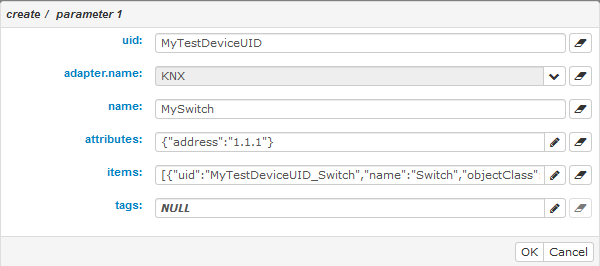
Set up the device attribute:
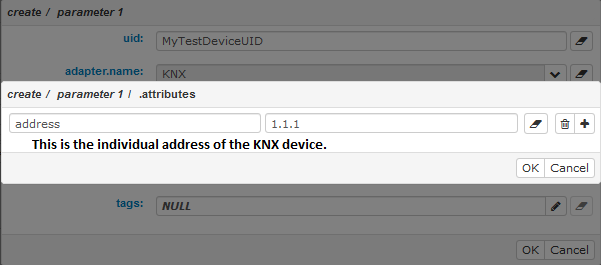
Set up the device item:
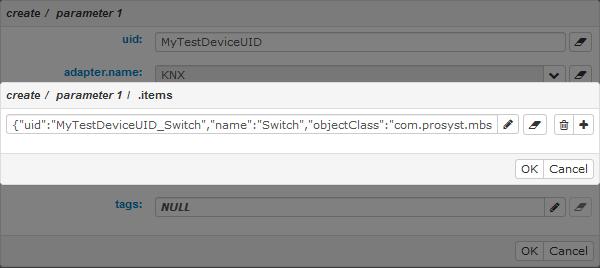
Create device item Switch:
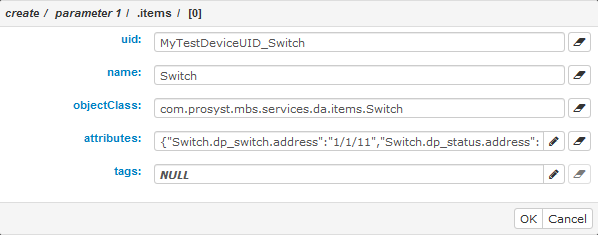
Create device item Switch datapoints:
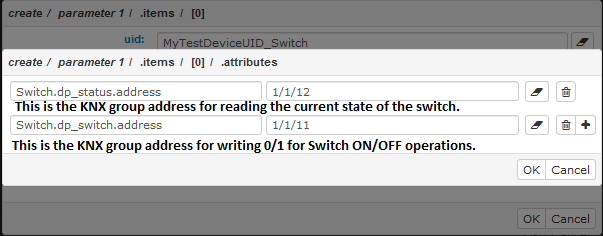
Removing Devices
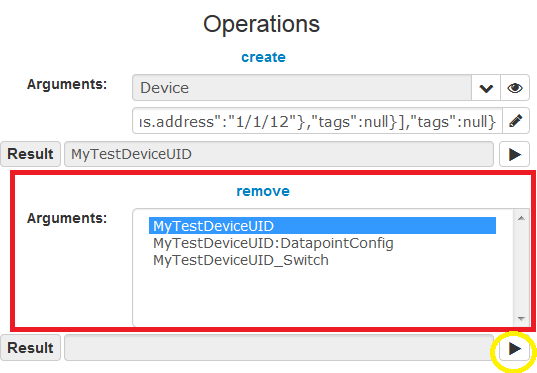
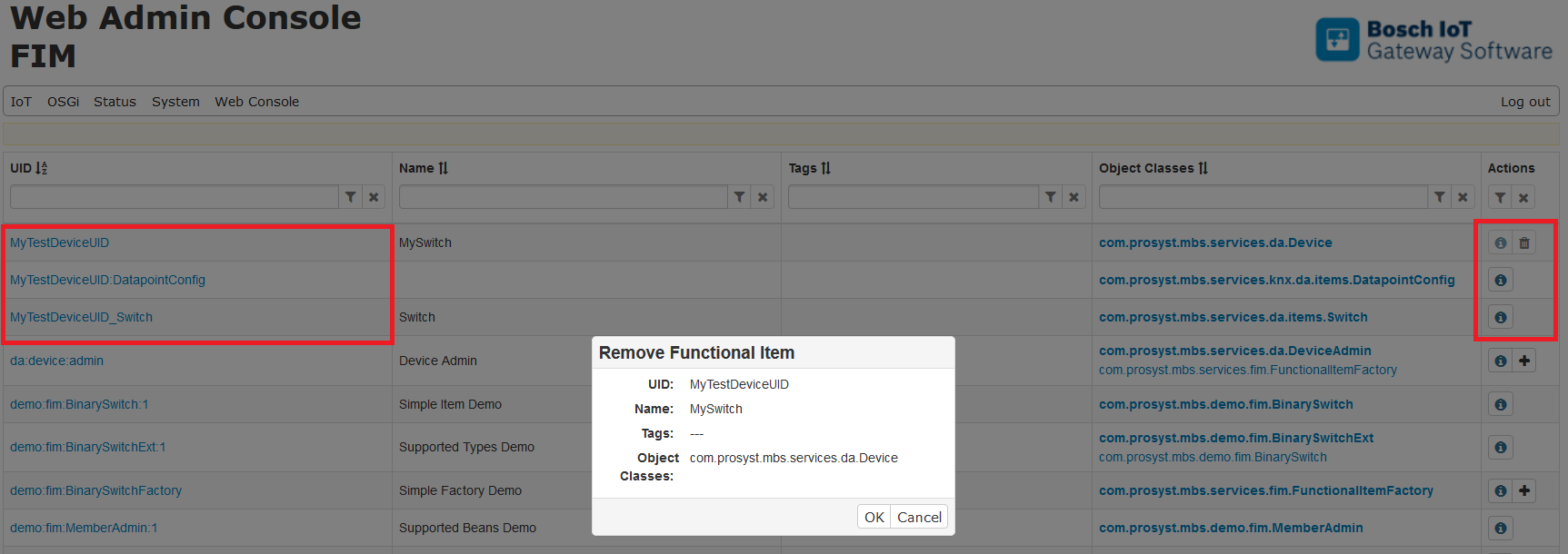
Alternatively, you can remove the device and all its corresponding device items via the Web Admin:
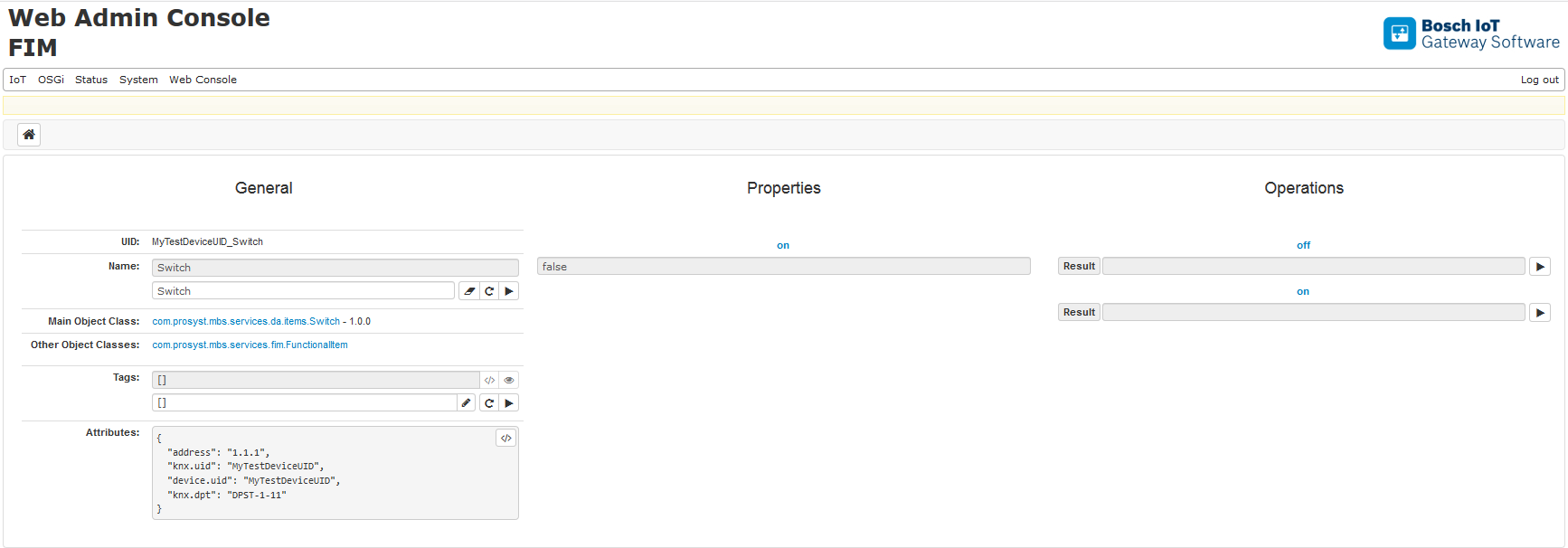
Using KNX Device Items
To inspect the properties of a device:
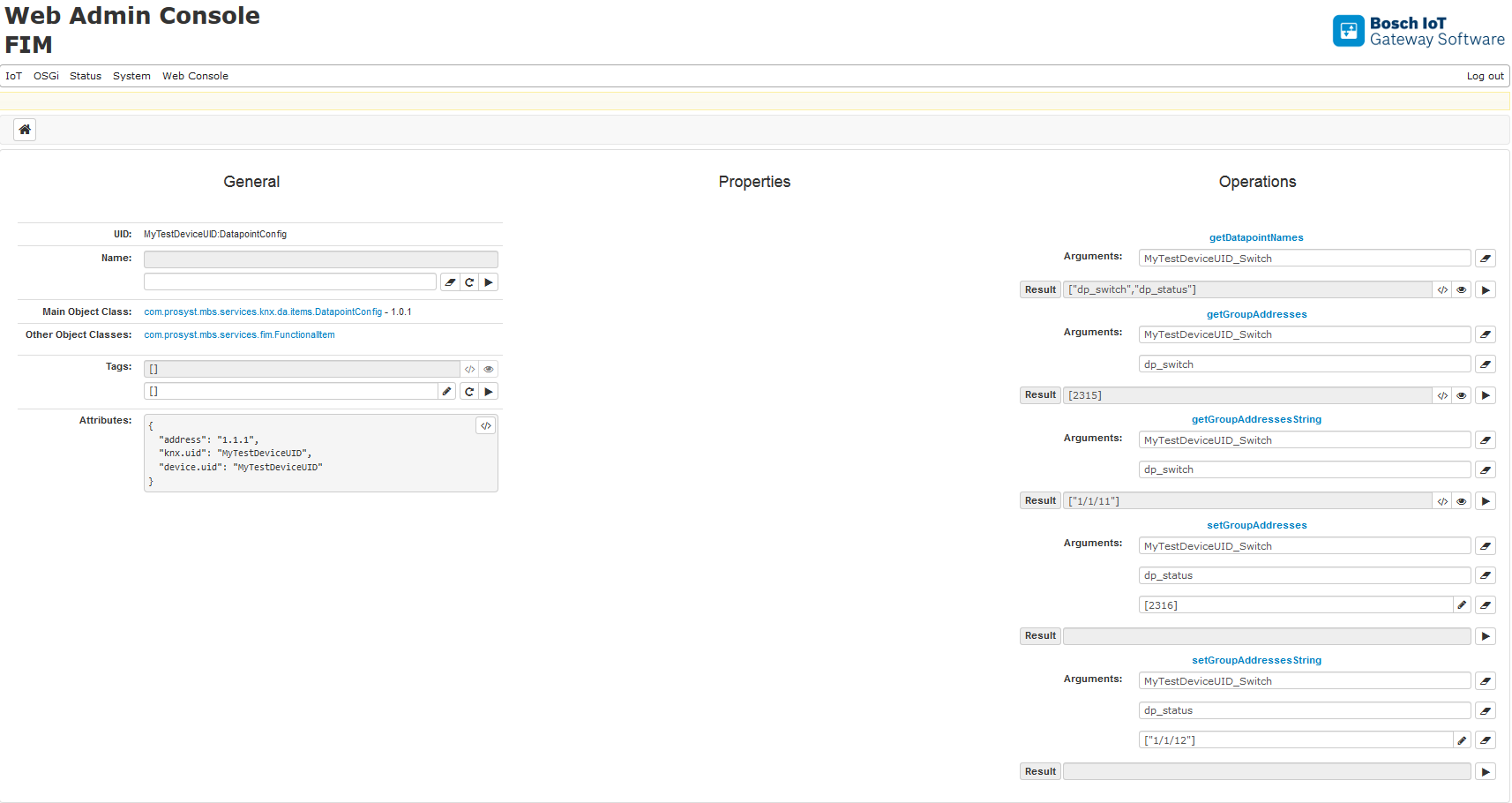
For example, inspect and update the datapoints and their group addresses of the other device items within the device: