Setting up the Environment for using the FIM plugin
Make sure you have the Web Admin Console installed by follow ing the steps in the Setup Guide for the Z-Wave Module.
Displaying Devices
To load the Z-Wave devices, from the Protocol Adapter box, select the IoT -> FIM tab.
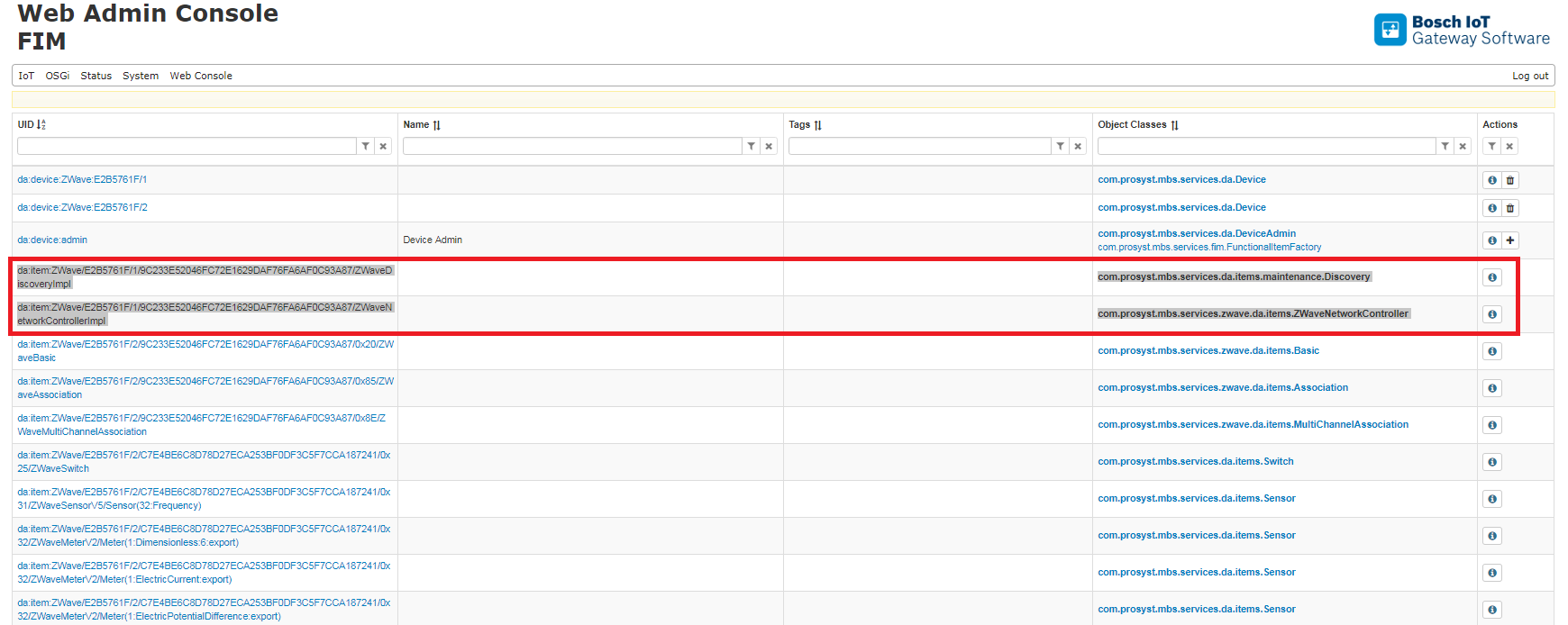
Initially, the Functional Items Management (FIM) page will show the physical devices currently included in the Z-Wave network represented by multiple Functional Items according to the device functionalities.
Adding Devices
To include devices in the Z-Wave network, you can use the Z-Wave implementation of the Discovery Device Item which is a command abstraction for all different protocol implementations, or the ZWaveNetworkController Device Item which also offers all Z-Wave protocol specific functionalities.
Go to the IoT -> FIM tab.
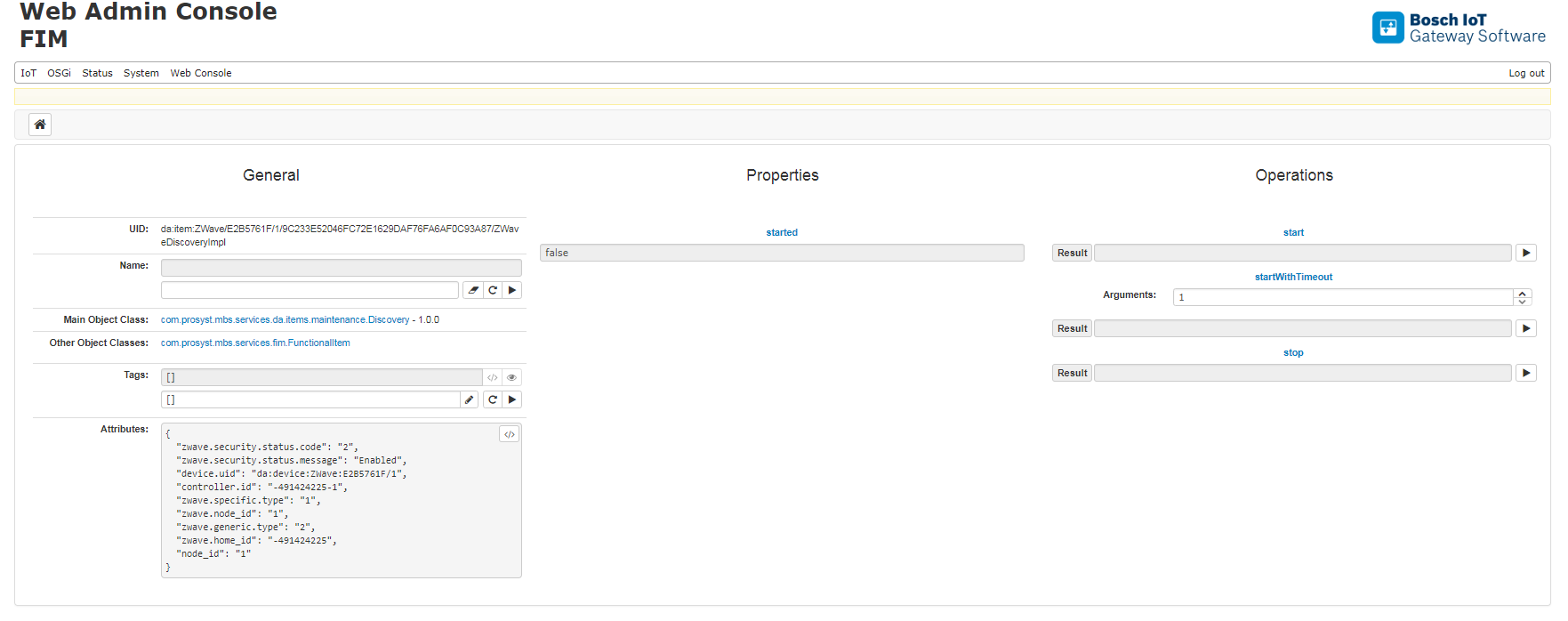
Find the Z-Wave Discovery Device Item.
Click the button.
Execute the start operation by clicking the button, or specify the duration of the pairing mode if needed.
or:
Go to the IoT->FIM tab.
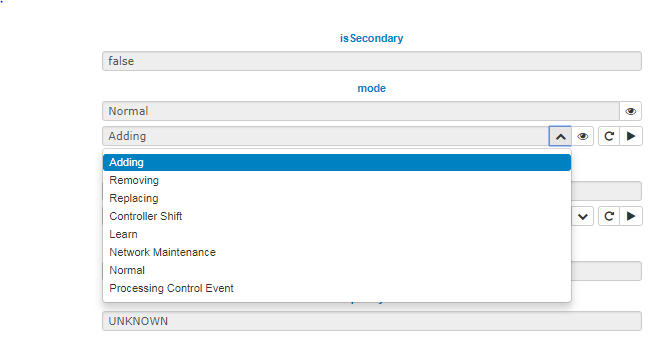
Find the ZWaveNetworkController Device Item.
Click the button.
Set the "mode" property to Adding.
Set the physical device in adding mode, according to its manual instructions.
Controlling Devices
Once the devices are included in the Z-Wave network and registered in FIM, you can use their Device Items (DI). Functional commands can be launched through the device items of the endpoint home devices.
To execute an operation over a Z-Wave device:
Go to the IoT->FIM tab.
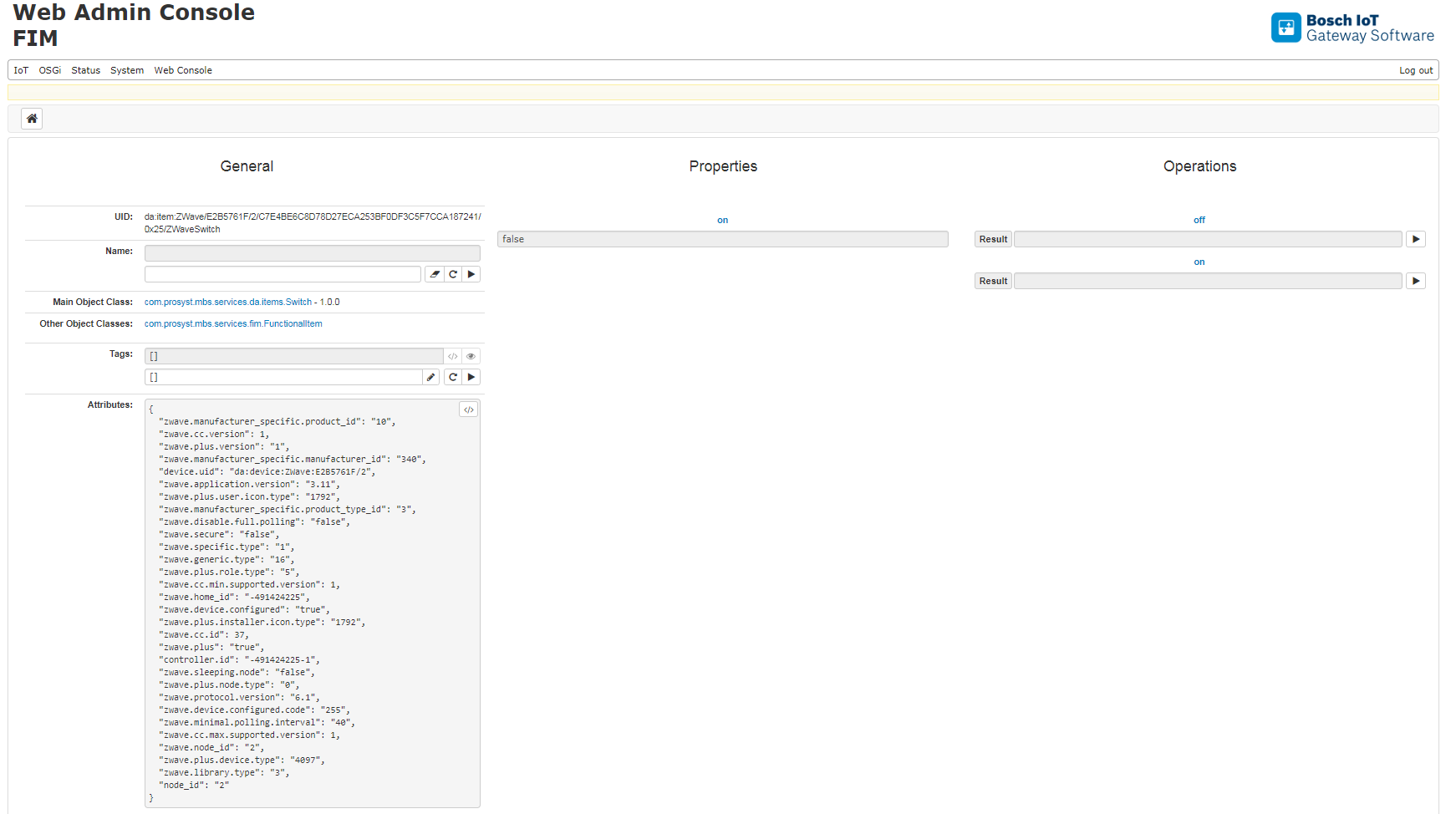
Locate the end point FIM Device Item and click the button.
In the Device Information dialog, locate the device item corresponding to the Z-Wave interface type. For example, select Switch -> Operations for executing the On/Off command.
Click the button to execute the command.
Removing Devices
In order to remove a node from the Z-Wave network:
Go to the IoT->FIM page.
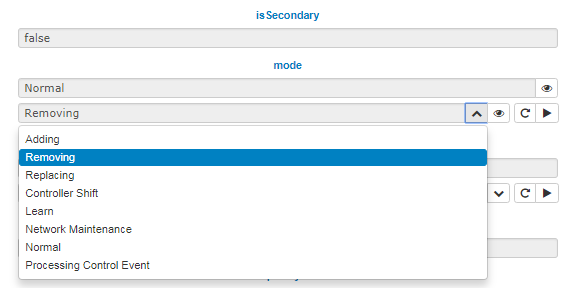
Find the ZWaveNetworkController Device Item.
Click the button.
Set the "mode" property to Removing.
Set the physical device in removing mode, according to its manual instructions.


 button.
 button, or specify the duration of the pairing mode if needed.