


|
|
|
|
|
You can create an Image Description either manually, or by directly coping the structure and content of an existing runtime.
Create an Image Description Manually
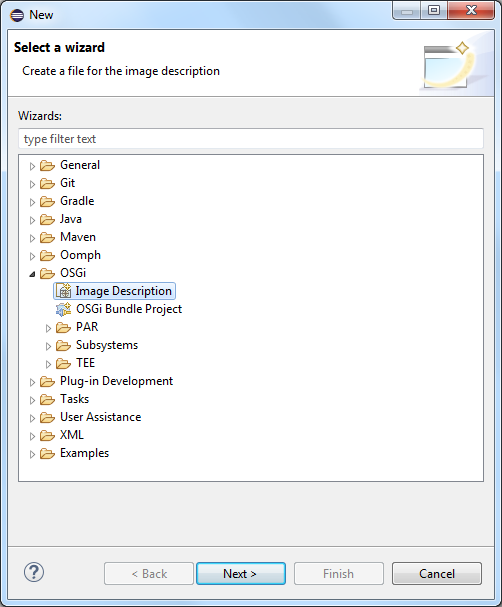
To create an Image Description file that will be used to configure and generate a target image:
In the Filename field enter the name of the Image Description.
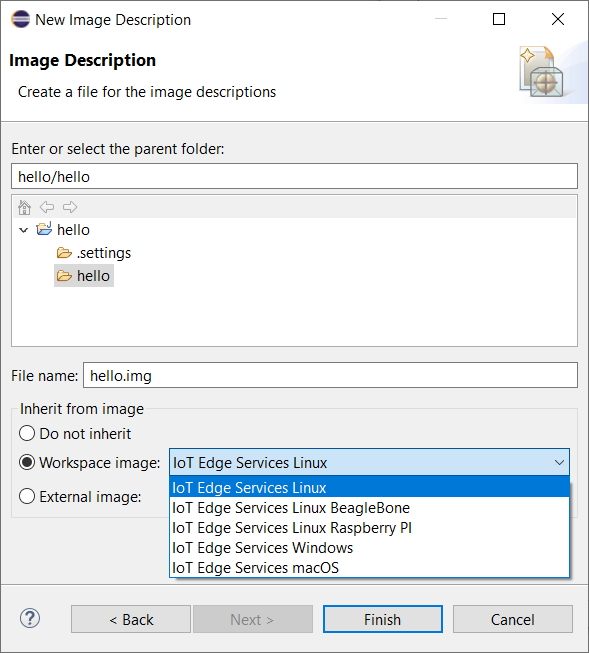
Generate an Image Description from a Connected Runtime
You can create an Image Description file directly by coping the structure and content of a runtime connected in the Frameworks view.
The core advantage is to be able to replicate an image based on an existing runtime that was generated on another machine or by a 3rd-party, if you do not have the original image descriptor.
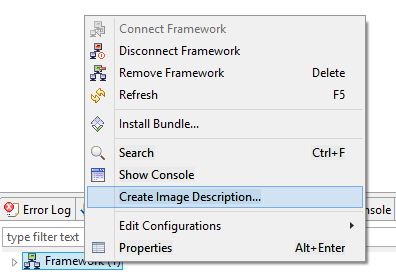
Beware that it might not be possible to include in the resulting bundles which are not available in the PDE target platform. To leave such bundles out of the Image Description, select the Skip Missing Bundles option. On the next figure the New Image Description Window is shown:
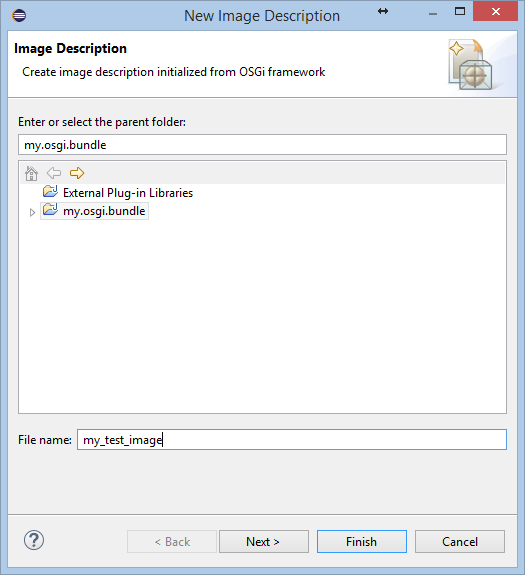
The Image Description will become available within the specified project. You can open it in Eclipse for further configurations.
The OSS Disclosure is provided by Bosch.IO for the SDK as a whole and indicates all OSS included in the SDK and all applicable OSS licenses. Please be aware to check for each image created by the Image Builder on your own and sole authority what OSS is included in your image, what OSS licenses apply and how to comply with the applicable OSS license obligations. All information is provided in the notice files.