


|
|
|
|
|
In the Platform Settings section, specify the operating system and CPU of the target platform following the instructions and save the Image Description file as shown on the figure below:
If some of the selected components from the Bundles or Build Settings sections are incompatible with the target device platforms, an error message will show up when attempting to generate the target runtime image.

Define the Native Platform
From the Platforms list, specify the operating system/processor type which will be integrated on the platform.
Select JVM-Specific Startup Scripts
From Startup Scripts - Select one or more JVM-specific startup scripts, that the SDK offers, to be generated for launching the OSGi Runtime. Startup Scripts is synchronized with list of scripts that the associated runtime contains.
Add a JVM to the Image
If required, e.g. the JVM is not installed on the target device, in the VMs section specify the JVM images to add to the runtime image.
By default, you can choose from JVMs compatible with the target platform. For example, if you have selected Linux/x86 in Platforms, the Type box will contain only entries for this OS. To see all images regardless of the platform they are for, e.g. to generate an image for another environment, check the Show incompatible VMs box.
Then simply choose the one that you have explicitly downloaded on your PC.
When you add a JVM to the target image, the respective startup script will be automatically selected.
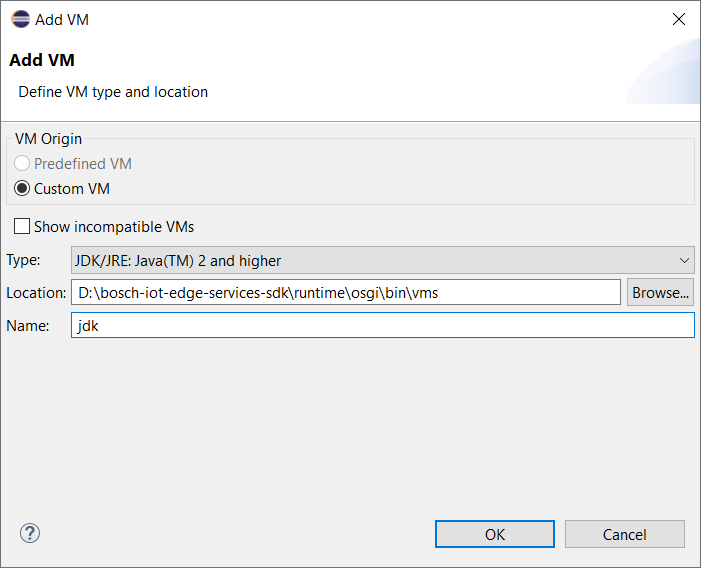
Add a Custom JVM
To add a custom JVM, execute the following steps:
For WinCE Set Image Location
If you will build the image for a WinCE platform, in the Image Location field specify the location where the image will be uploaded onto the device file system. The location will be used to configure the paths in the startup scripts properly.