


|
|
|
|
|
A guide for managing the Units of Measurement Framework via the Web Admin Console.
Prerequisites
To manage the Units of Measurement Framework through Web Console you have to install the web console together with the FIM Web Admin module, e.g using the following kitman scripts:
kitman.i "Functional Item Management Web Admin"
kitman.i "Units of Measurement FIM Web"
Overview
To access the list of Functional Items in the Web Console you need to go to IoT > FIM tab as explained in the FIM Management via Web Console. By a click on the item more details are provided about its General information, Properties and Operations.
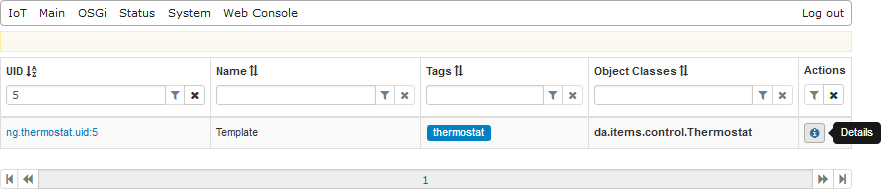
By choosing an item with quantity, the custom UI usage for units of measurements beans can be described below.
How to Manage Measurements Beans
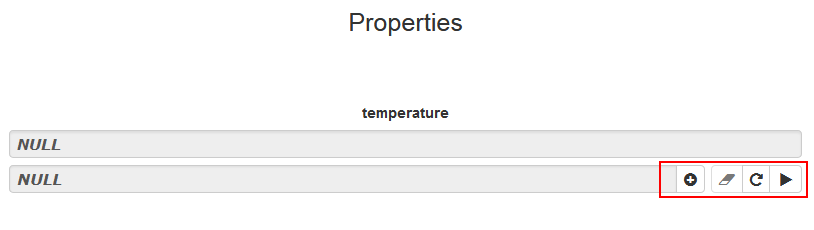
If all the properties are set to null, then it is possible to create/ restore/ set a quantity bean, as shown for the Temperature quantity in the following image:
How to Choose a Unit
The system of units (SI or Imperial in the example below) can be chosen from a drop-down menu:
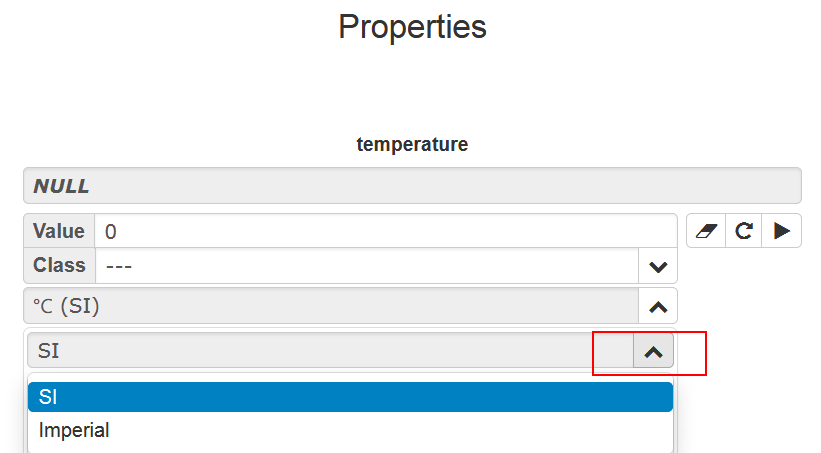
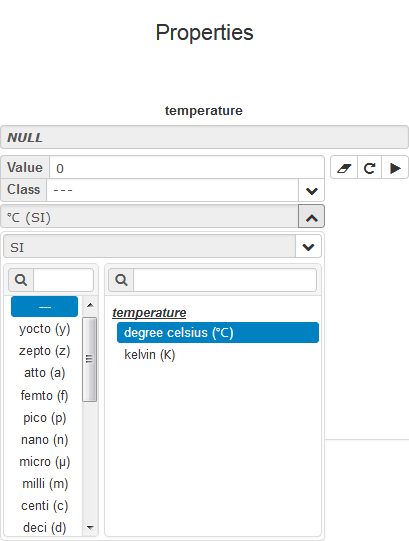
Once the system is defined, one can choose a combination of a unit (in this case kelvin or celsius units if the system of units is SI, or fahrenheit if the system of units is Imperial) and then set the Value of the Temperature quantity.
How to Enter Value for Quantity
The following image shows how the quantity Value filed can be set to null, restored or set conveniently with the buttons next to it.
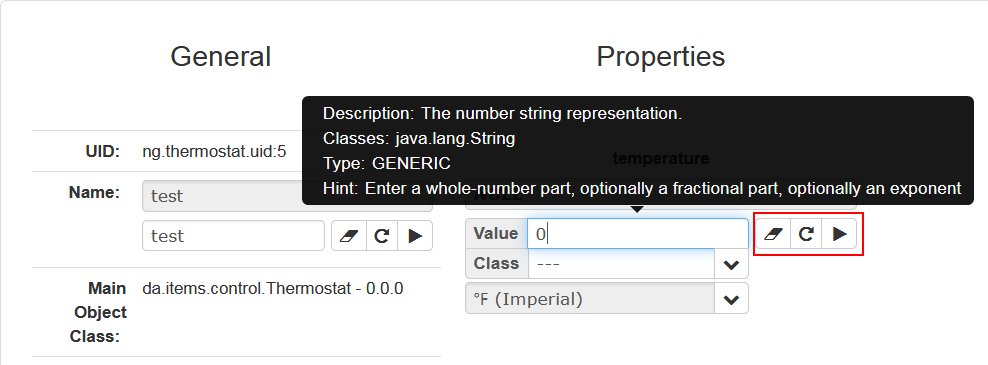
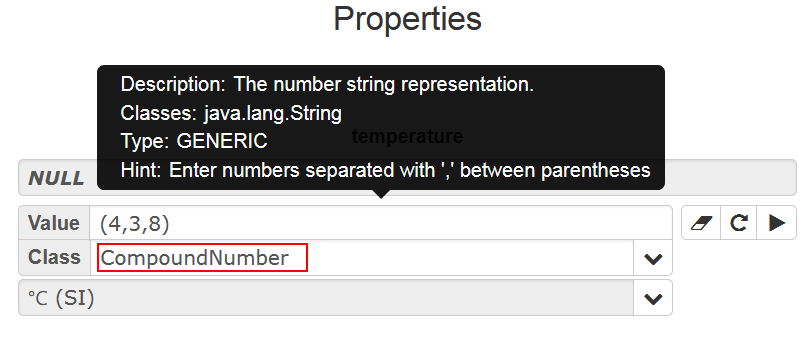
The format of the Value is defined according to the content in the Class field under it. For example, If the CompoundNumber is selected, then a tooltip message appears with the Hint on the acceptable Value format:
Relevant information editing can be found in the "Number Beans" section of the FIM Management via Web Console user guide.