If the Kit Manager is running on the platform, most conveniently you can install the Cameras and Home Device Manager bundles altogether by executing the "Cameras DA Support" install script. In addition, to have the Home Device plugin in the Web Admin Console you need to execute the "Functional Item Management Web Admin" install script.
Use the following command on the runtime console:
kitman.install "Cameras DA Support"
Then type
kitman.install "Functional Item Management Web Admin"
Home Device Page
The user interface to camera management is available under the FIM page of the Web Admin Console.
Make sure that the OSGi Runtime contains the bundles required for Camera and Home Device Manager support and for its Web UI.
Open a browser window and go to the URL http://<osgi_host>/system/console and log in by using the default user name admin and password admin . On success, the Web Admin Console page will appear. If the default port 80 is used by another application, the URL will be available on the secondary port - http://<osgi_host>:8080/system/console
In the Web Admin Console select the IoT>>FIM tab.
Managing Camera Devices
Adding Cameras
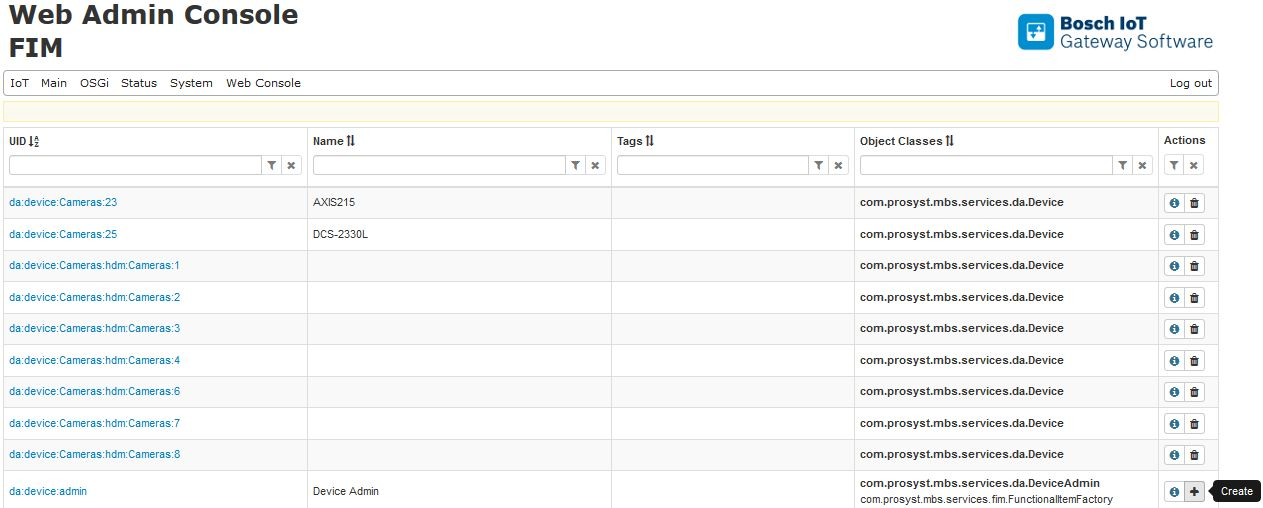
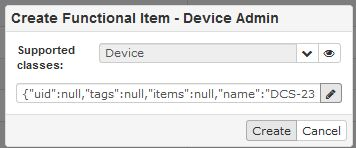
Navigate to the IoT>>FIM tab, locate the Device Admin and click on the Create button as shown:
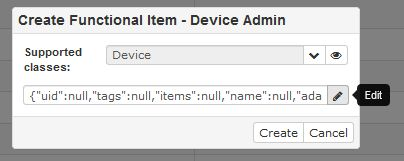
A window for creating Functional Items appears. Click on the Edit button to se the attributes as shown:
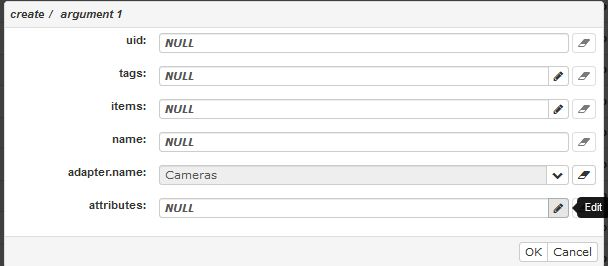
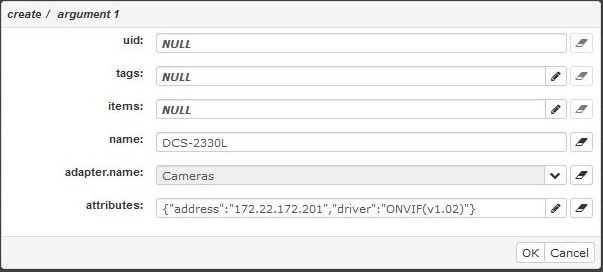
Click on the Edit button as shown to edit the required attributes for a specific device:
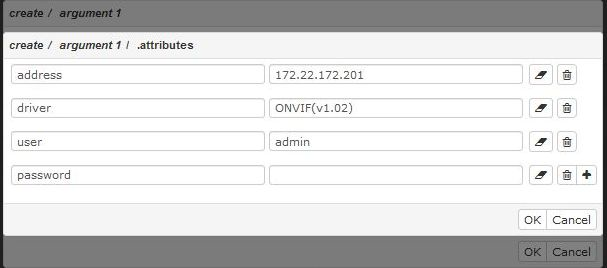
When the Attributes window appears, click on the Add row button to add multiple attributes as shown:
Fill the needed attributes for the device. The example shows attributes Address, Driver, User and Password:
After completing the attributes, click the OK button to finish editing the arguments:
Click Create to finish the creation process:
Getting image from a camera
You can get a image caption from a camera.
In order to do this, navigate to the IoT>>FIM tab and locate the ImageProvider item and click on the Information button.
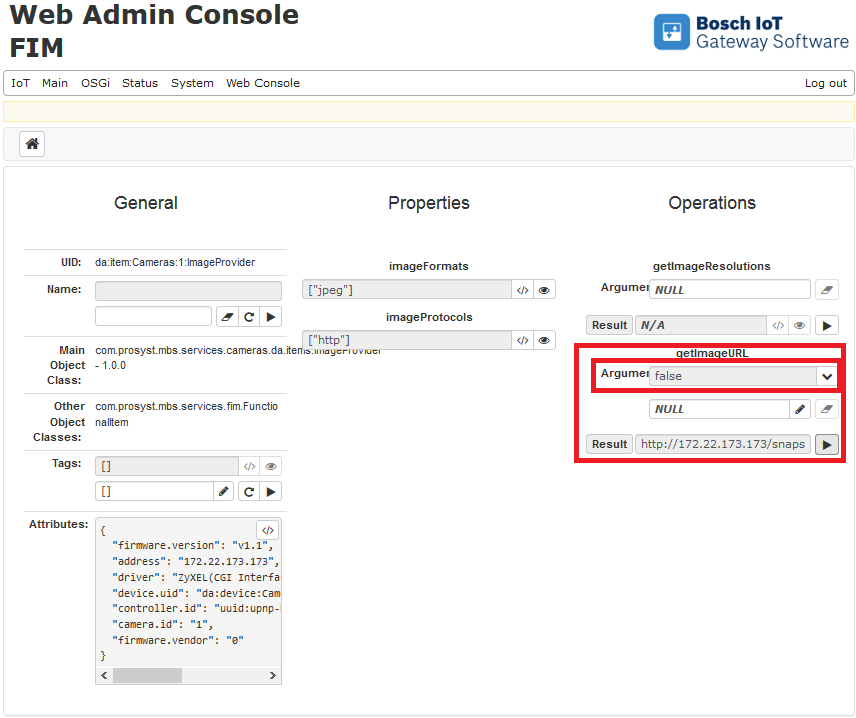
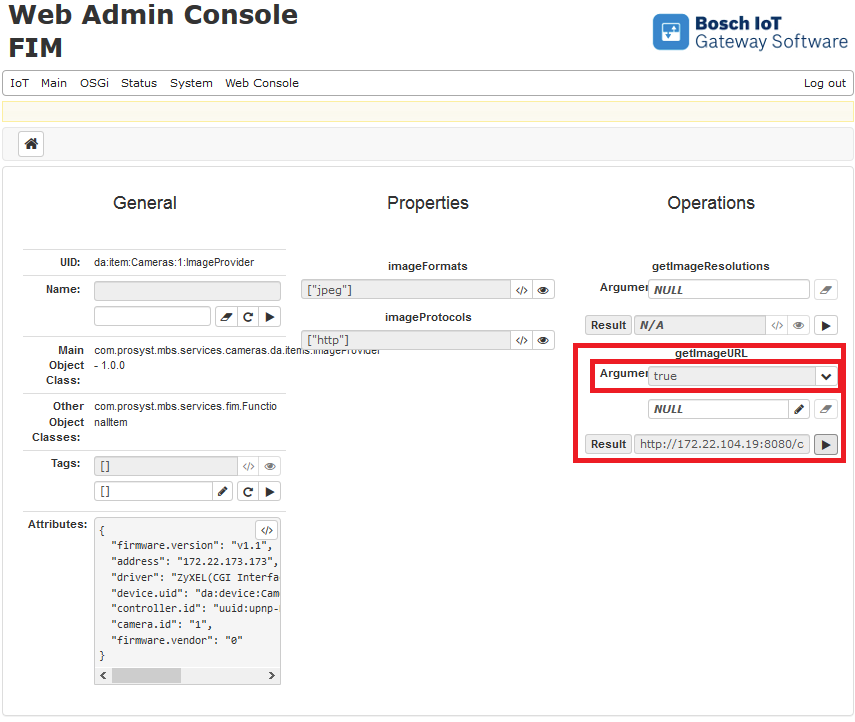
Choose whether you want to use the proxy to the specific camera or to use the default one that the system is using. Then click on the Invoke button to generate a URL which you can use the get the image.
Leaving the argument as false would return content directly from the camera.
Using the true argument would prompt the gateway software to act as a proxy server to serve the content from the camera.
Getting video stream from a camera
You can get a link for a video stream from a camera through the Web Console.
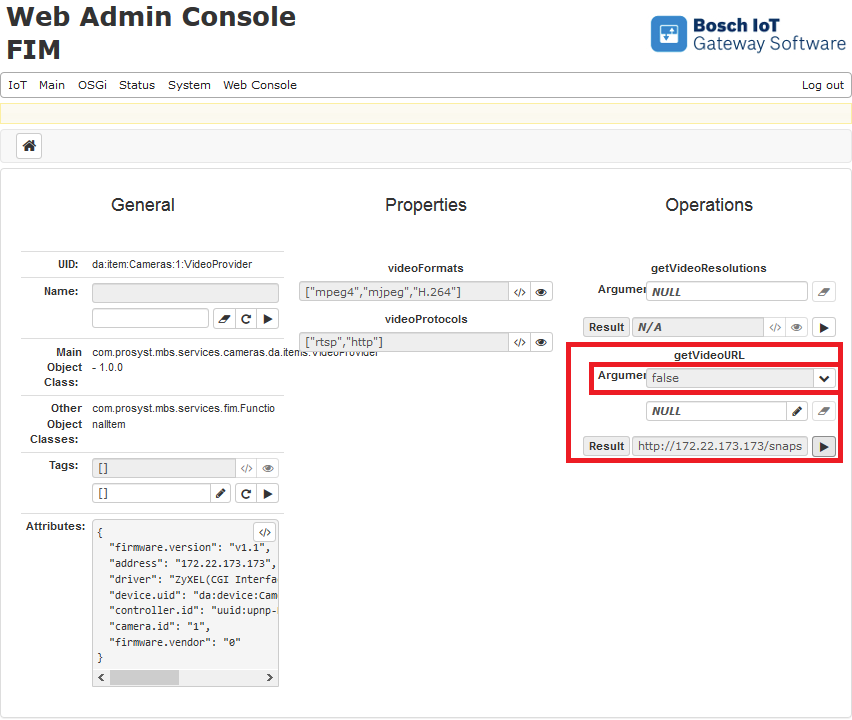
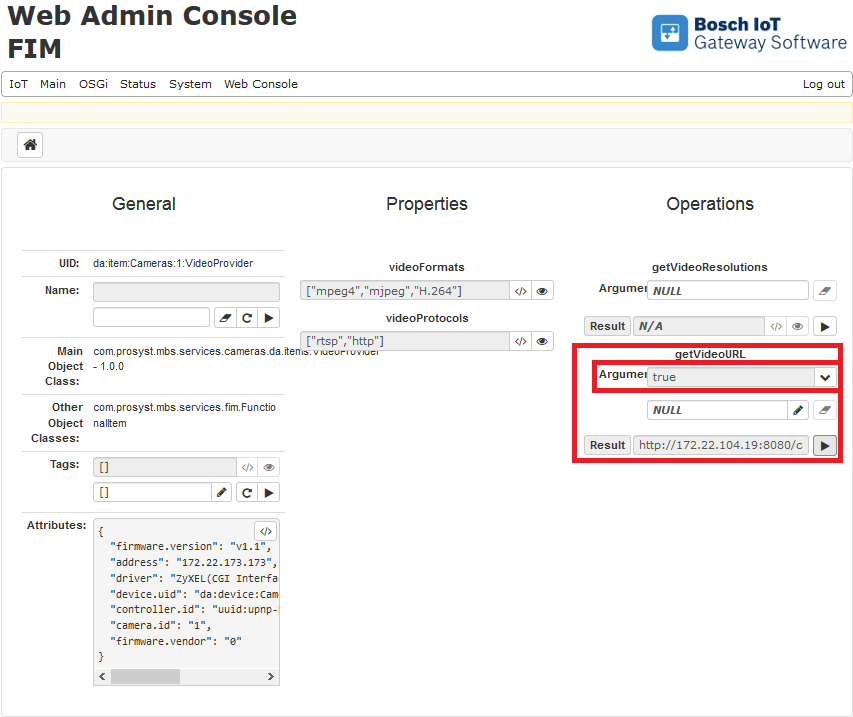
In order to do this, navigate to the IoT>>FIM tab and locate the VideoProvider item and click on the Information button.
Choose whether you want to use the proxy to the specific camera or to use the default one that the system is using. Then click on the Invoke button to generate a URL which you can use the get the video stream.
Leaving the argument as false would return content directly from the camera.
Using the true argument would prompt the gateway software to act as a proxy server to serve the content from the camera.