


|
|
|
|
|
Setting up the Environment for FIM Web Console
To use the FIM web console:
kitman.i "DECT DA Support"
kitman.i "Functional Item Management Web Admin"
kitman.i "Peripheral"
Using the FIM Web Console
Displaying Devices
 button.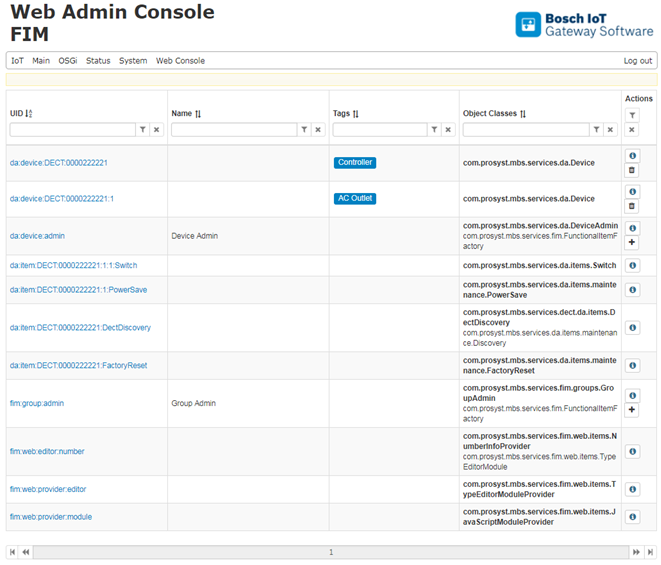
Adding Devices
To add end devices to the coordinator, set it to "pairing" mode.
button.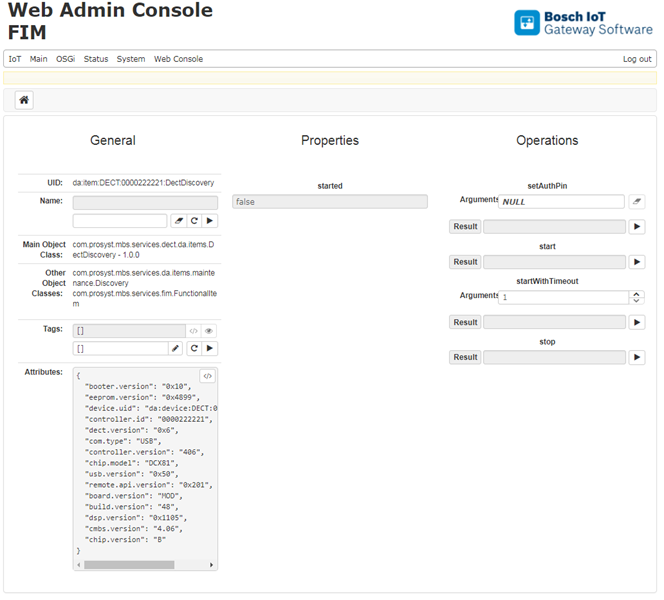
Controlling Devices
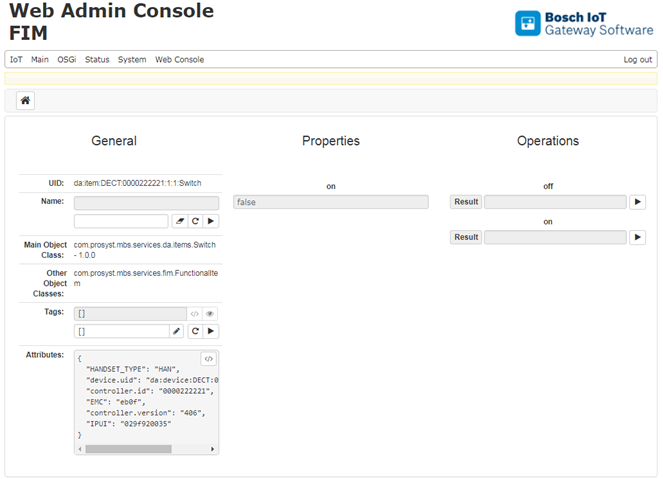
Once the devices are registered in FIM, you can use their device items (DI). Functional commands can be launched through the device items of the endpoint home devices.
To send a command to a DECT device:
 icon to execute the command.
Removing Devices
You can unregister from the OSGi platform only a parent DECT home device, which stands for the physical device. Removing an endpoint home device is not allowed. To remove a parent home device:
 button to unregister the device.