


|
|
|
|
|
This section describes the options of the HDM Web GUI for managing home zones.
For zone information and management operations, go to the Zones tab of the HDM page in the Web Admin Console. The tab shows the zones in the Home Device Manager by name in a tree manner. For each zone, you can view its properties and the devices it contains.
Zone Details
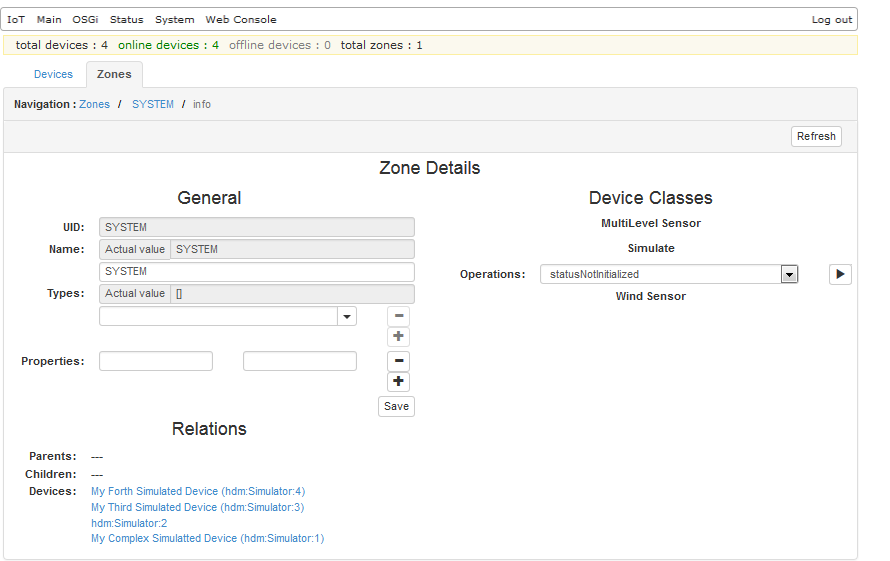
To view the details about a home zone, select it and click  button at the top right of the tab. The Zone Details page will appear containing information about the properties of the zone, and the devices in it.
Adding New Zones
To create a new zone, simply click the  button at the top right of the Zones tab. Then fill in the name, type(s) and properties of the new zone, and click Save.
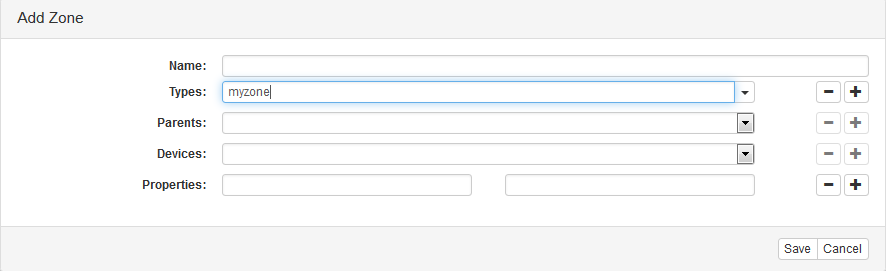
The new zone will appear in the Zones tree.
Deleting Zones
To delete a zone, select it from the Zones tree and click the  button at the top right of the tab. A confirmation dialog will appear providing information about the home zone UID, name, parent(s), child home zone(s), if there are any, and all home devices included in the selected zone.
If the zone you want to delete is also present as a child zone in one or more parent home zones, only the selected one will be removed from HDM.
Nesting Zones
You can add one zone as a child to another by simply dragging the target zone and dropping it under the parent. Press the Ctrl keyboard key while dragging the zone to copy it to a desired parent home zone.
Filtering Zones
If there are many zones defined in a home system, you can easily locate those of interest by using the filter field at the top left of the Zones tab. Simply type the string that the names of matching zones must contain and then click the Apply button to apply the filter. The matching zones will be highlighted. If a zone is placed in a folded sub-tree, the ancestor nodes will be expanded.
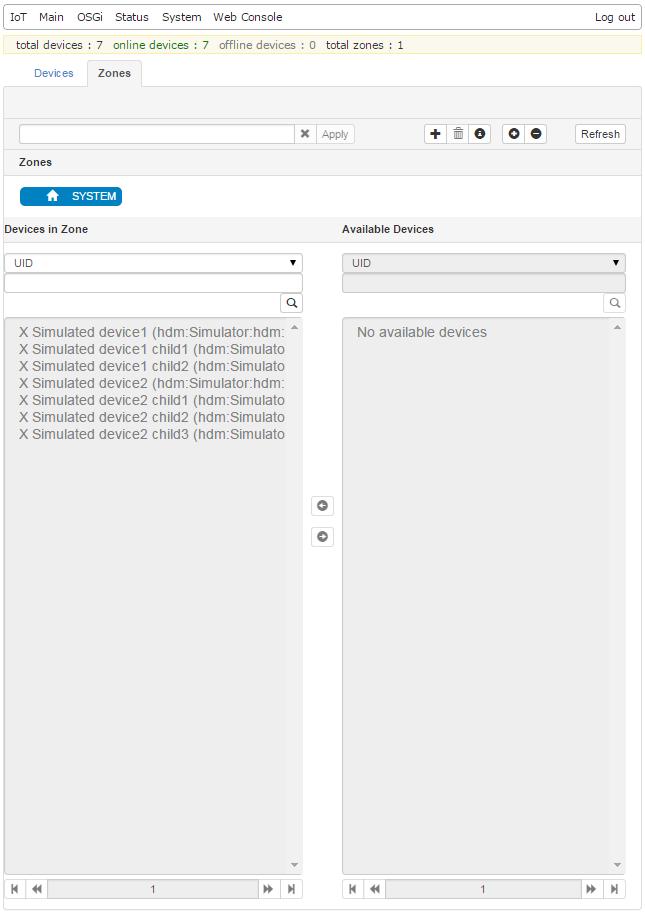
Adding Devices to a Zone
A single home device can be added to multiple home zones. The only exception is the Root home zone which can contain only devices that are not present in other home zones. You are also not allowed to directly add/remove devices to/from the Root home zone.
To add a device to a specific home zone:
 icon.
icon.The devices will be moved to the Devices in Zone list.
Filtering Devices from the Lists
You may filter the devices shown in both lists (Available Devices and Devices in Zone) by the values of their Home Device properties:
 button.
All devices with values different from the one you specified will be hidden from the list.
Controlling Device Class Objects in a Zone
Zones allow you to simultaneously control all devices that implement a given Device Class Interface:
button.The properties and operations defined in the device class will appear underneath.
Changing the Properties of Device Class Objects in a Zone
To change the property of all Device Class Objects that implement the selected interface:
 button next to a property indicates that the property is modifiable.
For an array input argument, separate its elements with commas. For a Map, Dictionary or Bean input argument, specify its entries as a comma-separated list of "key=value" pairs.
button to apply the changes.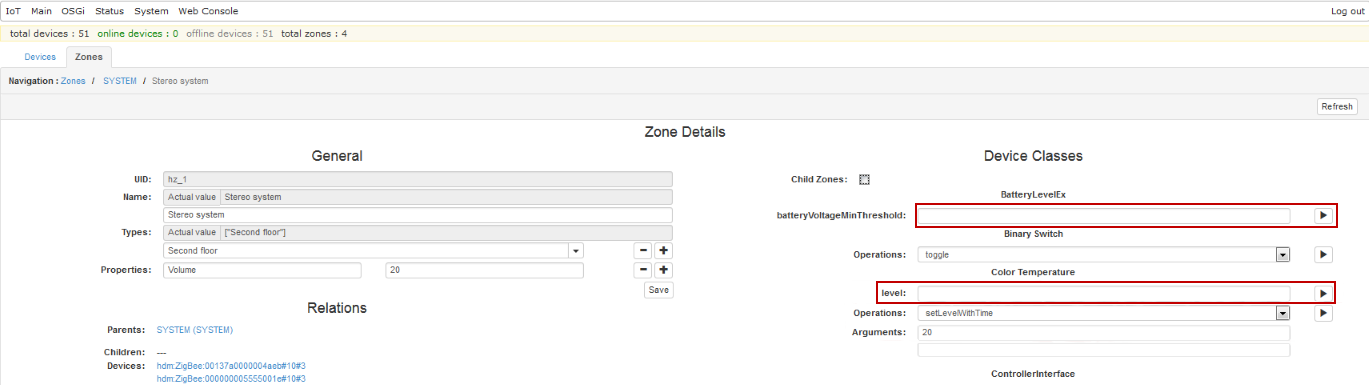
Triggering Operations on Device Class Object in a Zone
To perform an operation on all Device Class Objects of a certain class in a zone:
For an array input argument, separate its elements with commas. For a Map input argument, specify its entries as a comma-separated list of "key=value" pairs.
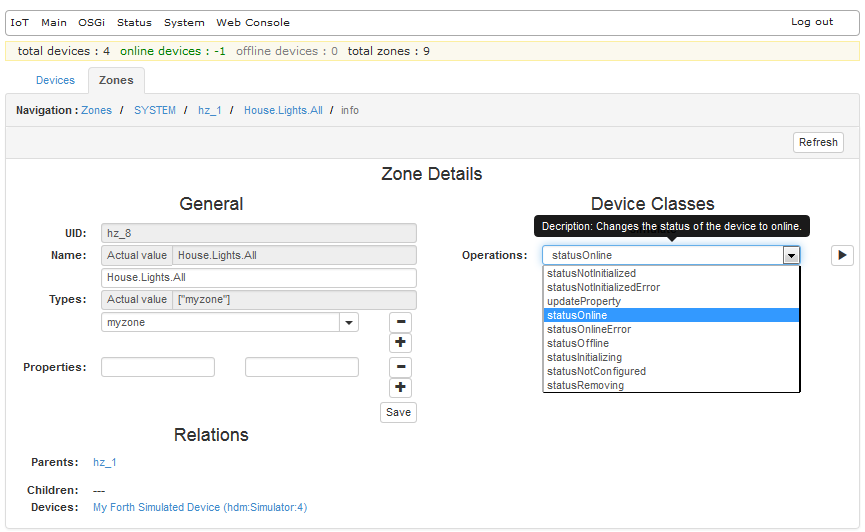
button next to the Operation box.