|
|
|
|
|
This section describes the options provided by the Web UI for managing home devices.
General Information
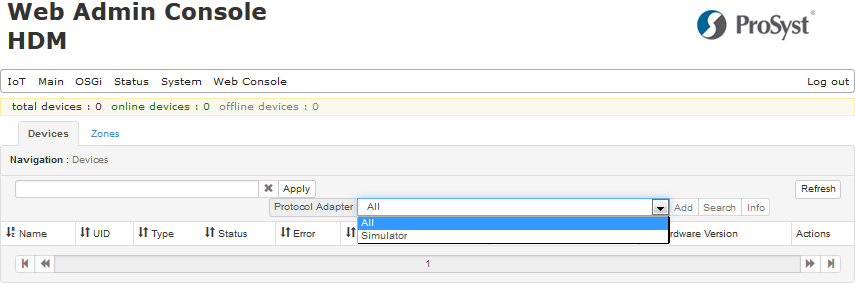
The Devices tab of the HDM page shows the devices registered in the Home Device Manager. Here, depending on the capabilities of the relevant protocol adapter, you can request initialization information from a device by executing an "add" operation, force the adapter to perform a search for devices with specific features, and remove devices.
From the Protocol Adapter drop-down box you can check what adapters are currently installed in the Home Device Manager system.
The devices are arranged in a table which shows their main characteristics, such as UID, name, responsible adapter, etc. The options in the Actions column allow you to check the device details and to execute a command on device's device class objects, and to remove the device from the system.
Editing Device Details
To view detailed information about a device, click the  icon. The Device Details page contains information about the properties of the device and its functions.
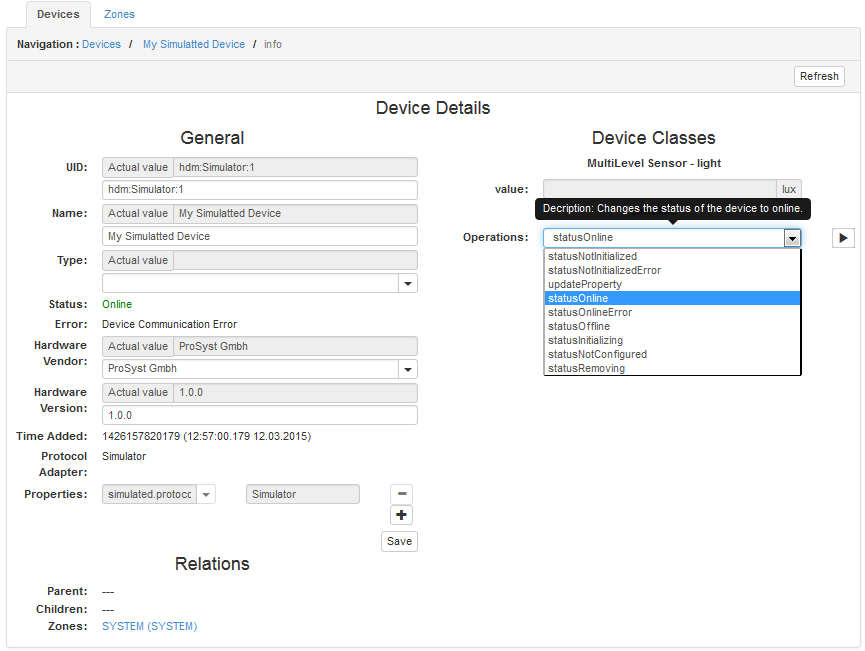
You can change the device attributes as well as define additional properties in the Properties list if required. In particular, you can modify the attributes: UID, name, type, vendor and version; and additional properties: user-defined and writable adapter-handled properties depending on the nature of the protocol, which the adapter usually populates with some default values.
If you set an empty value from the Web Admin Console for UID, name, vendor, version and type, actually the device will use the attributes passed by the adapter.
The Type and Vendor boxes list all types and vendors available in the HDM system. To specify a value which is not present in the list, in the box select the empty entry at the top of the options and then type the new value.
The set of predefined property names in the Properties table depends on the support of the underlying protocol adapter. It will show all readable adapter-handled properties and depending on each property access you can change its value. If an adapter property is not readable but writable, although initially you can see the property in the Properties table you can specify value for it by selecting its name from the box and entering required data.
Besides the details of the device itself, under Device Classes it shows the device class objects that the device has. There you can manipulate the device class objects by launching an operation on or modifying a property of a device class object.
Click Save to apply the changes on device attributes and properties.
Furthermore, a home device can be represented as several Home Devices in a parent-child relationship. A plus in front of the device indicates that it has one or more child home devices.
To see the children of a given home device find it in the Devices table and click on it. The table will focus on the device:
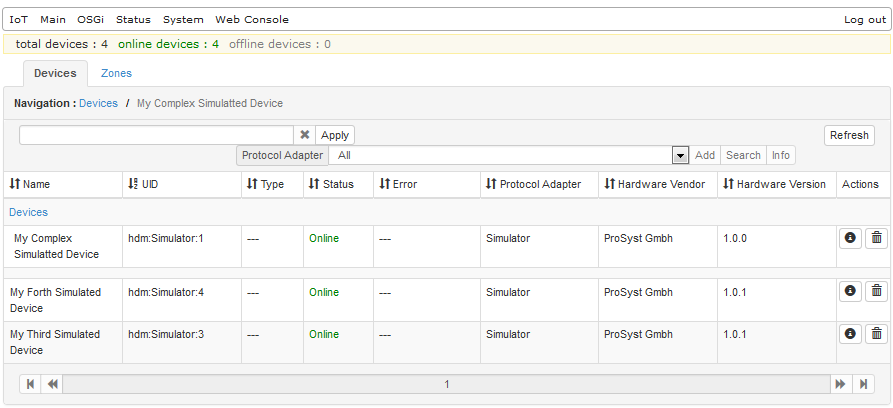
To return to the main view of the Devices table, click the Root node at the top.
Manipulating Devices in the HDM Network
This section describes the options for adding, removing and searching for devices in the network via the HDM Web GUI.
Depending on the home protocol the device uses, you may or may not have to register it in HDM manually.
To find out whether you need to register a device in HDM manually:
You can use the Info button to see some additional information about the selected HDM protocol adapter.
The ZigBee protocol adapter discovers devices automatically.
Adding Home Devices Manually
To register a device in HDM manually:
An Add Device dialog appears.
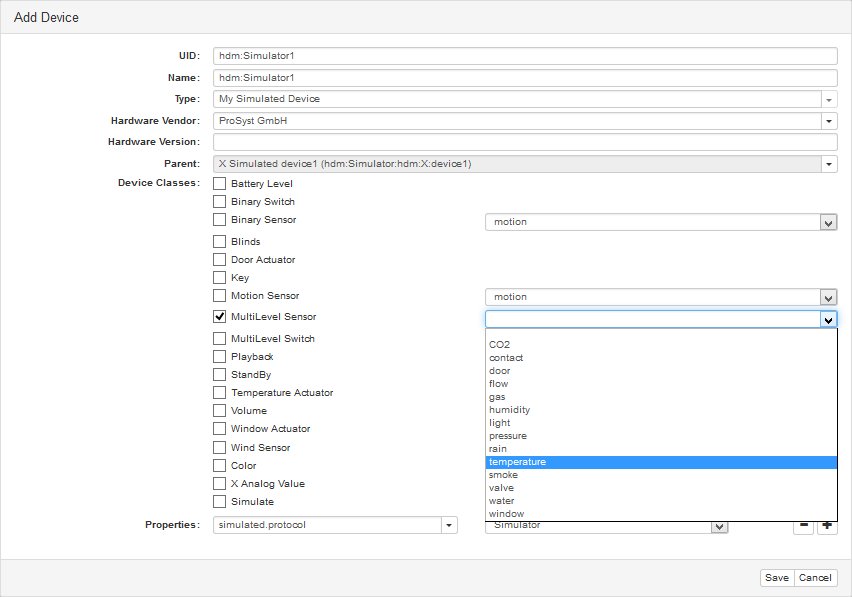
If the add request is successful, the device will appear in the Devices table with status Online
Removing a Device
To remove a device from the HDM network:
 button from the Actions column.
A Remove Home Device dialog appears.
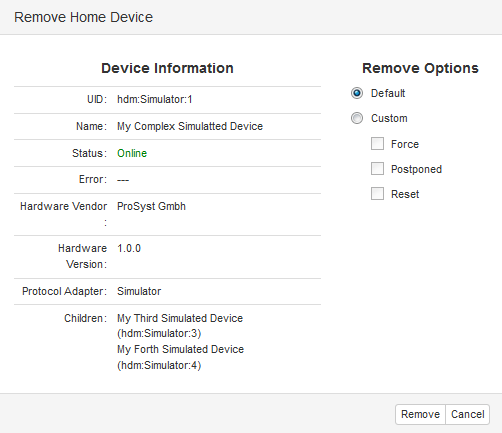
If the device could not be removed from the HDM network, an Information dialog will appear providing details for the operation.
Searching the Network for Devices
To initialize a search for new devices:
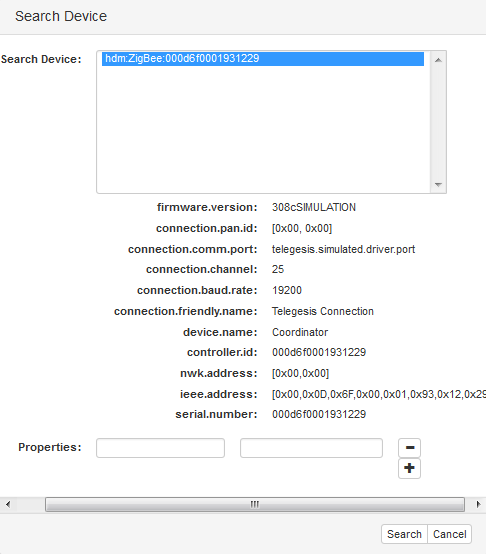
As a result, the adapter will send a request for initialization to the devices in its network. If there are new devices discovered in the network to view them in the Devices table simply press the Refresh button or the F5 keyboard button.
Managing Device Class Objects
In HDM the functions of a device are represented by Device Class Objects.
Each device has one or more Device Class Objects which are attached to it and which are listed in the Device Classes section of the Device Details page.
You can use each of the functions of the device by interacting with the relevant Device Class Object. You can do that in two ways:
Viewing and Editing Device Class Object Properties
Each Device Class Object has properties, which identify the device state or contain information collected by device.
The values of all Device Class Object properties are listed in the Device Details page:
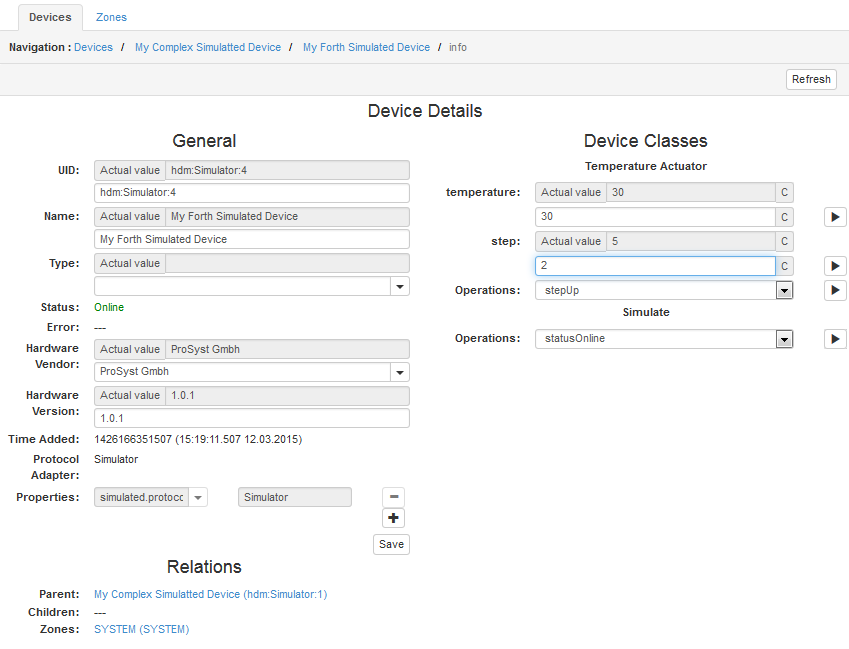
To change the value of a property:
 icon next to them). icon for the property to apply the change.
Triggering an Operation on a Device Class Object
The actions a given device can perform are represented by Device Class Object operations.
All operations a given Device Class Object supports are listed in the Operations drop-down menu.
To trigger an operation on a device:
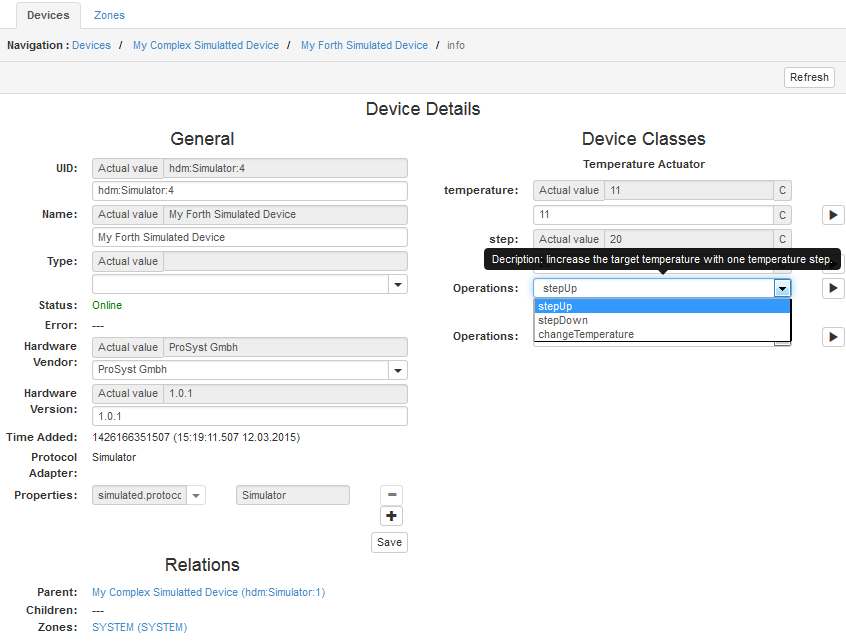
Some operations may result in change of property values.
Retrieving Information about Protocol Adapters
Protocol adapters are the intermediary between the drivers, implementing the home protocols and providing the actual communication with home devices, and the Home Device Manager.
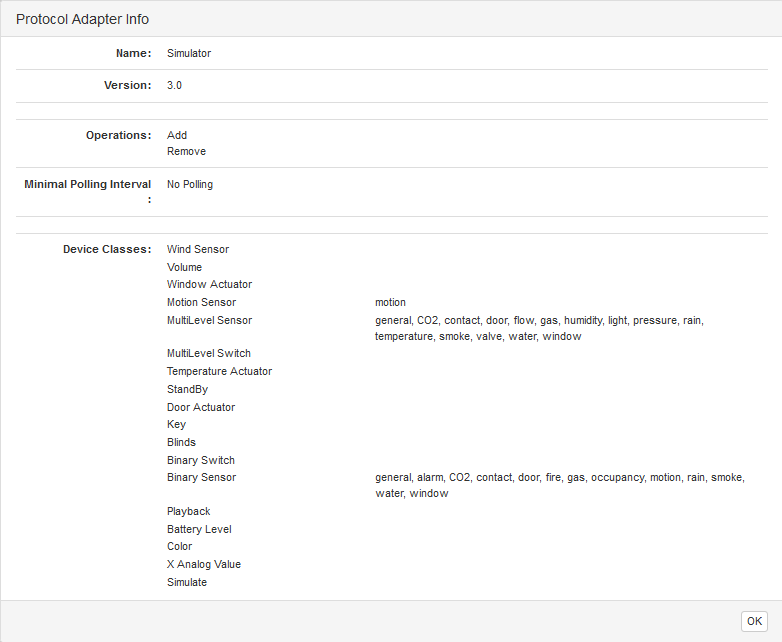
To view more information about a specific protocol adapter, select it from the Protocol Adapter drop-down menu and click the Info button.
You will see all operations supported by the protocol adapter, the minimal interval for device property polling and the device classes that it supports.
Filtering Shown Devices
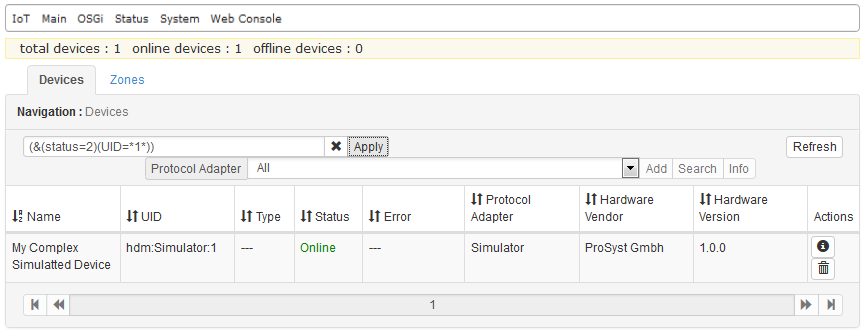
You can filter the devices that are listed in the Devices table by using the field at the top left of the Devices tab. The filter has to be in LDAP String format and it can match both the properties of the Home Device and the properties of its Device Class Objects.
The next figure contains the "(&(status=2)(UID=*1*))" filter, which stands for showing the devices that are online (their status is equal to "2") and their UIDs contain "1".