


|
|
|
|
|
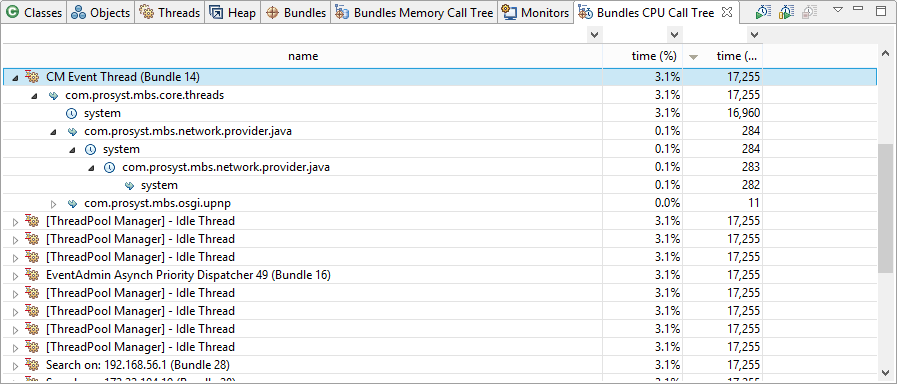
mBProfiler conveniently shows the CPU usage of the bundles residing in the OSGi Runtime in the Bundles CPU Call Tree view. It displays profiling data in a way similar to the CPU Call Tree view but in this case each thread stack is shown as a sequence of the bundles referenced within the associated thread.
The Bundles CPU Call Tree view is not shown by default when loading mBProfiler in Eclipse. You can open the view by clicking Window > Show View > Bundles CPU Call Tree from the main menu bar in the mBProfiler perspective.
To have profiling data shown, CPU profiling must be turned on and the CPU profiling session must be stopped – either from this view or from the CPU Call Tree one.
Starting/Stopping Bundle CPU Profiling
Bundle CPU profiling can be initiated automatically when connecting to the OSGi Runtime if you have checked the Auto start CPU session option in the profile configuration.
If you don't check this option, you'll have to start the CPU profiling by calling Start CPU Profiling command from the mBProfiler menu, by pressing the  button from the workbench toolbar or by using the
  button from the view toolbar.
Click the  toolbar button to stop the session and have the results from CPU consumption profiling finally calculated and displayed. As a result, the view will show statistical data about the performance of the bundles in the OSGi Runtime.
At any time later, you can continue CPU profiling by using the  button from view toolbar. This will add the current results from CPU profiling to the results from the previous period.
To restart the profiling, use mBProfiler > Start CPU Session or click the view toolbar button. This will clear the results from the previous session, and will start the calculation anew.
Stopping/Resuming the session in the CPU Call Tree or CPU Hot Spots view will reflect to the Bundles CPU Call Tree and vice versa.
CPU Profiling Methods
Bundle CPU profiling is based on the same methods as the conventional CPU profiling, that is, on the timing and the sampling methods.
CPU Tree
The Bundles CPU Call Tree view visualizes the CPU usage in the call traces of the active threads in the OSGi Runtime in a similar way to the CPU Call Tree one. However, this view shows relations between bundles instead of between frames, and hence:
 ) represent bundles whose usage down the execution stack has resulted in consuming CPU time.
 ) represent bundles which although called do not consume any CPU time.
CPU Table and Filters
Generally, the data about bundle CPU consumption during the past period is shown in tabular form. For thread root nodes, naturally the name column shows the thread name and the time columns display how much time from the session's time thread has been alive. For bundle nodes, the name column contains the symbolic name of the corresponding bundle and the time columns indicate the total time the bundle has spent calling other bundles.
In contrast to the CPU Call Tree, the total time in the Bundles CPU Call Tree is determined as the sum of the total times of all threads. In this way, the total time can be made equal to 100%.
You can also filter the information shown in the table so that you can locate spots of specific consumption.
In addition, you can sort conveniently bundle CPU profiling data as described in the CPU Table guide.
Getting Information about the Methods in a Caller Path
To locate the actual method calls behind a chain of bundles within the call stack, right-click the last entry in the chain from the table and select Go to > Filter CPU Call Tree. As a result, mBProfiler will switch to the CPU Call Tree view showing all call traces within this execution path.
For example, if you have selected the node bundle A -> bundle B -> bundle C in the Bundles CPU Call Tree, using the Go to > Filter CPU Call Tree command will result in opening CPU Call Tree with all method invocations and frames sharing the same loader path, that is, methods forming one of the paths (bundle A)*L -> (bundle B)*M -> (bundle C)*N. There you can get detailed information about each method's CPU performance.
You can also apply this operation on a thread root node as well. In this case, mBProfiler will locate the analogous root sub-tree in the CPU Call Tree view.
Getting Information about the Activity of a Thread
To easily get runtime information about the activity of a thread from the Bundles CPU Call Tree view, right-click the thread root node of interest and select Go to > Find in Threads. mBProfiler will switch you to Threads view with the information about the target thread highlighted. The Threads view will offer details about the activity events of the thread.
Getting a Summary of a Bundle's Performance
Having detected a bundle with interesting CPU performance, you can view its performance summary in the Bundles view right away. Thus, you can quickly check the bundle's total CPU usage.
Right-click the bundle entry in the execution stack and select Go to > Find in Bundles.