Having installed the Eclipse IDE and the older Bosch IoT Edge Services Eclipse Plugins, follow the next steps to update them:
Start the Eclipse IDE.
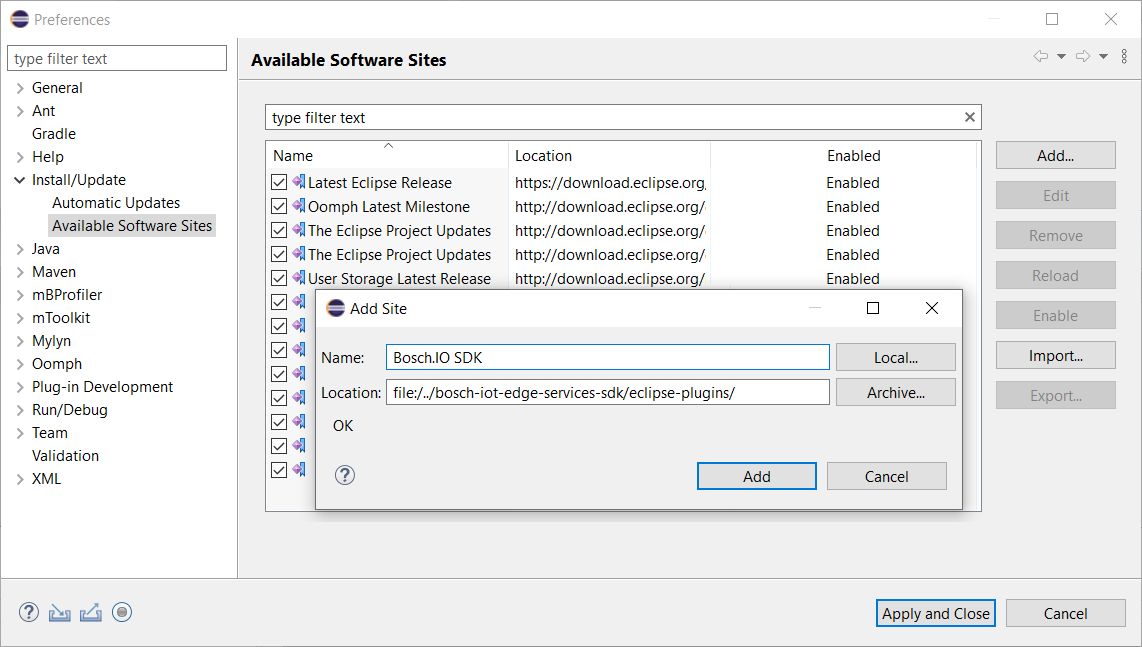
From the Eclipse main menu, click Window > Preferences > Install/Update > Available Software Sites.
The Available Software Sites page appears. There you will need to select Add.
The Add Site box appears. Click the Local button, navigate to the folder with the updated Eclipse Plugins and select it. Choose a name for your site and click OK.
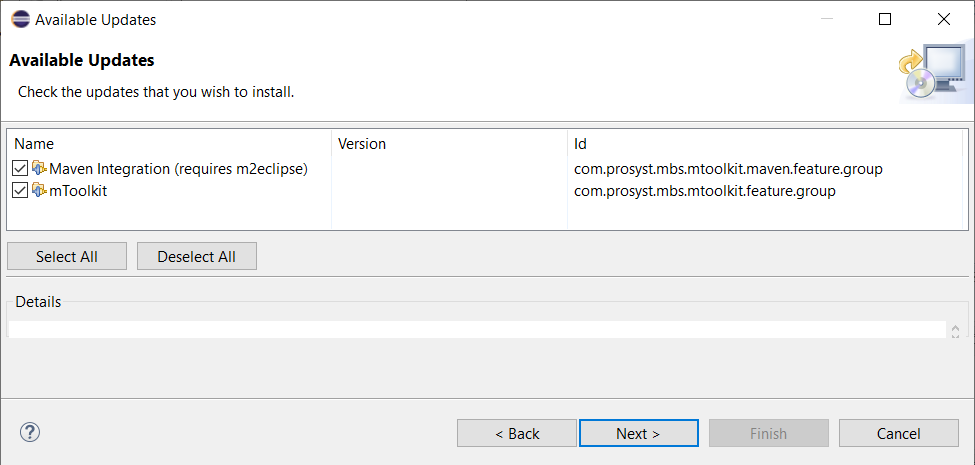
Back in the Eclipse main menu navigate to Help > Check for Updates. You will find the new updates in the Available Updates window.
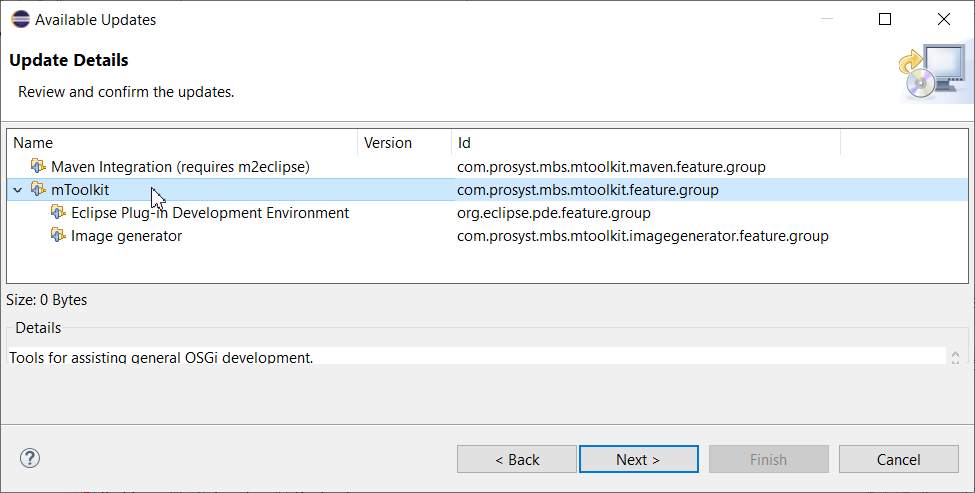
Select the available updates and click Next. You will be greeted by the review and confirm update page.
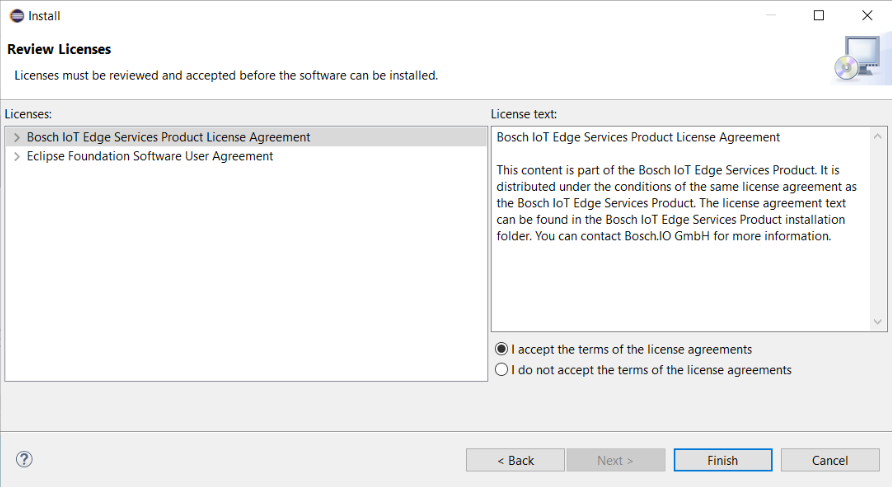
Click Next and you will see the Review Licenses page where you will be asked to review and Accept the terms of the license agreements.
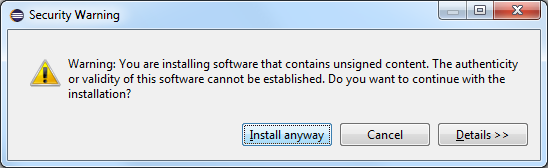
Upon clicking on I accept the terms of the license agreements click on Finish. You will encounter the Security Warning window.
Select Install anyway to continue with the update process when a security warning about unsigned content appears.
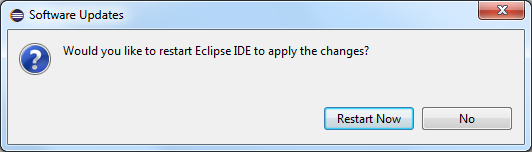
After the update process is done you will be prompted to restart Eclipse in order for the changes to take effect. Click Restart Now when you are asked to do so.
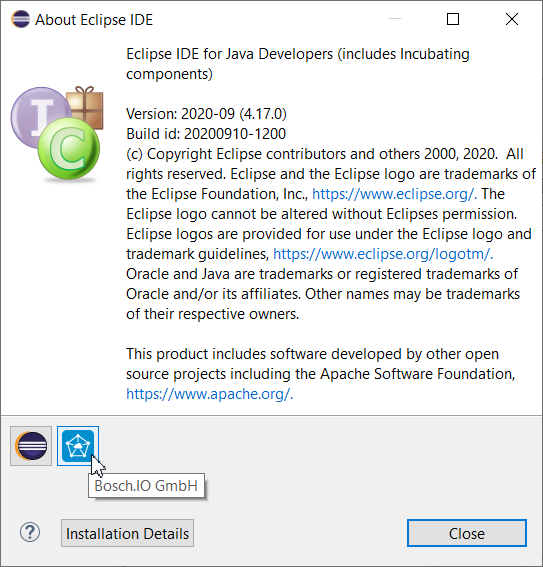
To verify the successful installation, start Eclipse and go to Help > About Eclipse > Installation Details. In the Eclipse Installation Details dialog verify that all SDK plug-ins you have just selected are installed indeed.