Follow the general steps for discovering and connecting BLE devices.
After successfully connecting a BCDS TDL device, a new device item representing the User Page service will be registered. Using this service you will be able to configure the device and execute basic commands.
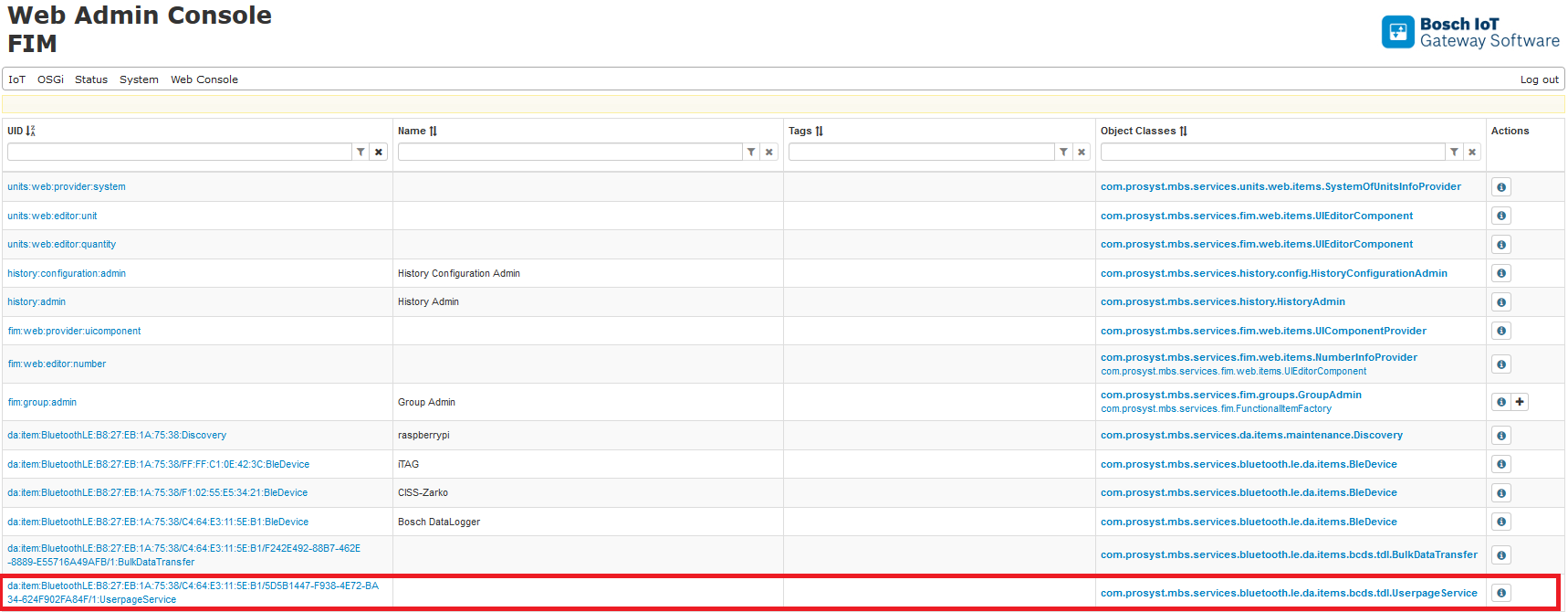
To configure the User Page service, click the Details button of the com.prosyst.mbs.services.bluetooth.le.da.items.bcds.tdl.UserpageService item.
Most of the write operations of the TDL characteristics require authentication first. Use setPinCode command. For default PIN, contact the device documentation or product vendor.
Properties
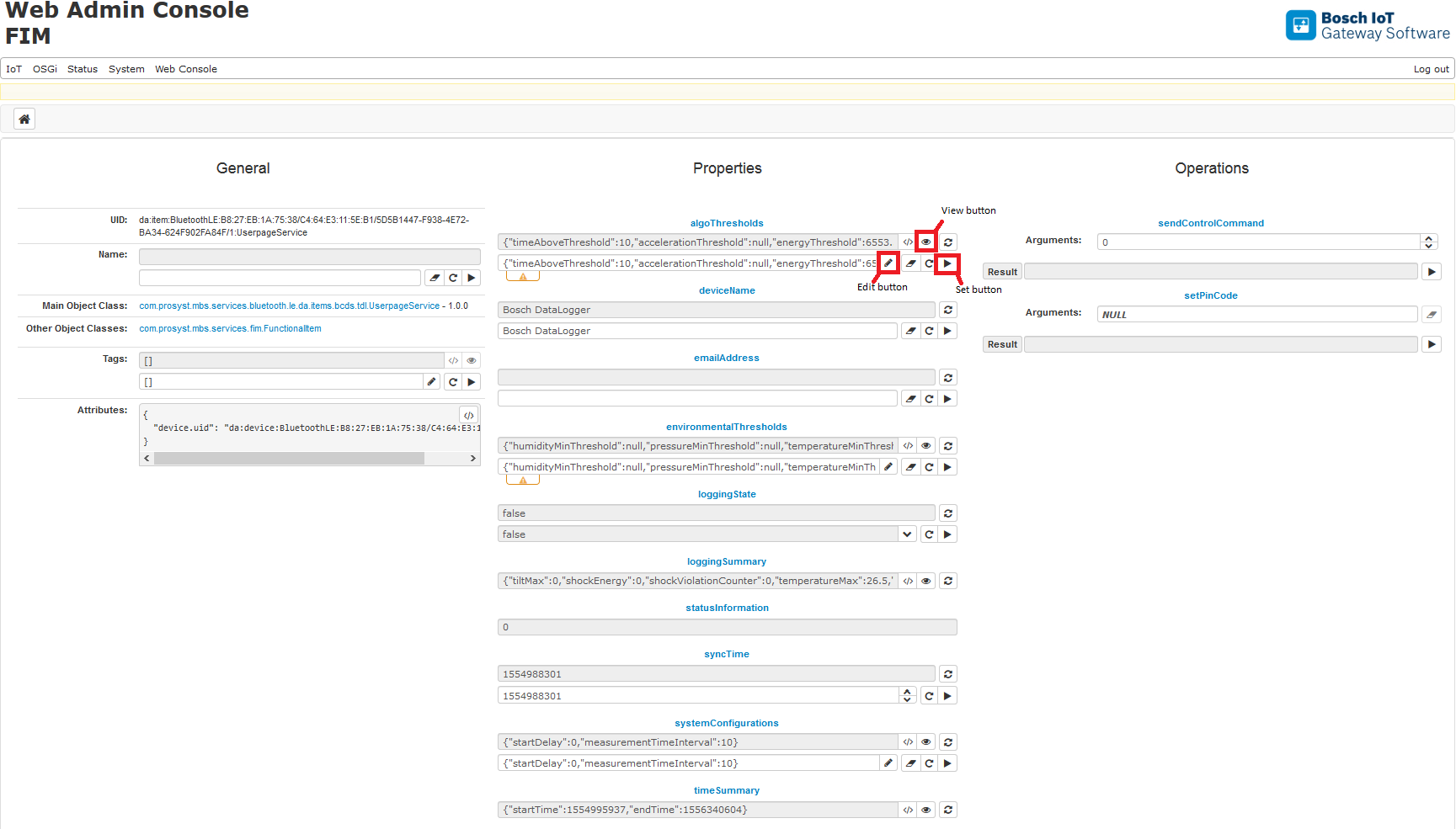
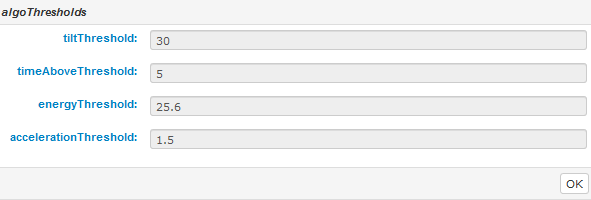
The algoThresholds property contains the current configuration of the algo thresholds. To review it, click the View button:
The following configuration properties are available:
timeAboveThreshold: Indicates the current time-above threshold
accelerationThreshold: Indicates the current acceleration threshold
energyThreshold: Indicates the current energy threshold
tiltThreshold: Indicates the current tilt threshold
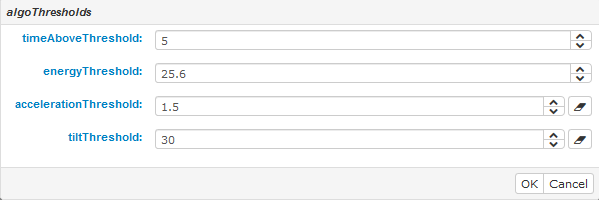
To change the configuration, first click the Edit button:
Edit the properties you want to change, click OK, and then click the Set button
deviceName property contains the name of the device.
emailAddress property contains the currently set email address of the recipient of the TDL report. The field is optional and can be set by filling in the field and clicking the Set button.
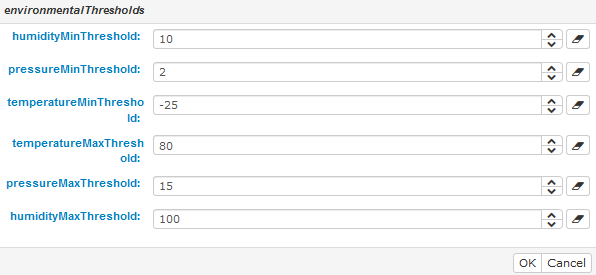
environmentalThresholds property contains the current configuration of the environmental thresholds. To review it, click the View button:
The following configuration properties are available:
temperatureMaxThreshold: Indicates the maximal temperature threshold
temperatureMinThreshold: Indicates the minimal temperature threshold
humidityMaxThreshold: Indicates the maximal humidity threshold
humidityMinThreshold: Indicates the minimal humidity threshold
pressureMaxThreshold: Indicates the maximal pressure threshold
pressureMinThreshold: Indicates the minimal pressure threshold
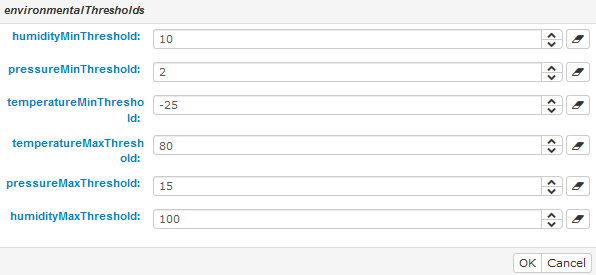
To change the configuration, first click the Edit button:
Edit the properties you want to change, click OK, and then click the Set button
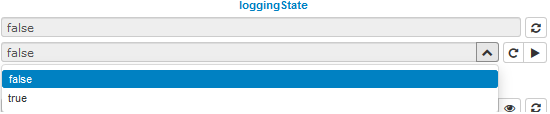
loggingState property indicates the current logging state. Logging can be switched on only after syncTime is set.
To edit the property select the value from the menu and click the Set button:
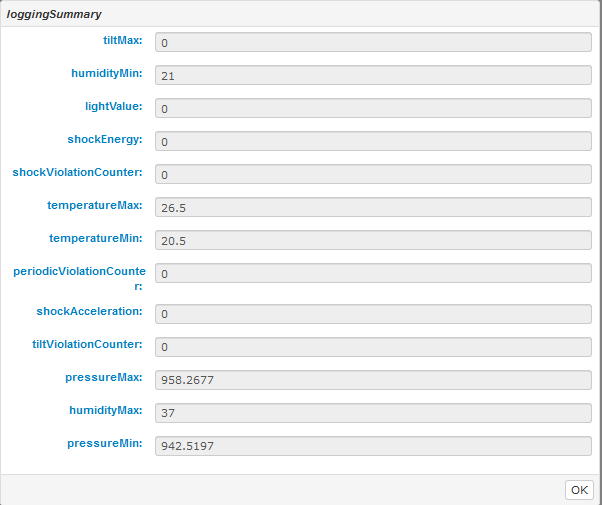
The loggingSummary property indicates the mapping of the different information provided in the TDL logging summary BLE characteristic
statusInformation property indicates the current real-time status information related to the current operation of TDL
syncTime property indicates the current device system time. To edit it change the value and click the Set button.
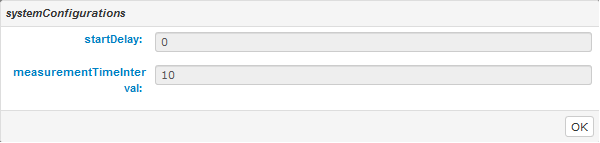
systemConfigurations property shows the current system configurations of the device. To review it, click the View button:
The following configuration properties are available:
startDelay: Indicates the start delay
measurementTimeInterval: Indicates the time interval between each measurement
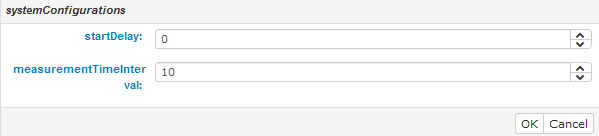
To change the configuration, first click the Edit button:
Edit the properties you want to change, click OK, and then click the Set button
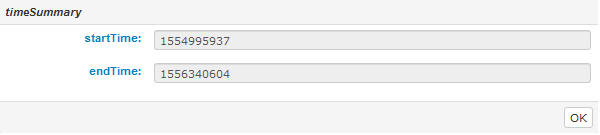
timeSummary property shows the time summary information for the device. To review it, click the View button:
Operations
The sendControlCommand operation is used to execute a command by sending the corresponding value in the TDL Control characteristic. The values are:
0x00 - reserved
0x01 - Delete Data
0x02 - LED feedback of stored configuration
0x03 - Restore to factory settings
0x04 - Calculate Tilt reference position (not implemented)
0x05 - Change PIN
0x06 - Enter FOTA active
0x07 - Configure complete download (only available from v1.1.0)
0x08 - Configure violated download (only available from v1.1.0)
0x09 - Disable Comfort mode (only available from v1.3.0)
0x0A - Enable Comfort mode (only available from v1.3.0)
0x0B - Configure download only new data (complete download) (only available from v2.1.x)
0x0C - Configure download only new data (violated download) (only available from v2.1.x)
0x0D to 0xFF - Reserved
To execute the operation enter the value and click the Set button.
The setPinCode command is used to set a PIN code to the device.