Uploading Content from Eclipse to the Online Repository
To upload bundles to the Software Repository of an Remote Manager server directly from within the Eclipse Workbench, follow the steps:
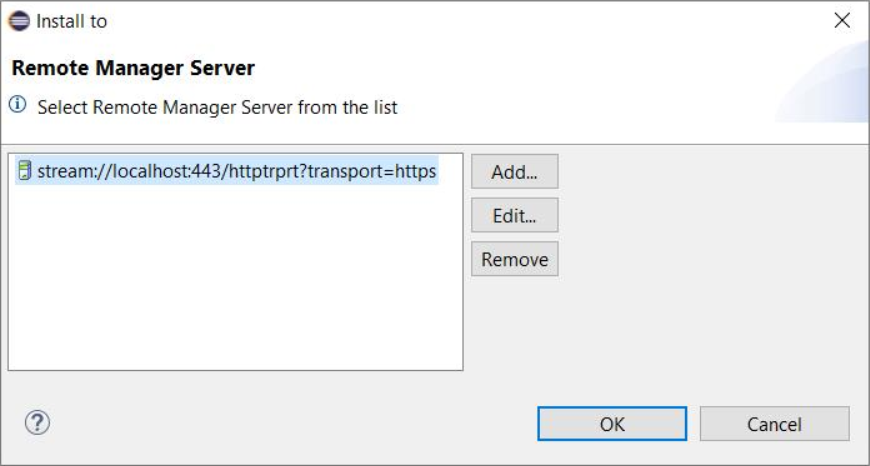
Right-click on the plugin project holding the bundles you would like to upload and choose Install to > Select Remote Manager Server. The Install to dialog appears listing the Remote Manager servers onto whose repositories you can upload applications.
If the Remote Manager server host is not present in the Install to list, add it there:
Click the Add button to add the Remote Manager server.
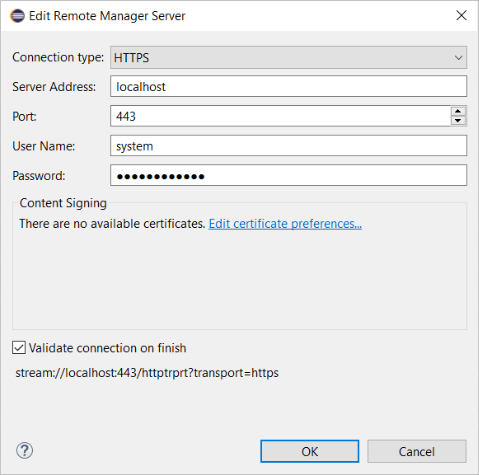
Fill in the following connection properties for the Remote Manager server:
Server Address – Enter the domain name or IP the address of the Remote Manager server.
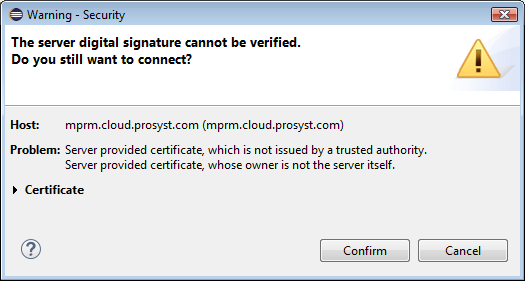
Connection Type – Choose the type of connection with the Remote Manager server. Supported types are HTTP, HTTPS, SSL and Raw (stands for TCP/IP RPC-based connection). In case you are going to use HTTPS or SSL and the certificate of the server is not issued by an authority from the JRE truststore, you will have to explicitly confirm connection establishment. In addition, the certificate which RM will present for secure connection should be part of the Remote Manager TLS Server domain.
Port – Enter a port for communication with the server in accordance with the selected connection type.
User Name – Specify the user name for login to the RM server. For example, you can use the default user admin.
Password – Provide the password for the user name. For example, if you will use the admin name type admin for password.
Sign content before deployment – Check this option in case you want to sign the content before deploying it to the Software Repository and select the own certificates for signing you have specified in advance under the Certificates section of mToolkit preferences (refer to "Customizing OSGi Management").
Validate connection on finish – Add the server only if connection to it can be established.
Click OK when ready with the connection properties. As a result, server's entry should appear in the Install to dialog.
Finally, to upload the content to the Software Repository of the corresponding Remote Manager server, select the server from the list and click OK.
Once you have added the Remote Manager server you can easily install an application from the workspace – right-click the plugin project and select the Install to > <RM_server> option.
If the connection to the server is over HTTPS or SSL and the certificate which the server has sent for authentication is not issued by a trusted authority (registered in the JRE truststore), a dialog will appear asking you to confirm the session. Eclipse will remember the confirmation until its next start.