


|
|
|
|
|
Rule Templates List
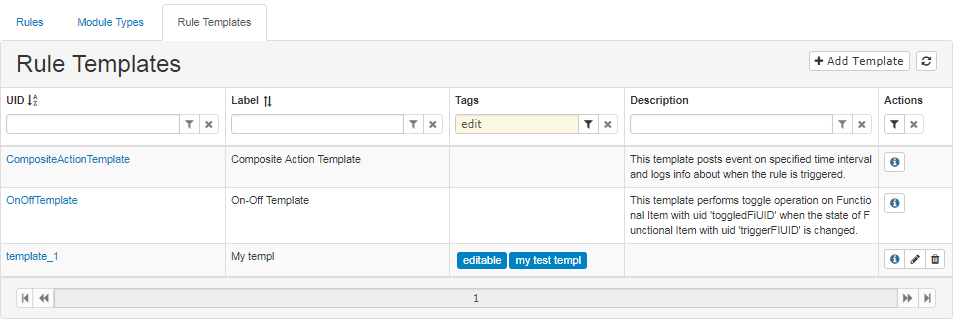
All available Rule Templates can be viewed in a sort-able table under the third main tab. Filtering widgets are not available if no Rule Templates are added to the system.
Template Details
To open the Rule Template Details page use the Details button  , or simply select the rule template UID. If the Rule Template has the tag editable, you will be able to find an Edit
  and a Remove
  button in the last column.
The upper right corner contains a button for creating a new rule template and for reloading cached rule templates  (the cache is updated with events, and used in all application pages).
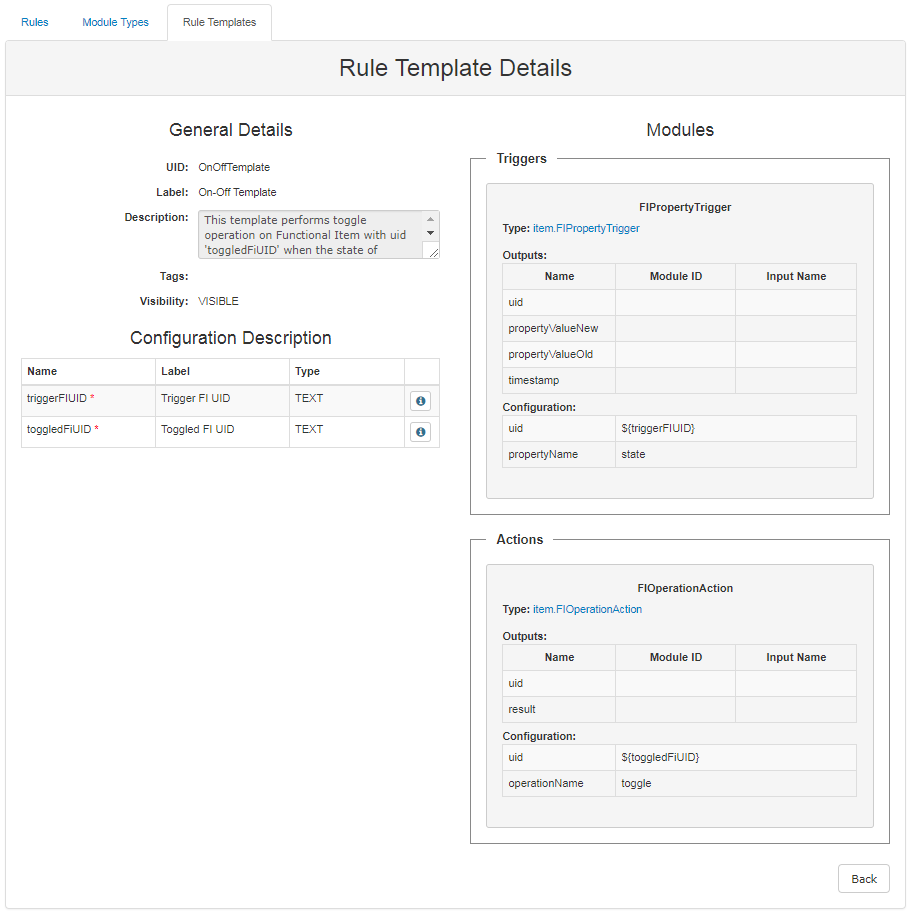
The Rule Template Details page contains configuration and module information. On the left side are the General details and Configuration Description, and on the right side are visible the modules. Modules cannot be edited and their configurations can be only viewed in the respective Configuration table.
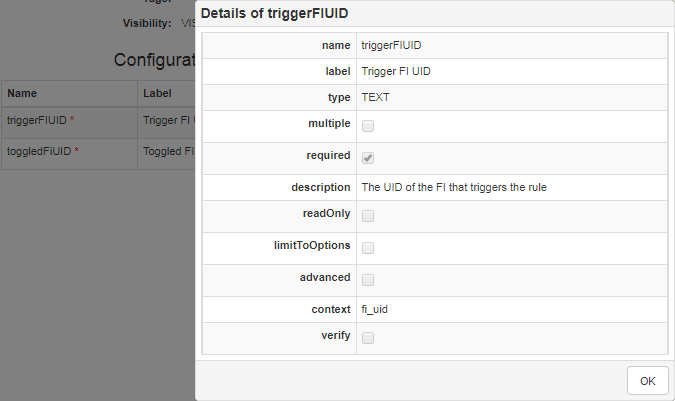
The screen shot bellow shows an example of configuration property details.
Creating a New Rule Template
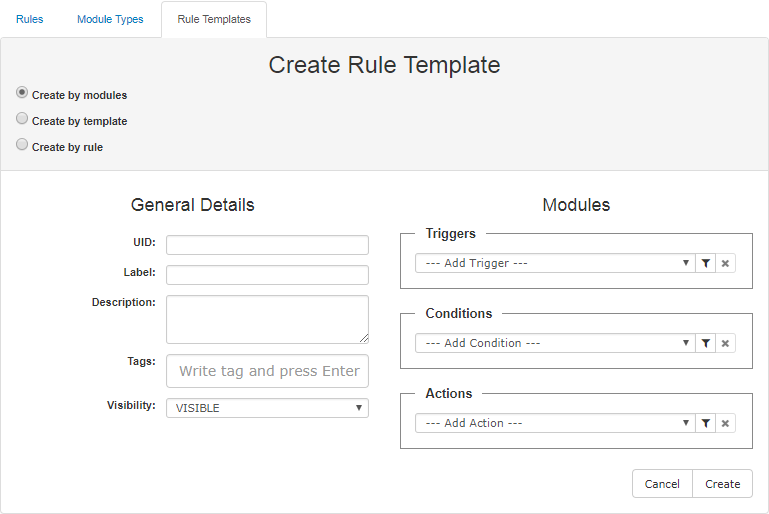
Clicking on the "Add template" button will open up the Create Rule Template page. The new Rule Template can be created by modules/template or by rule, by choosing the corresponding radio-button.
The left part of the of the page contains the general details of the Rule Template - UID, Label, Description, Tags and Visibility. The right side contains the Modules and their information. After all data is filled in, clicking on the Create button will save the Rule Template.
Creating a Rule Template by Modules
Creating a Rule Template by modules is similar to creating a rule by modules. The difference is in creating the configuration description of the template.
When a module is added, each configuration property can be set by reference.
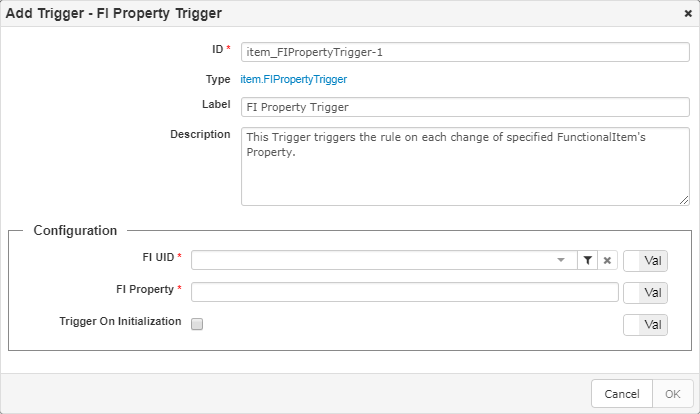
To create a template configuration property, use the Ref/Val toggle button, situated on the right side of the configuration property and choose Ref. The editor of the configuration property is replaced by an editable combo-box, containing the property name and the names of other template configuration properties. If property names do no match the current property, they will be disabled. This applies to property type, context, step, min, max and options.
The screen shot bellow shows an example of creating a template property.
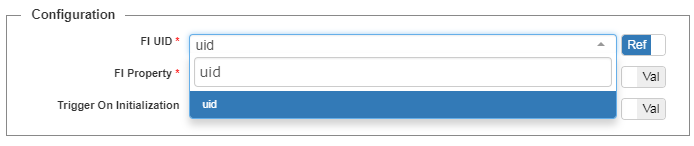
The name of the new Template configuration property could be changed.
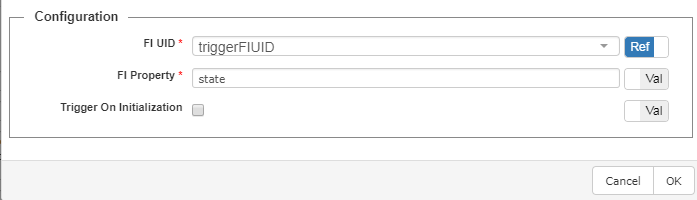
When the configuration of the module is completed, click on the OK button. The dialog is closed and the newly created module will be shown at the bottom of the current module type section. The newly created configuration property is added in the table Configuration Description, which is visible under the General Details section. The template's configuration property name, label and type are shown in the table. The newly created property is a copy of module type configuration property with name, that is filled in, and label and description fields, that are blank
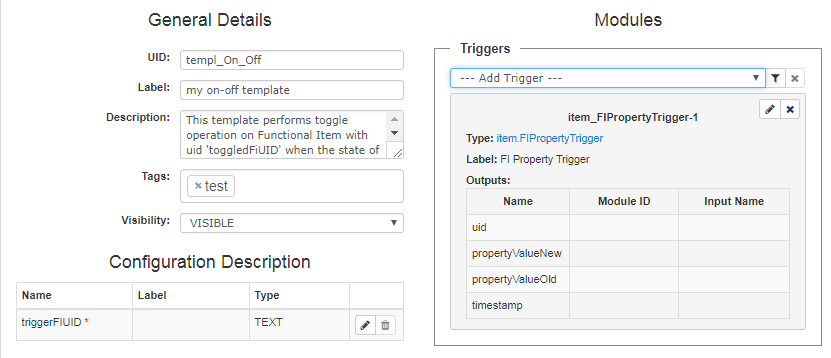
Every configuration property has an edit button which is used to update the name, label or description fields.
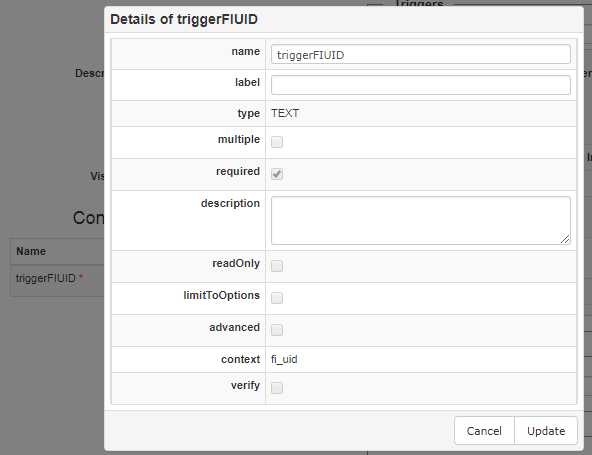
The property name tooltip shows its description and module IDs in which this configuration property is referred. The Remove button is active only for configuration properties that are not referred. The property is required only if it is referred in a module by a required property.
Creating a Rule Template by Template
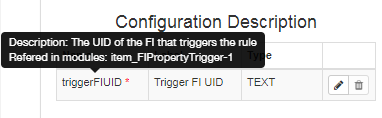
Clicking on the Create by template radio-button will open a combo-box with all rule template names appearing on the right side. The tooltip of each option shows the template UID and its description.
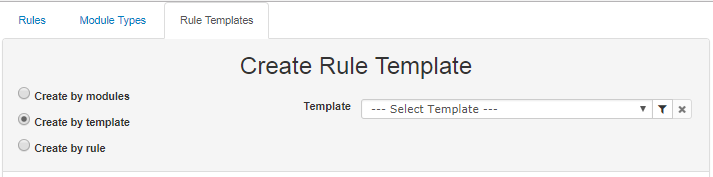
Selecting a template will autofill its tags, modules and configuration description.
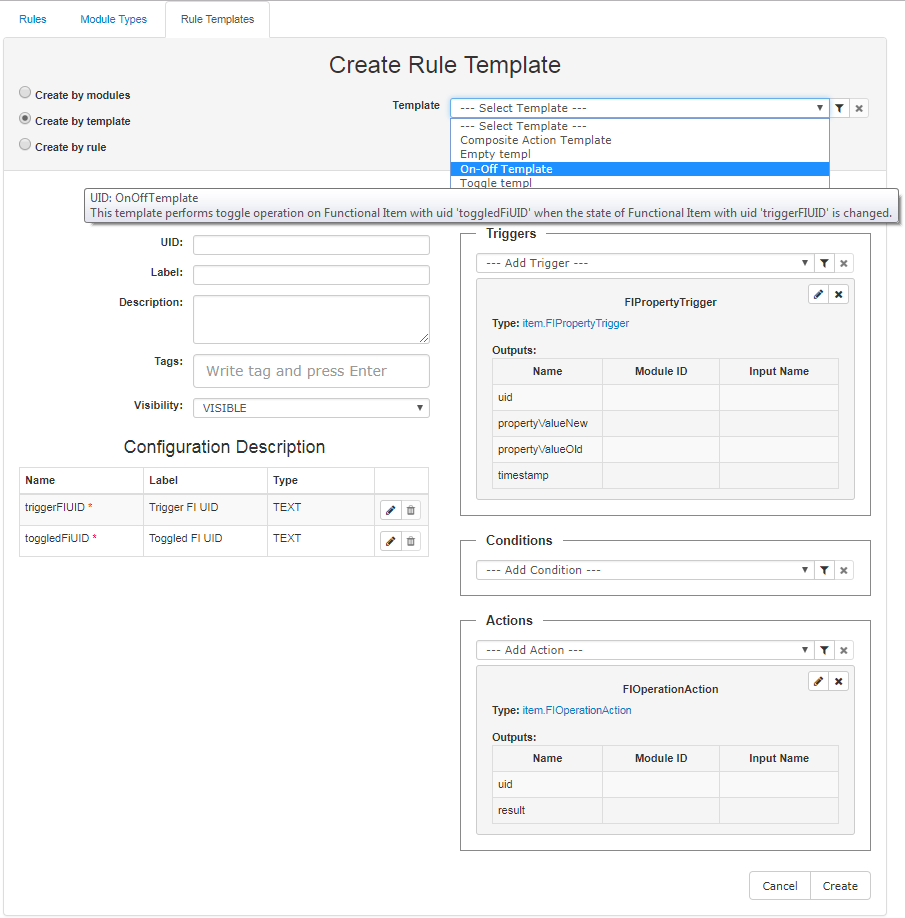
The Configuration Description can be edited, while the Modules could be modified, added and removed.
Create Rule Template by Rule
Clicking on the Create by rule radio-button will open a combo-box containing all rule names, appearing on the right side. The tooltip of each rule contains its UID and description. Choosing the rule will autofill its tags and modules into the new template.
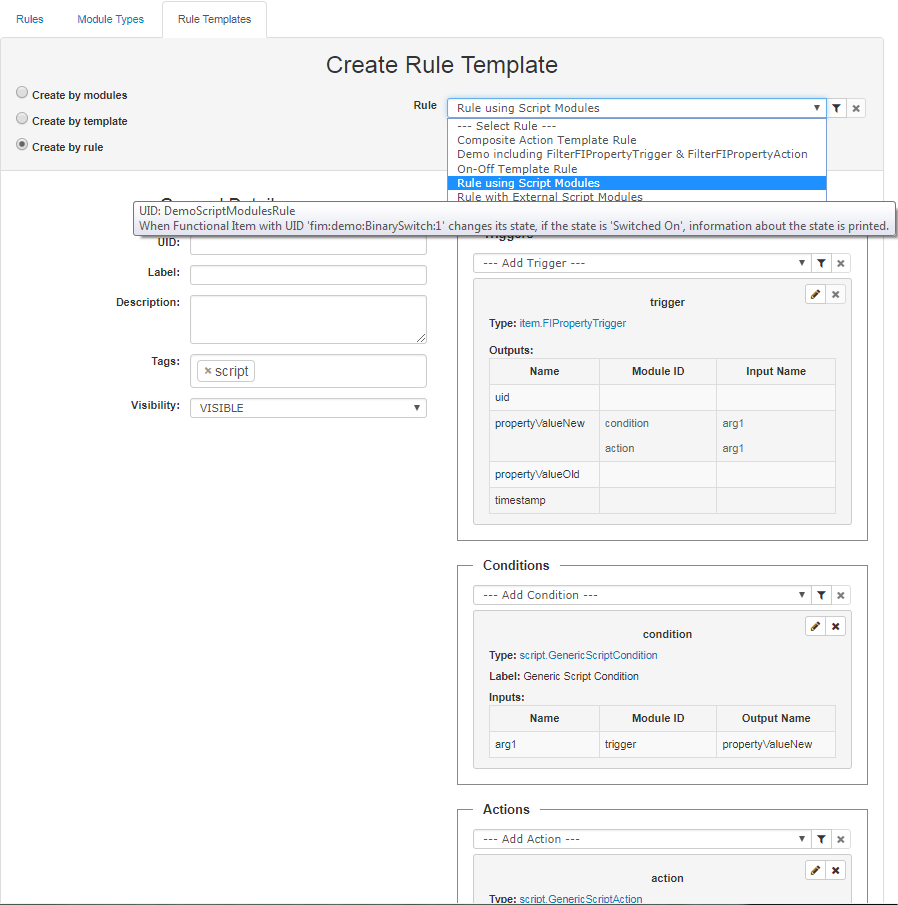
Modules can be modified and Configuration Descriptions can be created, as described in the Create Rule Template by Modules section.
Editing a Rule Template
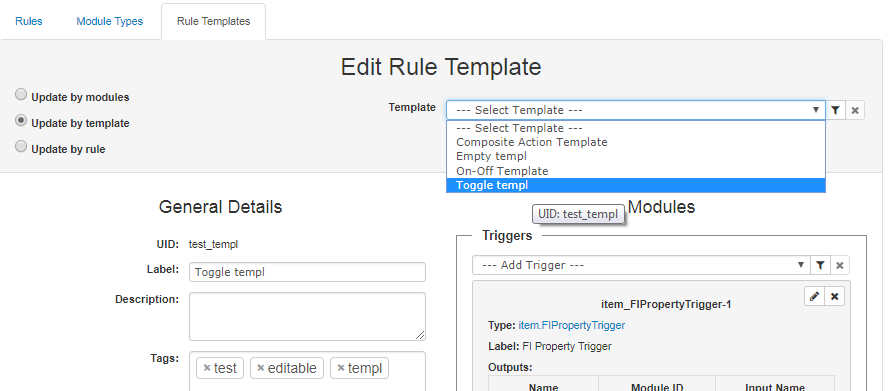
Keep in the mind that editable are only templates created through the Automation ESH Template Admin, Template Registry Service and Manage Provider Service (for example those loaded with console commands or created via the Web Admin Console). Editable templates, respectively have a tag editable. To edit a template just click on the Edit button .Rule Templates can be updated by modules, template or rule by choosing the corresponding radio-button. Updating the rule template is similar to creating one, except that the template UID cannot be changed. When a Rule Template is updated by template, the current template also exists in the list. Clicking on the Update button will save the operation.
Removing a Rule Template
To remove a Rule Template simply click the Remove button , situated in the Actions column of the Rule Templates list.
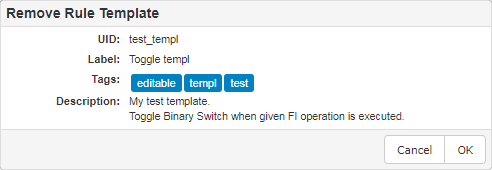
If the Template is removed successfully, it will disappear from the main table.