From the Home Automation page go to the Conditions tab and click the icon in the top right corner.
In the Add Condition dialog, provide the following data:
Enter a name for the condition (optional).
Type the name of the application that this condition is part of (optional).
Select the condition type.
Populate the properties of the condition. The properties depend on the condition's type:
Device Class Object Property Condition
This condition is activated when there is a change in a Device Class Object property. The source for this condition can be only one device.
Selecting the Device
Protocol Adapter - Select the protocol adapter that is used by the home device. For example: ZigBee, Z-Wave, Simulator, etc. All devices available for this protocol adapter are listed in the Parent Device drop-down menu.
Parent Device - Select the device that will be monitored for changes in one of its properties. If it has any children they will appear in the Child Device drop-down menu.
Child Device - Optional. Select the child device from the drop-down menu. If you want to listen for the parent device leave the field empty.
Device Class - Select the device class which property you want to monitor. You will see all its properties in the Property drop-down menu.
Specifying the Property
Property - Select the device class object property you want to monitor from the drop-down menu. The available items in the drop-down menu depend on the selected Device Class Object and can be seen here.
Constraint - Optional. You can specify some constraint property value that will be used for comparing the changed device class object property to the one defined in the Value field.
If you leave the constraint field empty, the condition will be triggered every time that the property is changed.
You can select from one of the following comparison operations: =, !=, <, >, >= and <=. The condition will be triggered when the property is changed to a value that is equal, not equal, greater, less, greater than or less than a target value.
Value Type - The data type of the value of the property you selected.
Value - The property value that you want to use for the comparison operation.
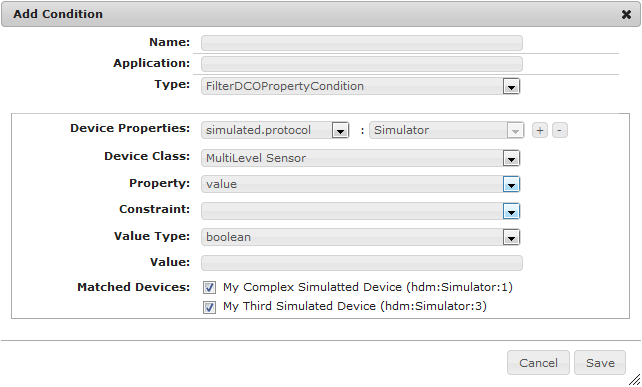
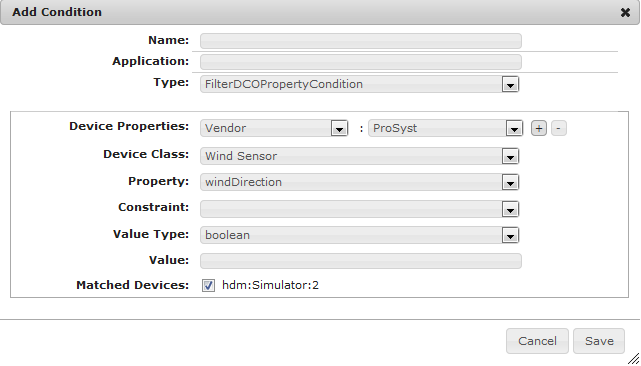
Filter Device Class Object Property Condition
This condition is activated when a Device Class Object property is changed. The source for this condition can be several devices that share common properties.
Selecting the Devices
Device Properties - Select the devices that will be used as a source for this condition by creating a filter in the following way:
Click on the first drop down menu to select the property key.
Select the property's value from the second drop-down menu. The property will be added to the filter.
Press + and repeat the procedure to add another property to the filter, if needed.
Device Class - Select a Device Class Object from the ones listed in the drop-down menu depending on the devices you selected from the Matched Devices section.
Matched Devices - Select which devices you will include in the condition from the list of the devices matching the filter. You can exclude a device from the list, without changing the filter by unchecking its checkbox.
The devices are filtered when the condition is created. If a new device that matches the criteria is added later to the system, it will not be included until the condition is refreshed.
Specifying the Property
Property - Select the device class object property you want to monitor from the drop-down menu. The available items in the drop-down menu depend on the selected Device Class Object and can be seen here.
Constraint - Optional. You can specify some constraint property value that will be used for comparing the changed device class object property to the one defined in the Value field.
If you leave the constraint field empty, the condition will be triggered every time that the property is changed.
You can select from one of the following comparison operations: =, !=, <, >, >= and <=. The condition will be triggered when the property is changed to a value that is equal, not equal, equal or greater than, equal or less than, greater or less than a target value.
Value Type - The data type of the value of the property you specified.
Value - The property value that you want to use for the comparison operation.
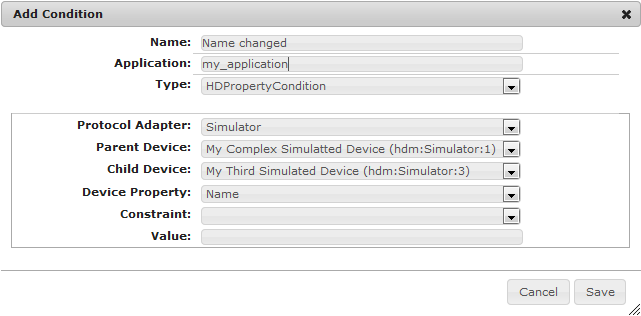
Home Device Property Condition
This condition is activated when a Home Device property is changed. The source for the condition can be only one specific device.
Selecting the Device
Protocol Adapter - Select the protocol adapter that is used by the device. For Example: ZigBee, Z-Wave etc. You will see all devices in the protocol's network in the Parent Device drop-down menu.
Parent Device - Select the device that will be monitored for changes in one of its properties. If it has any children they will appear in the Child Device drop-down menu.
Child Device - Select the child device from the drop-down menu. If you want to listen for the parent device leave the field empty.
Specifying the Property
Device Property - Select the device property you want to monitor for changes from the drop-down menu. See here the predefined Home Device properties.
Constraint - Optional. You can specify some constraint property value that will be used for comparing the changed device class object property to the one defined in the Value field.
If you leave the constraint field empty, the condition will be triggered every time that the property is changed.
You can select from one of the following comparison operations: =, !=, <, >, >= and <=. The condition will be triggered when the property is changed to a value that is equal, not equal, equal or greater than, equal or less than, greater or less than a target value.
Value - The property value.
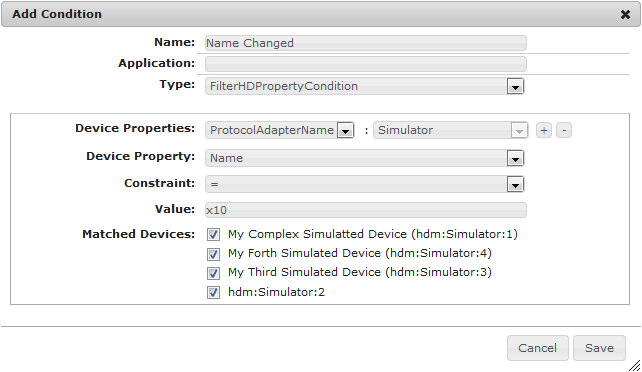
Filter Home Device Property Condition
This condition is triggered when a Home Device property is changed. The source for this condition can be several devices that share common properties.
Selecting the Devices
Device Properties - Select the devices that will be used as a source for this condition by creating a filter in the following way:
Click on the first drop down menu to select the property key.
Select the property value from the second drop-down menu. The property will be added to the filter.
Press + and repeat the procedure to add another property to the filter, if necessary.
Matched Devices - Select only the devices that you want to include in the condition from the list of devices matching the filter. You can exclude a device from the list, without changing the filter by unchecking its checkbox.
The devices are filtered when the condition is created. If a new device that matches the criteria is added to the system later, it will not be listed in this section until the condition is refreshed.
Specifying the Property
Device Property - Select the property that you want to monitor for changes from the drop-down menu. See here the predefined Home Device properties that will appear in this drop-down list.
Constraint - Optional. You can specify some constraint property value that will be used for comparing the changed home device property to the one defined in the Value field.
If you leave the constraint field empty, the condition will be triggered every time that the property is changed.
You can select from one of the following comparison operations: =, !=, <, >, >= and <=. The condition will be triggered when the property is changed to a value that is equal, not equal, equal or greater than, equal or less than, greater or less than a target value.
Value - Specify the property value.
For more information about these conditions and instructions on how to create them programmatically, see the Developer Guide.


 icon in the top right corner.