


|
|
|
|
|
When Bosch IoT Gateway Software is integrated with Azure IoT, adding new devices with their functionalities will also make them available as IoT devices in Azure IoT Hub.
Created devices and their functionalities will be represented as IoT devices in Azure IoT Hub, only if they DO NOT match the Functional Item Exclusion Filter in the Device Visibility Configuration.
When any devices with functionalities get removed, they will not available as IoT devices in Azure IoT Hub.
The below example will walk you through the steps of adding new devices via the Web Admin Console to make them visible in your Azure IoT Hub resources.
To follow the example, install the pre-configured Device Access Protocol Adapter Demo with a set of available protocols. To learn how to get the demo, visit Working with Demos.
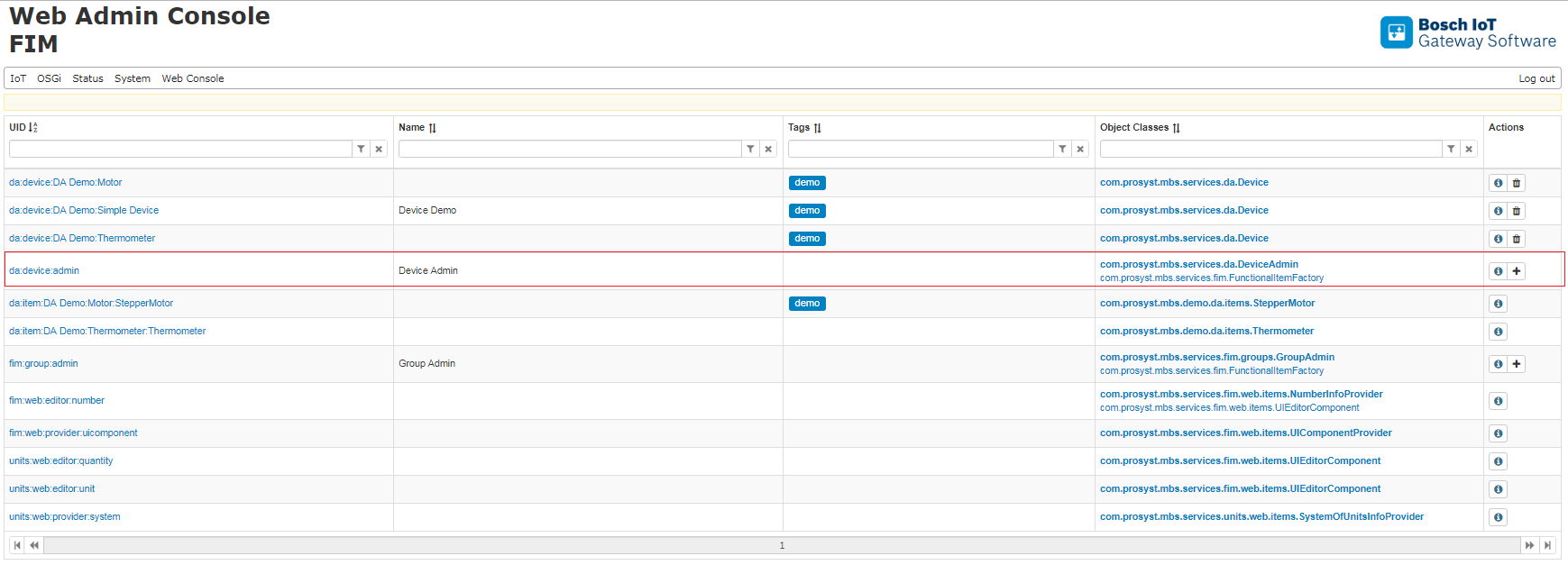
1. Open the Bosch IoT Gateway Software Web Console. From the top menu navigate to IoT > FIM.
2. Select Device Admin to create a new device.
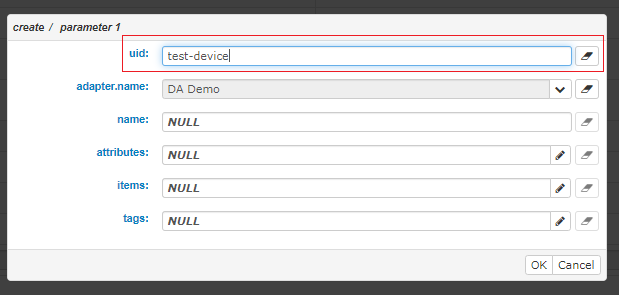
3. Set device uid to test-device.
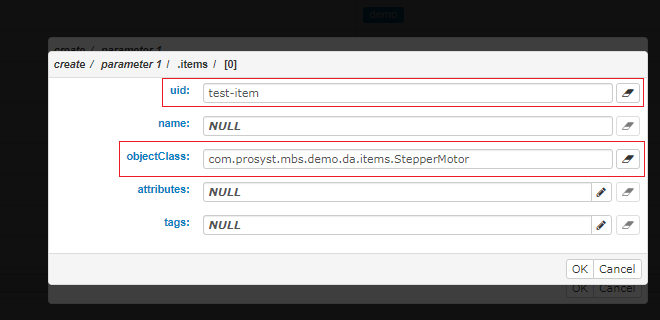
4. Set device item with uid: test-item and objectClass: com.prosyst.mbs.demo.da.items.StepperMotor.
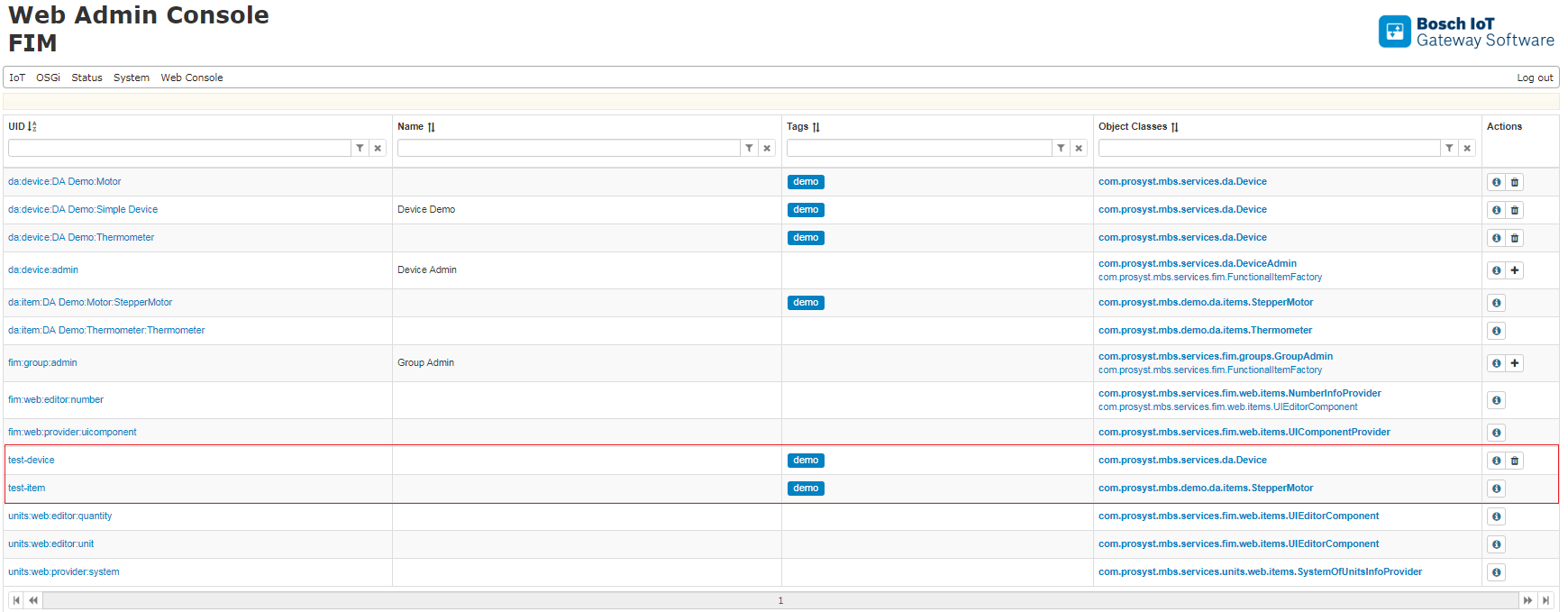
5. As a result the device and its item are created.
6. Go to the Azure Portal. In your IoT Hub > IoT devices and verify that the created device and its device item are available as an IoT device.