From the Commands tab create the commands that will participate in the group. This step is optional.
In the Groups tab, click the icon in the top right corner to start creating the group.
In the Add Group dialog, enter the following data:
Optional. Enter a name for the group in the Name field.
Add commands to the group by executing the following steps for each one:
Select the automation command type from the Command Type drop-down list.
If you will use a ready command, select it from the available in the Command ID drop-down list.
Click the button to add the command to the group - the command will appear as the last one to be executed.
If the command is a predefined one (available in the Command ID drop-down list), edit its parameters if required. If the command is to be defined, specify its properties.
All changes to the properties of a predefined command that are made from a group will be reflected in the original command itself. You can add a specific command only once to the created group.
For more information about groups and instructions on how to create them programmatically, see the Developer Guide.


 icon in the top right corner to start creating the group.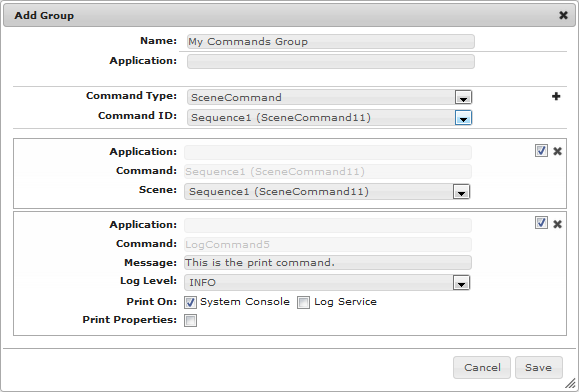
 button to add the command to the group - the command will appear as the last one to be executed.