


|
|
|
|
|
The Scene Command is a command that executes a sequence of other commands consecutively.
Creating a Scene
To create an automation scene:
 icon in the top right corner to start creating the scene.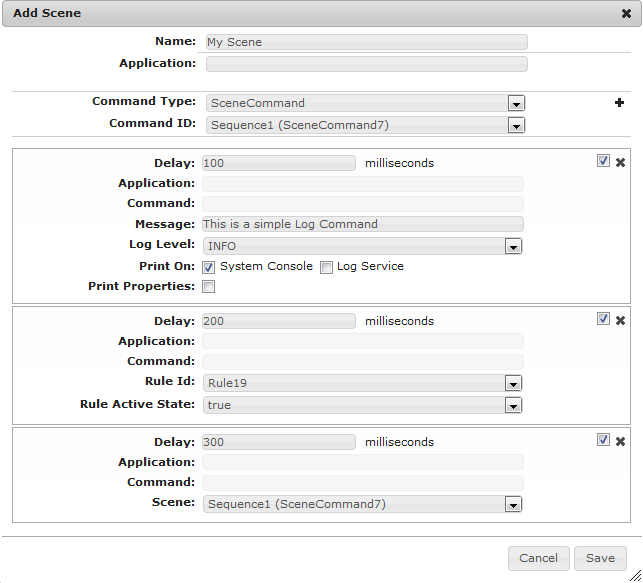
 button to add the command to the scene - the command will appear as the last one to be executed.
 button from the command pane to remove the command from the scene. to indicate whether this command should be enabled/disabled during the scene's execution. For example, you can uncheck the box temporarily if you know that the command will take quite a long time for its execution and thus slow down the whole scene execution. In order to execute the scene quickly, you can start it with this specific command disabled. You can enable it at any time later by simply checking the box.
If you edit the properties of a predefined command from a scene your changes will be reflected in the original command itself.
To edit a scene, click the  button next to it in the Scenes tab of the Home Automation page.
Handling Scene Lifecycle
The scene has the following states:
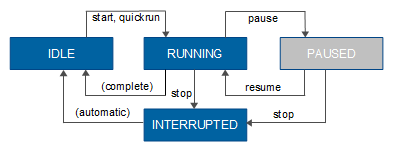
You can start, quick run, pause and stop each scene in the Scenes tab.
 button. The button toggle to a pause one.
 button.
 button.
For more information about scenes and instructions on how to create them programmatically, see the Developer Guide.