To pair a command or a scene with a condition so as to achieve actual automation, you have to create a rule in the Rules tab of the Home Automation page. With a rule you can start a command, or start, stop, pause, resume or quickrun a scene.
Creating a Rule for a Non-Scene Command
Click the button in the top right corner to start creating the rule.
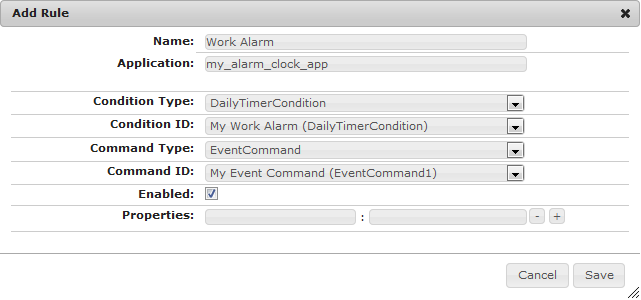
In the Add Rule dialog, specify the name of the rule, condition type and ID, command type and ID. Enable the rule if it is to be activated right away. Additionally, you can set some properties as well.
Click the Save button to complete the rule definition.
Creating a Rule for a Scene Command
Click the button in the top right corner to start creating the rule.
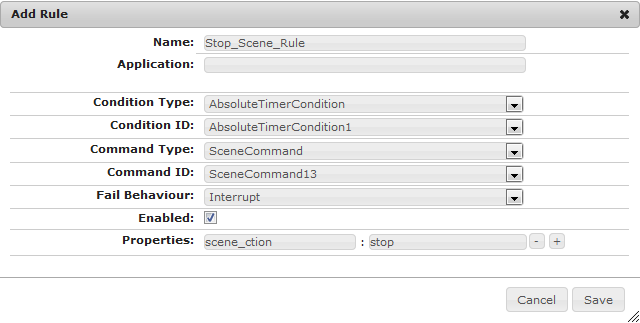
In the Add Rule dialog, specify the name of the rule, condition type and ID, command type (select "SceneCommand") and ID.
In Fail Behaviour specify what to do the scene if the execution of a command fails.
Enable the rule if it is to be activated right away.
Provide a value for the property "scene_action" to specify the action to be performed with the scene. Available values are "start", "stop", "pause", "resume", "quickrun". If you don't provide this property the default value "start" will be applied.
Optionally, you can provide additional properties as well.
Click the Save button to complete the rule definition.


 button in the top right corner to start creating the rule.